How to Connect Opmiz to Claude: Opmiz MCP Setup Guide
Connect Opmiz to Claude as a custom connector in five minutes, choose what Claude may do, and manage your website and store by chat.
S
Srijan
Founder, Opmiz
If you already ask Claude to write product descriptions or plan your Diwali sale, you can go one step further: let Claude make those changes on your Opmiz website and store directly.
Opmiz has an MCP server. MCP (Model Context Protocol) is an open standard that lets an AI app like Claude use tools in another service. Once you connect Opmiz to Claude, you can ask in plain words to add a page, write and publish a blog post, update a product or change your site's design, and Claude does it in your Opmiz account.
Setting it up takes about five minutes. There is nothing to install and no API key to copy.
In this guide
What You Need
- A Claude account. Custom connectors work on every Claude plan. On the Free plan you can add one custom connector; paid plans can add more.
- An Opmiz account. If you don't have one yet, start your free trial: 14 days free, no credit card required.
- The Opmiz connector address:
https://mcp.opmiz.com/mcp. You'll also find it with a Copy button in Opmiz under Settings, then AI apps.
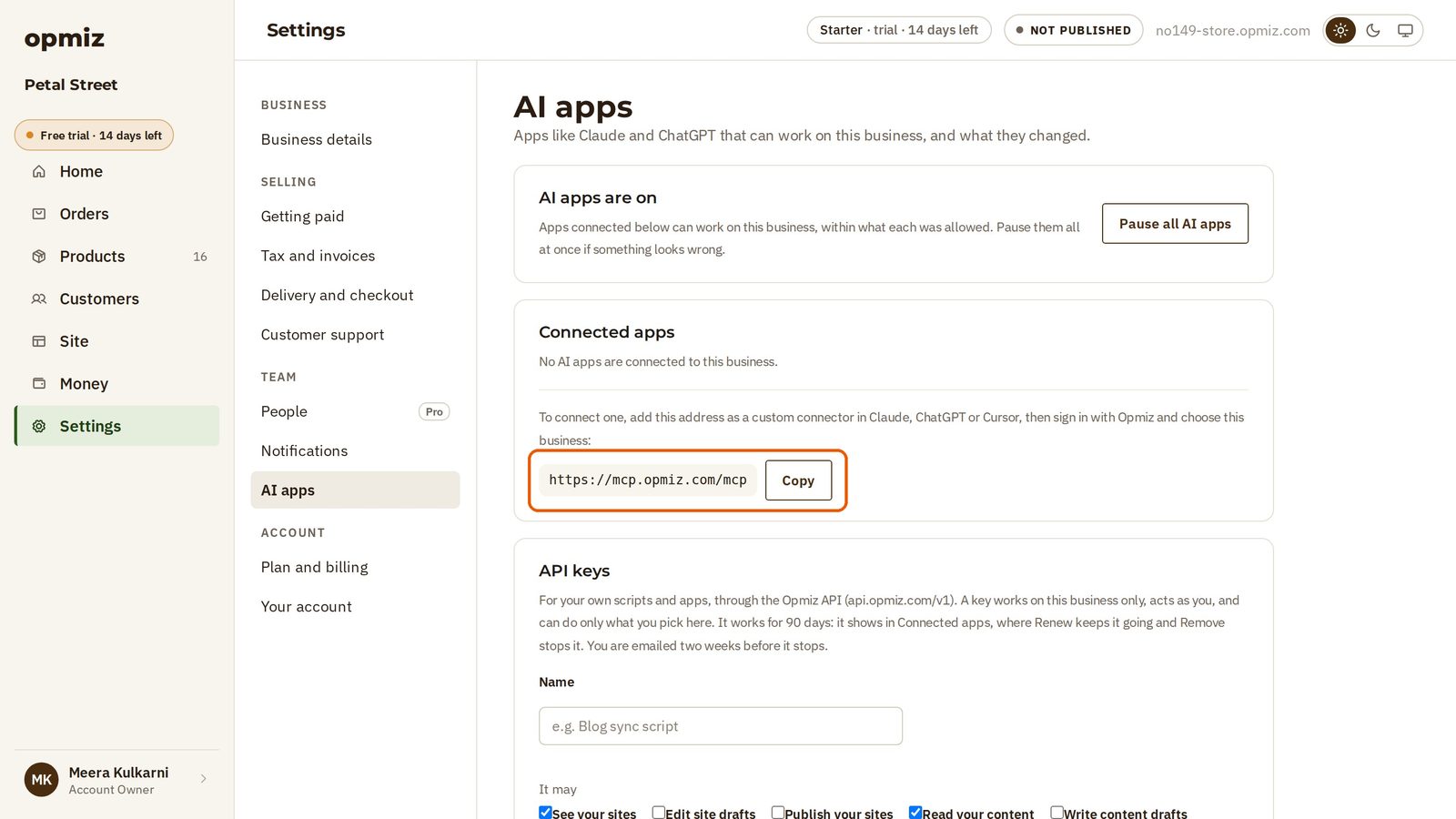
Add Opmiz as a Custom Connector
Do this once, on claude.ai or in the Claude desktop app.
- Open Customize, then Connectors. On some versions of Claude this is under Settings, then Connectors.
- Press + Add, then Add custom connector.
- For the name, type Opmiz. For the server URL, paste
https://mcp.opmiz.com/mcp. - Claude detects that Opmiz uses a browser sign-in. Leave the OAuth client ID and secret empty: Opmiz doesn't need them.
- Press Add.
Sign In and Choose What Claude May Do
Press Connect next to Opmiz in your list of connectors.
A new browser tab opens on Opmiz. Your password goes to Opmiz only; the AI app never sees it.
- Sign in to Opmiz, if you aren't already.
- Under Which businesses?, choose the businesses it may work on. If you have only one, it's ticked for you.
- Under What it may do, every permission starts ticked. Untick anything you don't want, such as publishing or orders.
- Press Allow. The tab sends you back to your AI app.
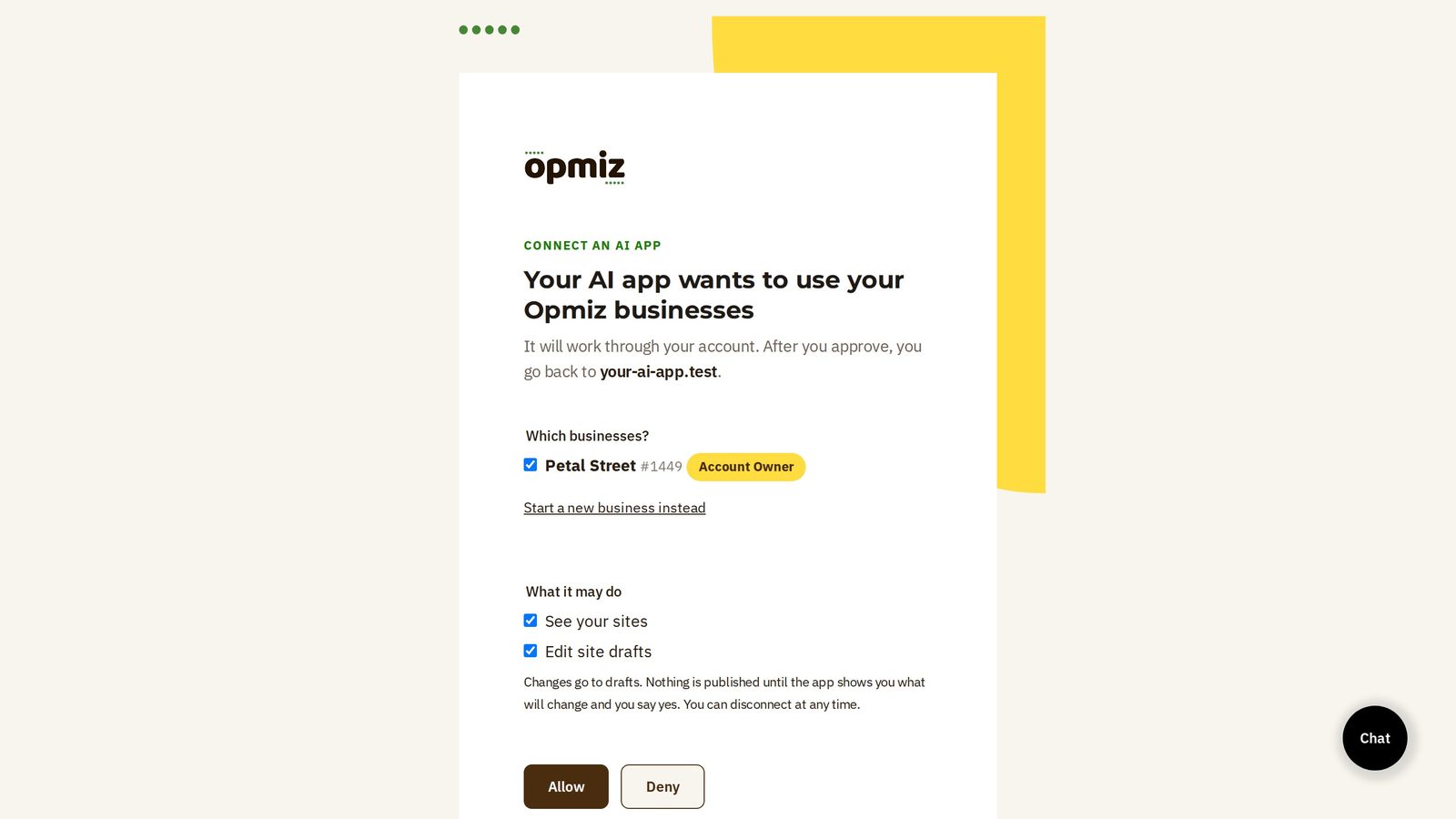
The app can never do more than you can do yourself in the Opmiz dashboard, and tools for anything you unticked simply don't appear.
Turn It On in a Chat
In a new chat, press the + button at the bottom left of the message box, choose Connectors, and switch on Opmiz. You can switch it off for chats where you don't need it.
Start with something that only reads, to check the connection:
Claude replies with your business name and pages. You're connected.
Once Opmiz is connected on the web, it also works in the Claude apps on your phone and computer, signed in with the same Claude account.
Approve Claude's Actions
The first time Claude wants to use an Opmiz tool, it asks you. Press Allow to let it go ahead this once, or Allow always to stop being asked for that tool.
A sensible habit: allow the tools that only read (seeing your site, pages and products) always, and keep approving the ones that change things, at least until you're comfortable. Publishing is a separate step anyway: Claude shows you what will go live and waits for your yes.
Don't have an Opmiz store yet?14 days free · no credit card required
Start free for 14 daysUsing Claude Team or Enterprise
On a Team or Enterprise plan, an Owner adds Opmiz once for the whole organisation, and each person connects their own Opmiz account.
- The Owner opens Organization settings, then Connectors, presses Add, chooses Custom, then Web, and enters the name Opmiz and the address
https://mcp.opmiz.com/mcp. - Each member opens Customize, then Connectors, finds Opmiz and presses Connect, then signs in to Opmiz as in step 2.
Each person's Opmiz role still applies, so a teammate who can only edit content in the dashboard can only edit content through Claude too.
Using Claude Code
If you or your developer use Claude Code, the Opmiz plugin adds the connection along with instructions that help Claude build and edit sites well:
claude plugin marketplace add opmiz-wbos/opmiz-plugin
claude plugin install opmiz@opmiz
Or add only the connection:
claude mcp add --transport http opmiz https://mcp.opmiz.com/mcp
Then run /mcp inside Claude Code and sign in to Opmiz in the browser. Claude Code can also send files, like a spreadsheet of products or a folder of photos, straight to Opmiz.
What to Ask Claude
Talk to Claude the way you'd brief a helpful assistant. A few examples:
Claude reads your site before it changes anything, makes the change in your draft, and can take screenshots to check its own work on desktop and mobile.
▶Tutorial: Run your business from Claude or ChatGPTHow Your Site Stays Safe
Connecting an AI app doesn't hand over your live website.
- Design changes go to your draft. Your customers see nothing until the site is published, and publishing waits for your yes.
- Every change is recorded. Open Settings, then AI apps in Opmiz to see which app changed what, and undo it.
- You can cut it off at any time. Remove the app from AI apps and its access ends at once.
- Some things change the live shop straight away, like product prices, stock, page settings and business details, so the assistant shows you a preview and asks before saving those.
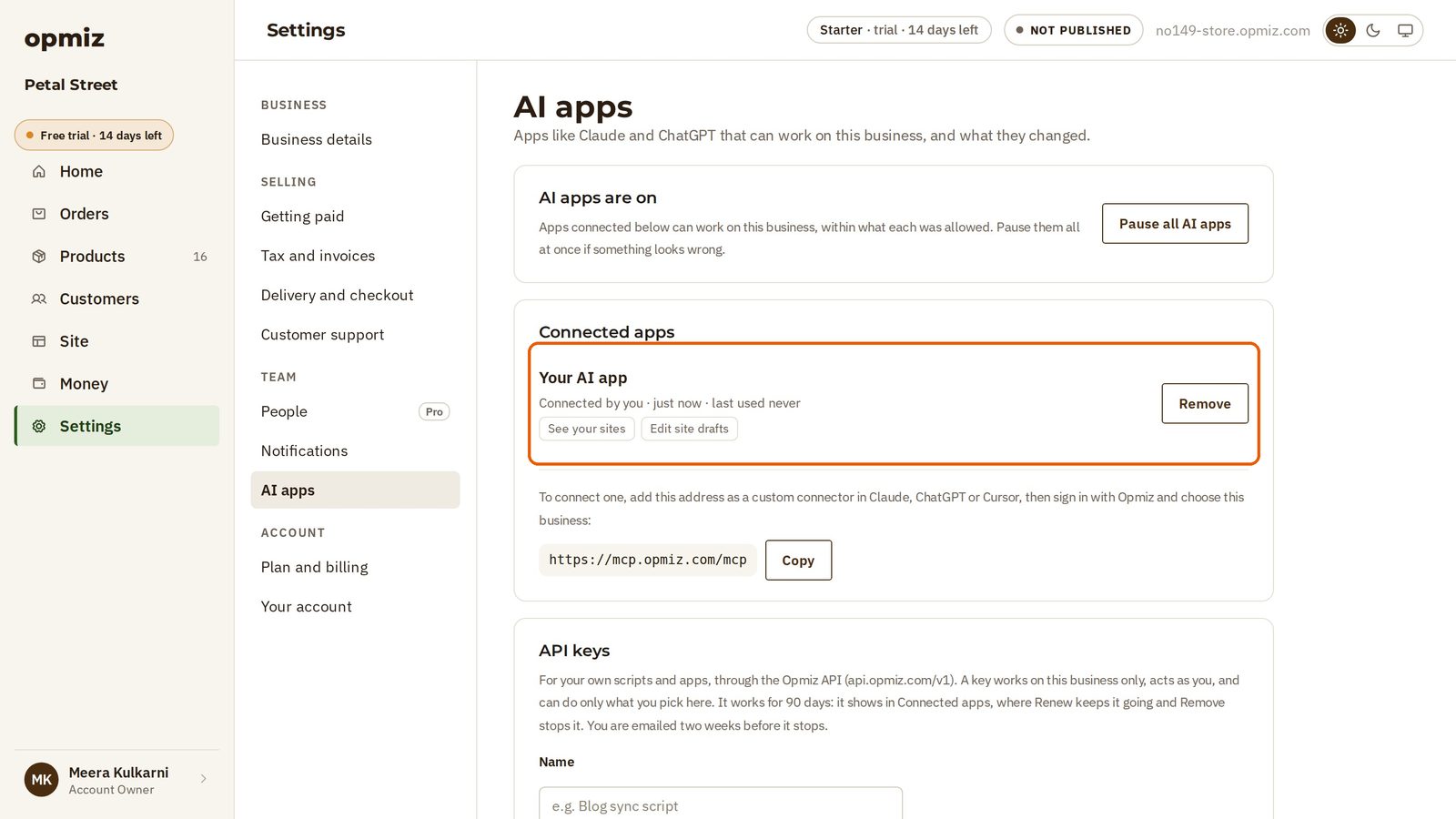
If Something Doesn't Work
- Claude says it has no Opmiz tools. Check that Opmiz is switched on under +, then Connectors in this chat.
- Some tools are missing, like products or orders. Either the permission was unticked when you connected, or you connected before 25 October 2026, when the product, order and content-field permissions were added. Remove Opmiz in Settings, then AI apps in Opmiz, then connect again from Claude.
- You can't add a second custom connector. The Claude Free plan allows one. Remove one you no longer use, or move to a paid Claude plan.
- Claude says your plan doesn't include something. Some features, like delivery fees or bulk uploads, need a particular Opmiz plan. Compare them on the pricing page.
- A change "conflicts" with another one. Someone, or another app, edited the site at the same time. Ask Claude to read the site again and retry.
The full technical setup guide is at docs.opmiz.com. Stuck? Write to support@opmiz.com.
Frequently Asked Questions
Do I need to know coding to connect Opmiz to Claude?
No. You paste one address into Claude and sign in to Opmiz. After that you just chat.
Is the Opmiz connector free?
Connecting is free on every Opmiz plan and trial. On the Claude side, the Free plan allows one custom connector; paid Claude plans allow more.
Can Claude publish changes without asking me?
Design changes wait in your draft, and publishing your site needs your yes. If you'd rather keep all publishing to yourself, untick the publish permission when you connect.
Does Claude see my Opmiz password?
No. You sign in on Opmiz's own page, and Claude only gets the permissions you approved. You can remove its access in Opmiz under Settings, then AI apps.
Can I use Opmiz from Claude on my phone?
Yes. Add the connector once on claude.ai or in the desktop app, and it's available in the Claude mobile apps too.
Can I connect more than one business?
Yes. On the Opmiz sign-in page, tick every business Claude may work on, and tell Claude which one you mean in your request.
Prefer ChatGPT? Read our guide on connecting Opmiz to ChatGPT.
Srijan is the founder of Opmiz. More about Opmiz
AI websites with native commerce. Pages, blog, store, payments and GST invoices in one place, built from a short description.
Start free for 14 days →© 2026 Opmiz · WriterBabu Online Services Private Limited. All rights reserved.
Prices in INR, before 18% GST · Made in Patna, India