YOU WILL LEARN
✓
Add the address in your app, then approve it on Opmiz
✓
Design changes wait in your draft until you publish
✓
See every change, undo it, or pause all apps at once
If you already use an AI app, like Claude or ChatGPT, you can connect it to your business. You choose what it may do. Its changes wait in your draft until you publish, and you can always see, undo or stop them.
This page shows the Opmiz side of connecting an app, not the app's own window. In the screenshots, Petal Street, a flower studio in Pune, connects an app.
Connect your app
- Open Settings, then AI apps. Under Connected apps, it says no apps are connected yet.
- Press Copy next to the address, and add it as a custom connector in your AI app.
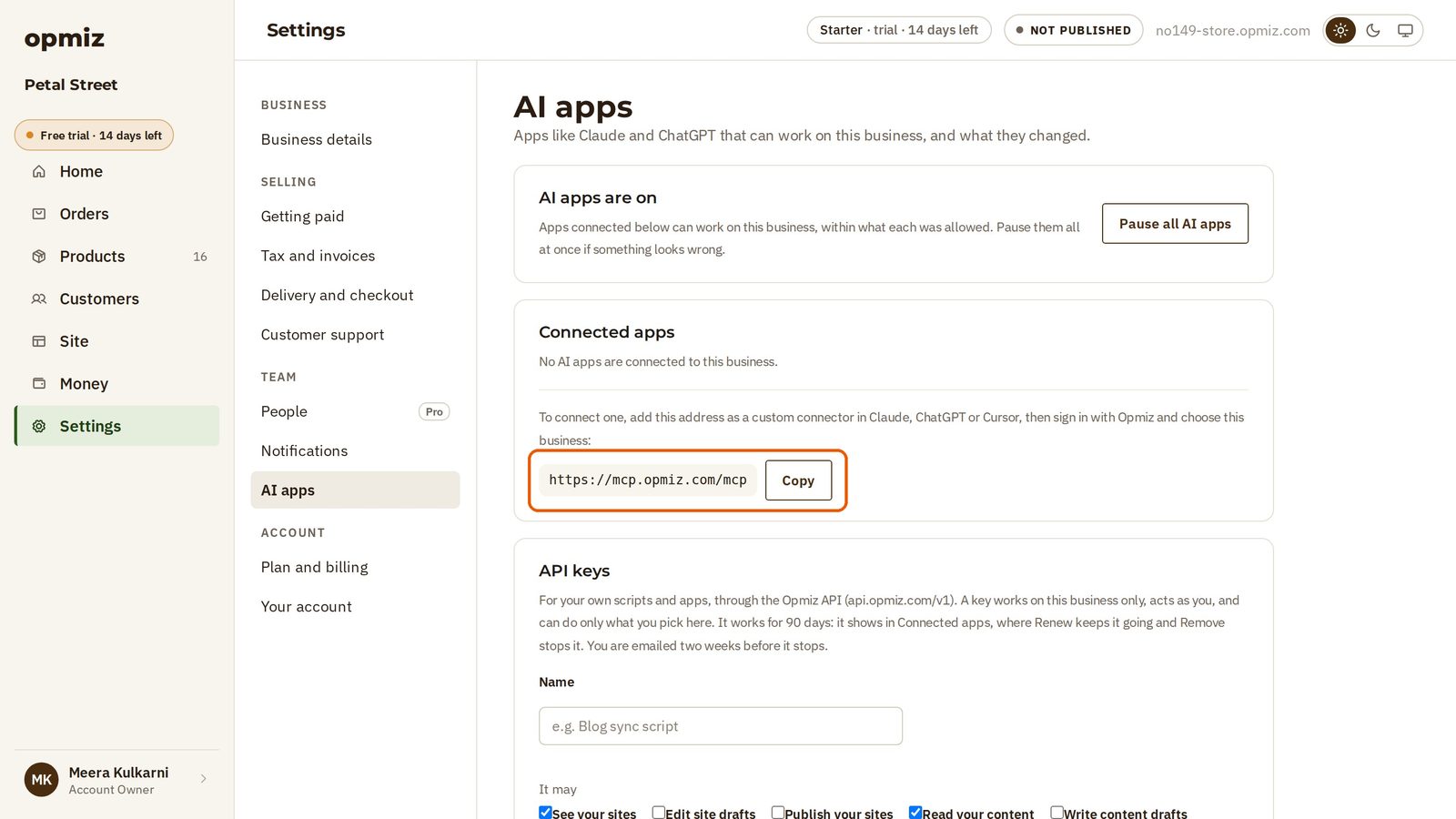
- Your app then sends you to an Opmiz page to approve it.
In the video, a small test program asks in place of a real app, so the app name you see is a placeholder. Yours will show your own app.
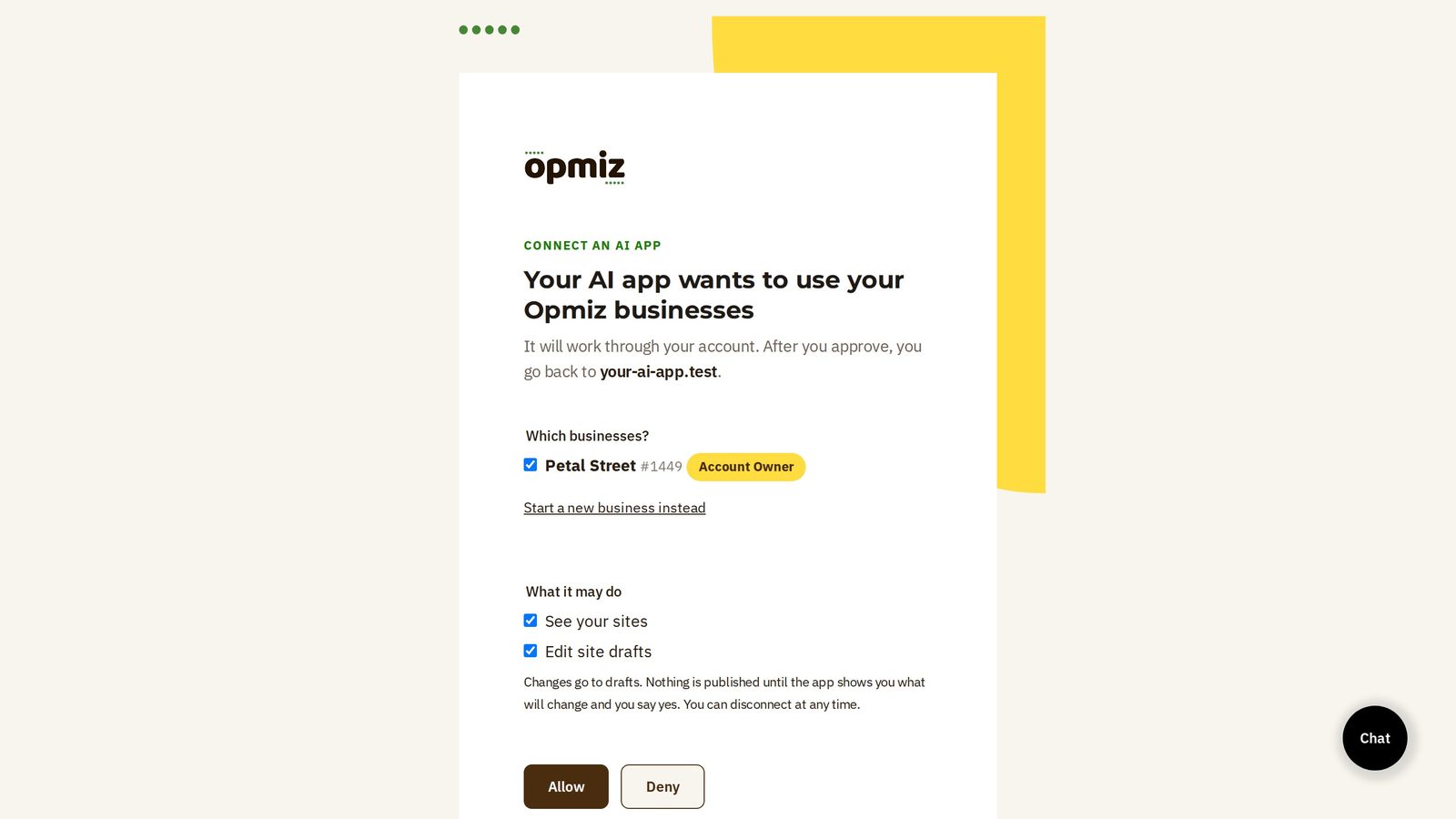
Choose what it may do
- Under Which businesses?, sign in with Opmiz and tick yours.
- Under What it may do, untick anything you don't want the app to do.
- The page also says that changes go to drafts, and nothing is published until you say yes.
- When you're happy, press Allow, and you go back to your app.
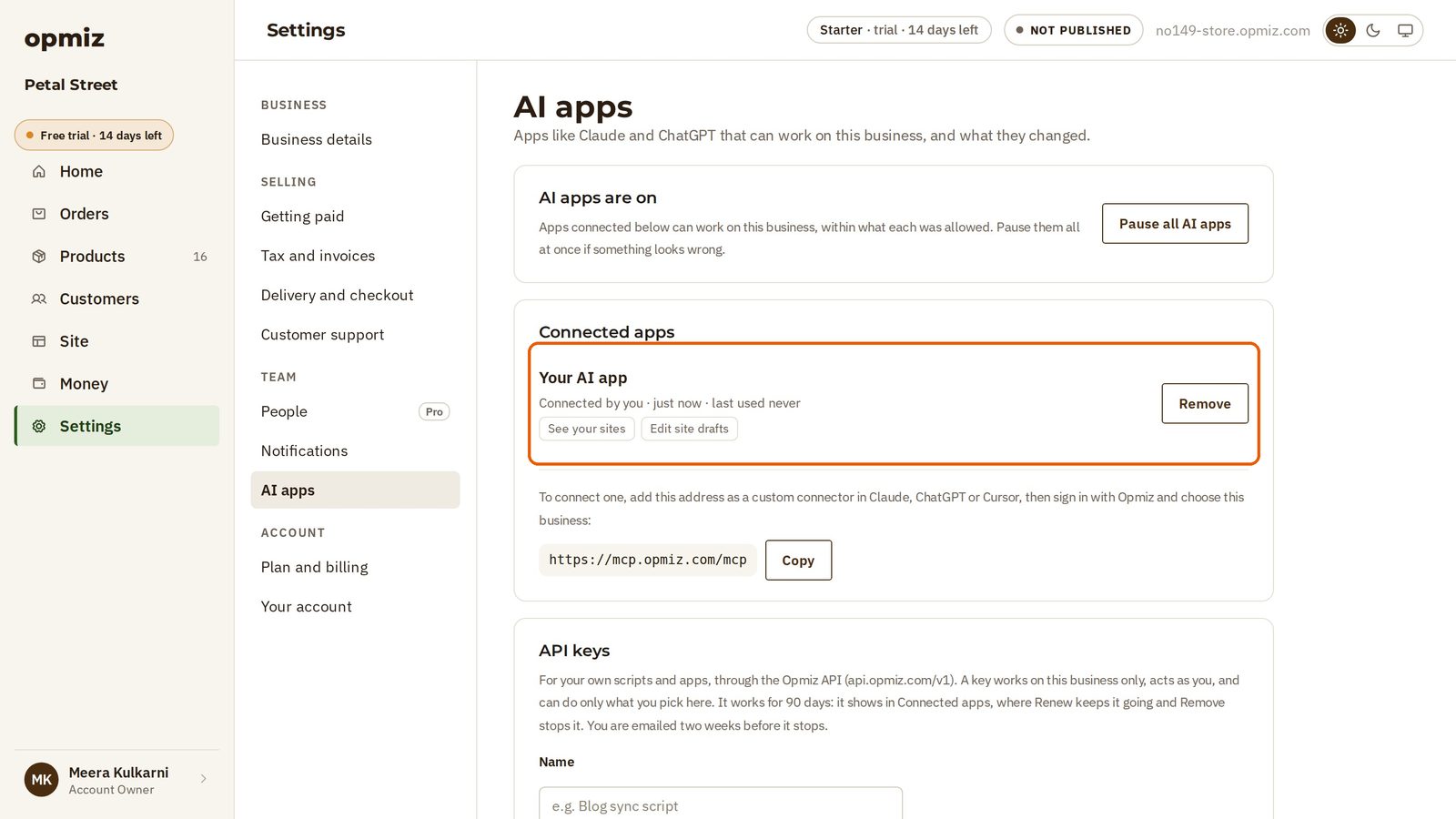
The app is now listed under Connected apps: who connected it, when it was last used, and what it may do.
A change arrives
Normally, you'd ask your app for a change in its own window. In the video, the test program sends one change straight to Opmiz, with no AI involved: a new headline for the contact page.
Open your builder and go to the contact page. The new headline is there. It is in your draft only. Your customers don't see it until you publish.
See it, and undo it
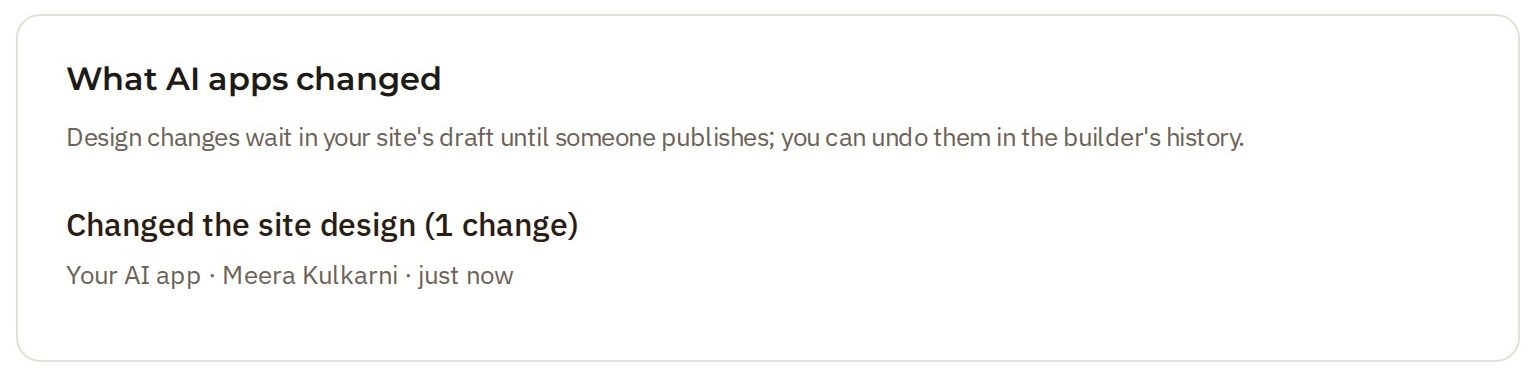
Back in AI apps, every change an app makes is written down under What AI apps changed: what changed, which app, and when.
Don't like a change?
- Open History in the builder. The change is listed under your app's name, with its own Undo, like any other change.
- Press Undo. Opmiz asks you to confirm.
- Press Restore, and it's undone. The headline is back as it was.
Stay in charge
On the AI apps page:
- Pause all AI apps pauses every AI app on your business at once. Use it if something looks wrong.
- Remove next to an app stops that one app, for good, on this business.
You choose what an app may do, and you can always see, undo or stop it.
Was this tutorial helpful?
‹ Previous
Add many products from a spreadsheetIN THIS TUTORIAL
AI websites with native commerce. Pages, blog, store, payments and GST invoices in one place, built from a short description.
Start free for 14 days →© 2026 Opmiz · WriterBabu Online Services Private Limited. All rights reserved.
Prices in INR, before 18% GST · Made in Patna, India