YOU WILL LEARN
✓
Upload the sample sheet, and check every change first
✓
Photos in one zip, named by variant code
✓
Upload again to change prices and stock
Eight new products, or four hundred: adding them one by one takes all day. With a bulk upload you fill in one spreadsheet, upload it, and see every change before anything is saved. Then you add all their photos in one zip file. The same sheet also changes prices and stock for what you already sell.
Bulk uploads need the Pro plan. In the screenshots, Petal Street, a flower studio in Pune, is on the Pro plan and adds eight seasonal bouquets.
Start from the sample sheet
- Open Products, then Bulk upload.
- Press Download the sample sheet (CSV). Its columns tell you what to fill in, like the product's name and code, its category, the price, the tax rate and the stock.
- Fill in one row for each product, and save the file as a CSV.
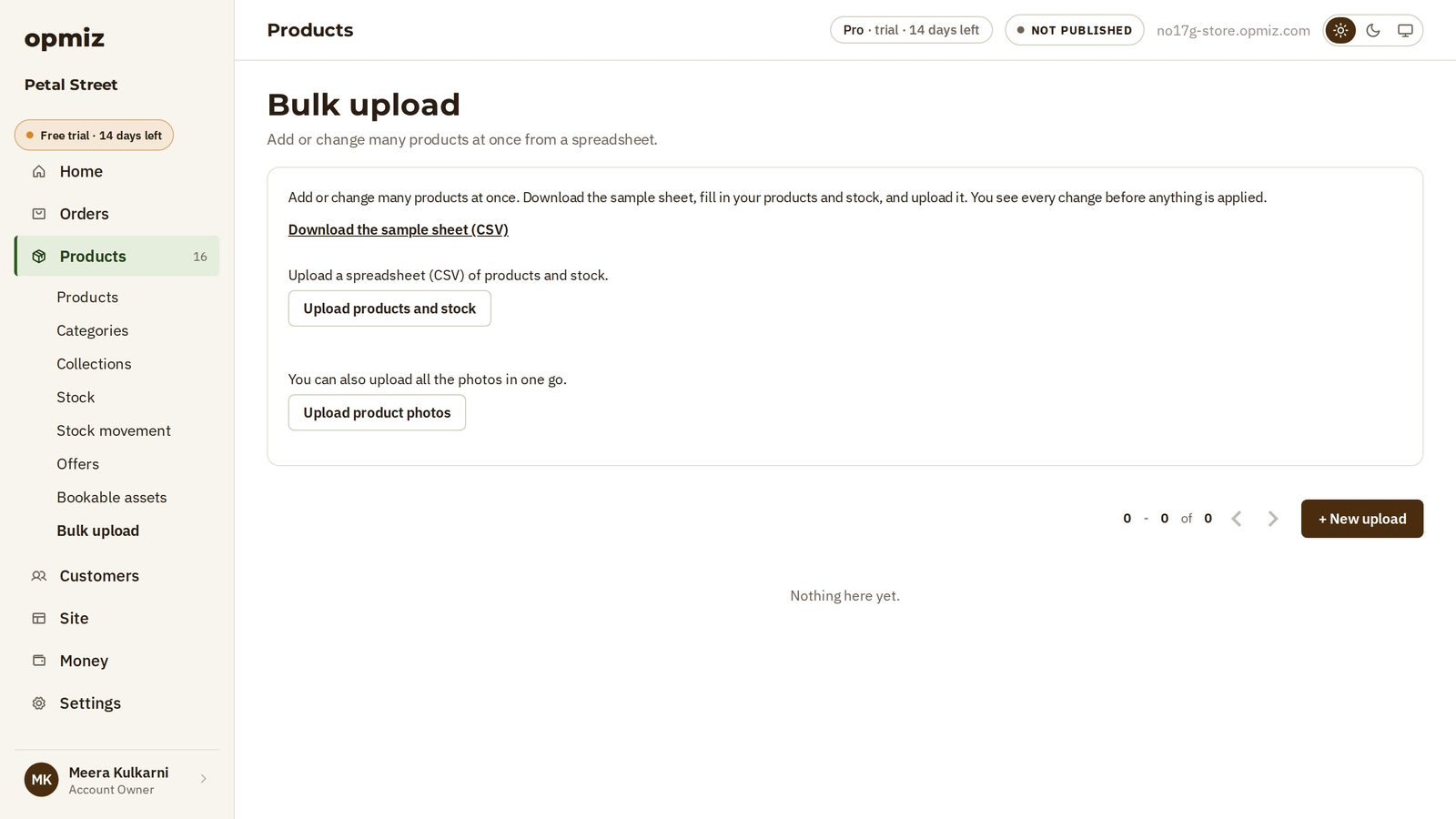
Add an MRP column yourself. Every row needs an MRP, the label price. The sample sheet has no column for it, so add one, and fill it in for every row.
Upload, then check
- Press Upload products and stock, then Choose File and pick your CSV.
- Opmiz checks the file first. If something is missing, it lists the problem for each row. In the video, every row was missing its MRP.
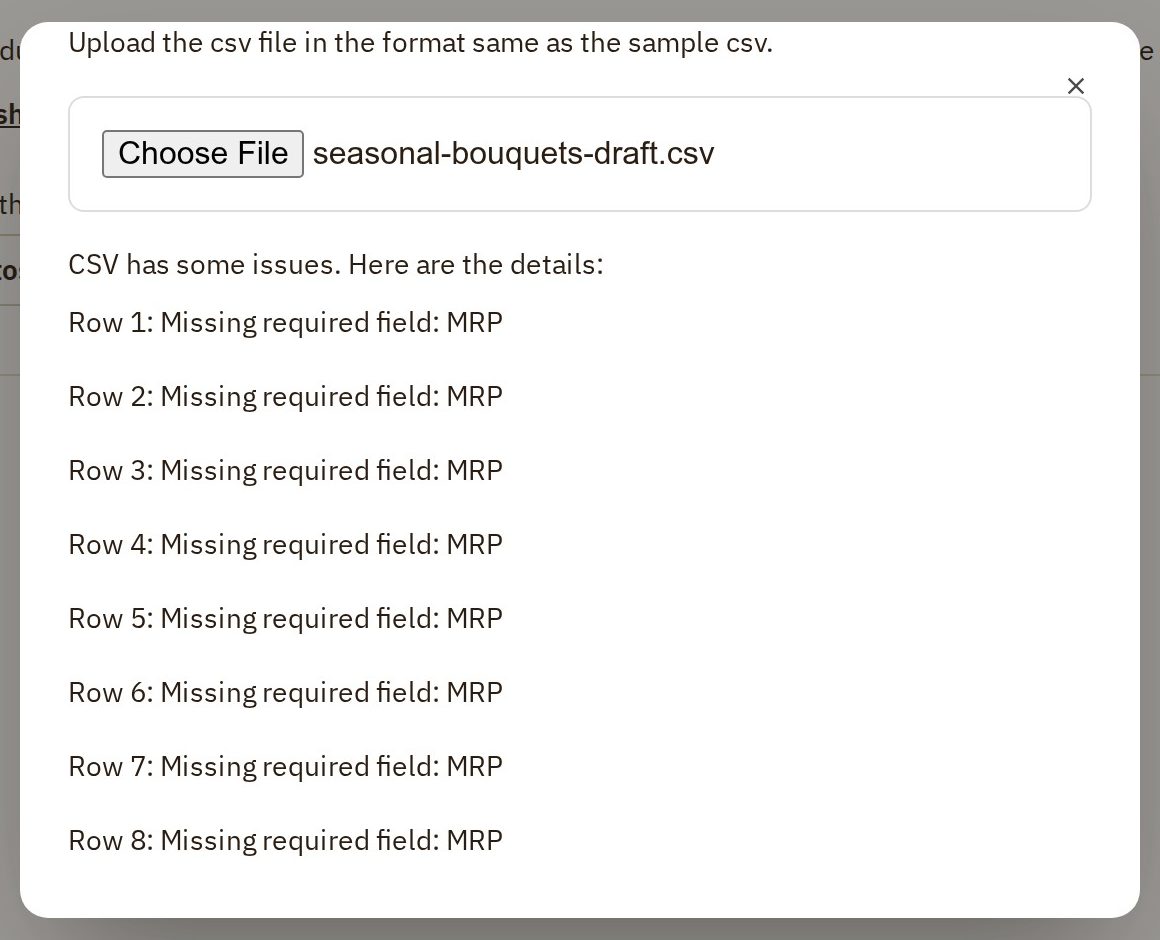
- Fix the file and choose it again. When the file is fine, press Review changes.
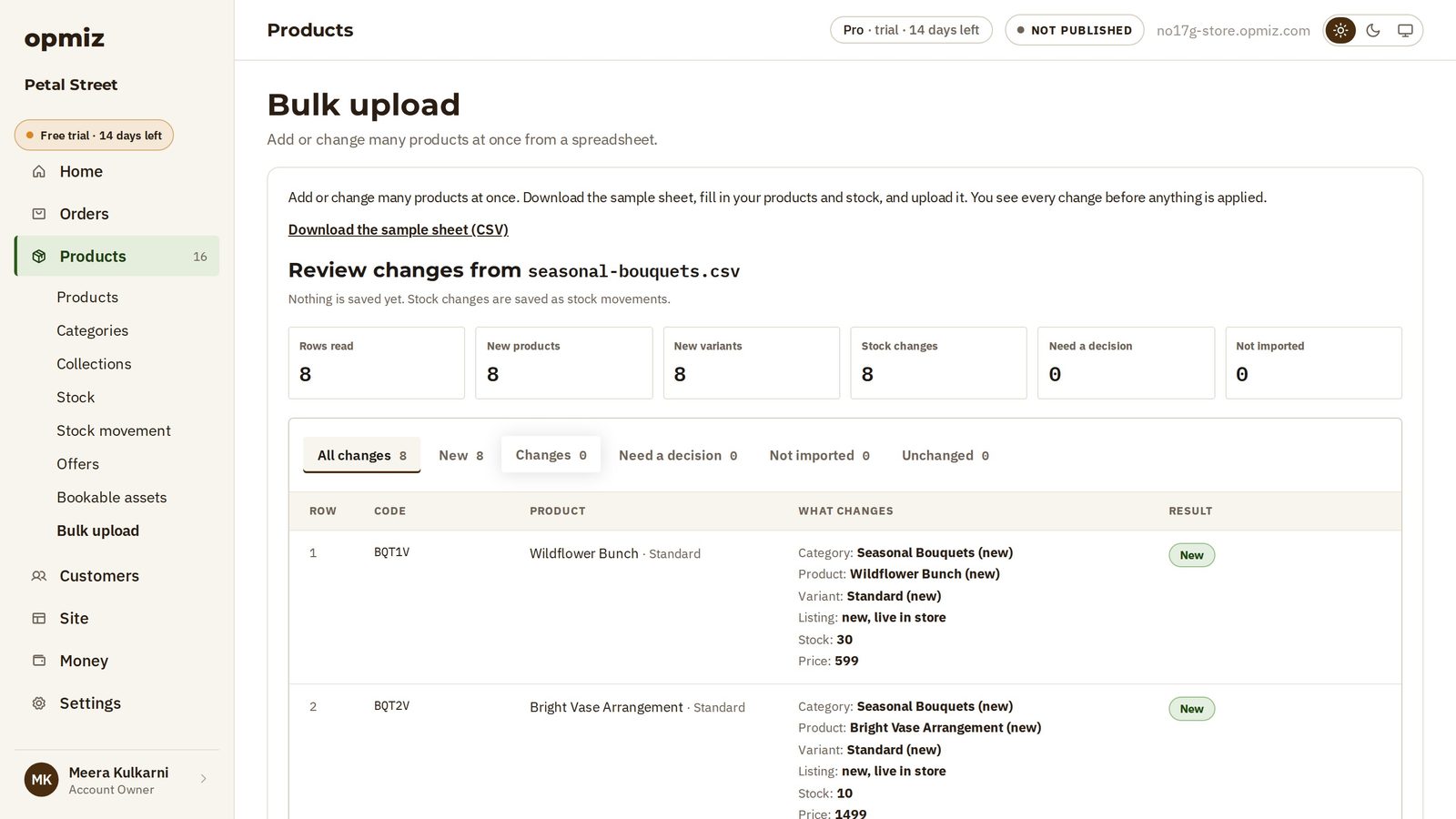
This is the part that keeps you safe. Nothing is saved yet.
At the top are the totals. In the video: eight rows read, eight new products, and nothing that needs a decision. Below, each row shows what it will do, like the first bouquet with its price and stock.
Apply it
If it all looks right, press Apply 8 changes at the bottom (the number matches your file). Opmiz works through the file and counts the rows as it goes.
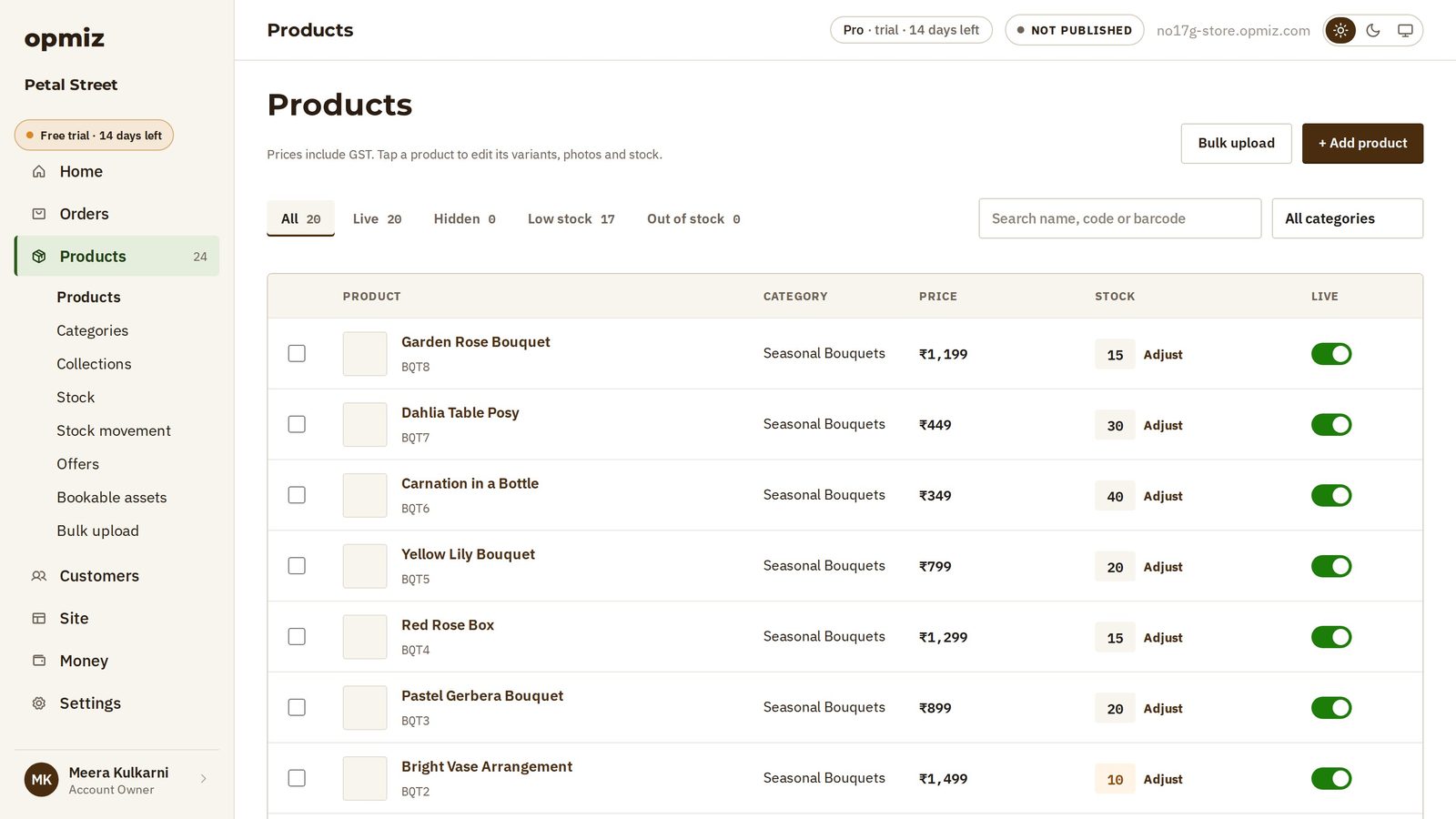
Your products are now in your Products list, with the prices and stock from the file. They have no photos yet. A spreadsheet carries the words and the numbers.
Add the photos in one go
- Name each photo after the product's variant code, the one in your sheet, then an underscore and the word
cover. For a product with the variant code BQT1V, that isBQT1V_cover.jpg. Extra photos are calledregular, with a number:BQT1V_regular_1.jpg. - Put all the photos in one zip file.
- Back on Bulk upload, press Upload product photos. The box shows the naming rules with an example.
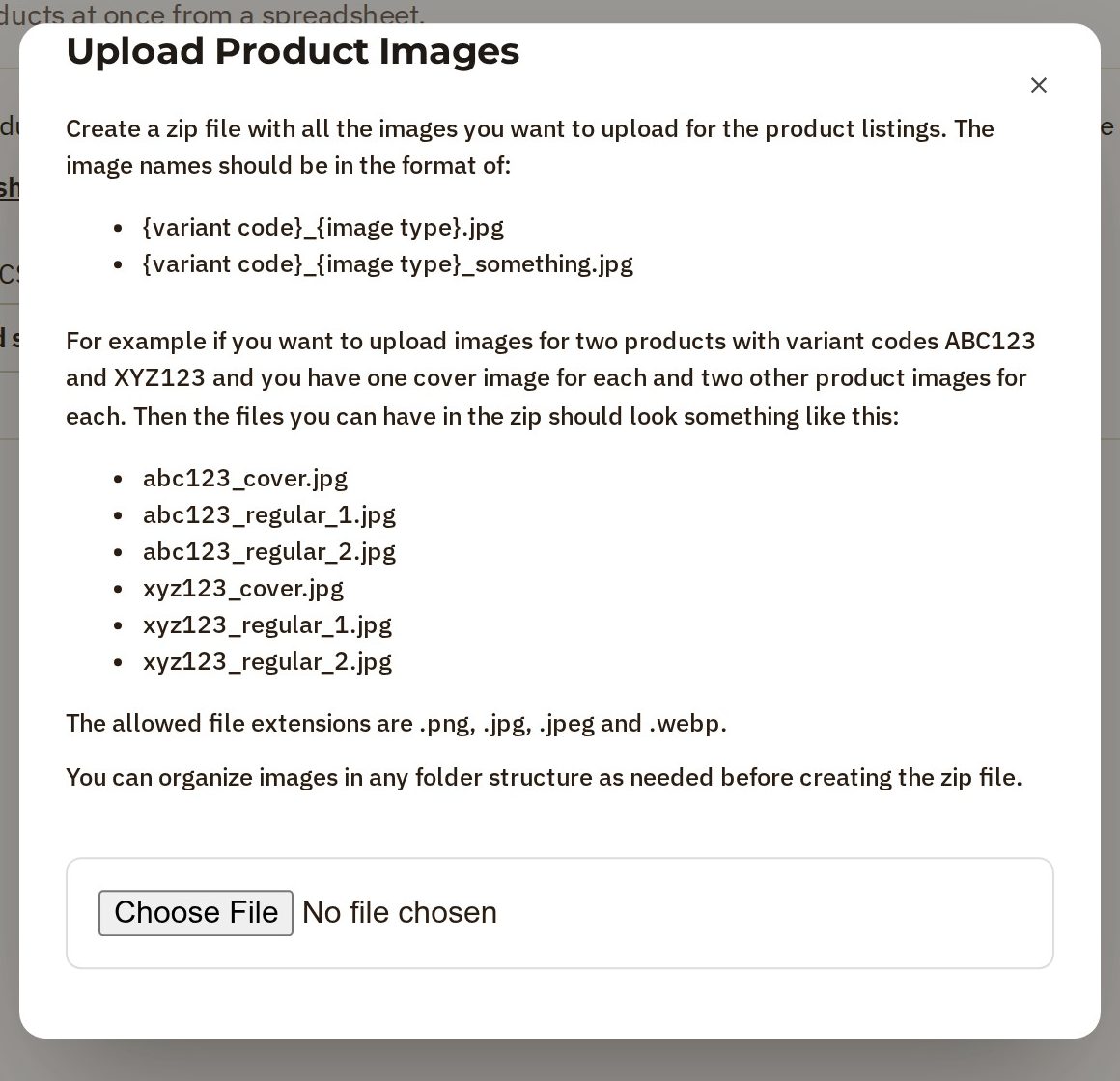
- Press Choose File and pick your zip. Opmiz reads it first and counts the cover photos, the other photos, and any named wrongly.
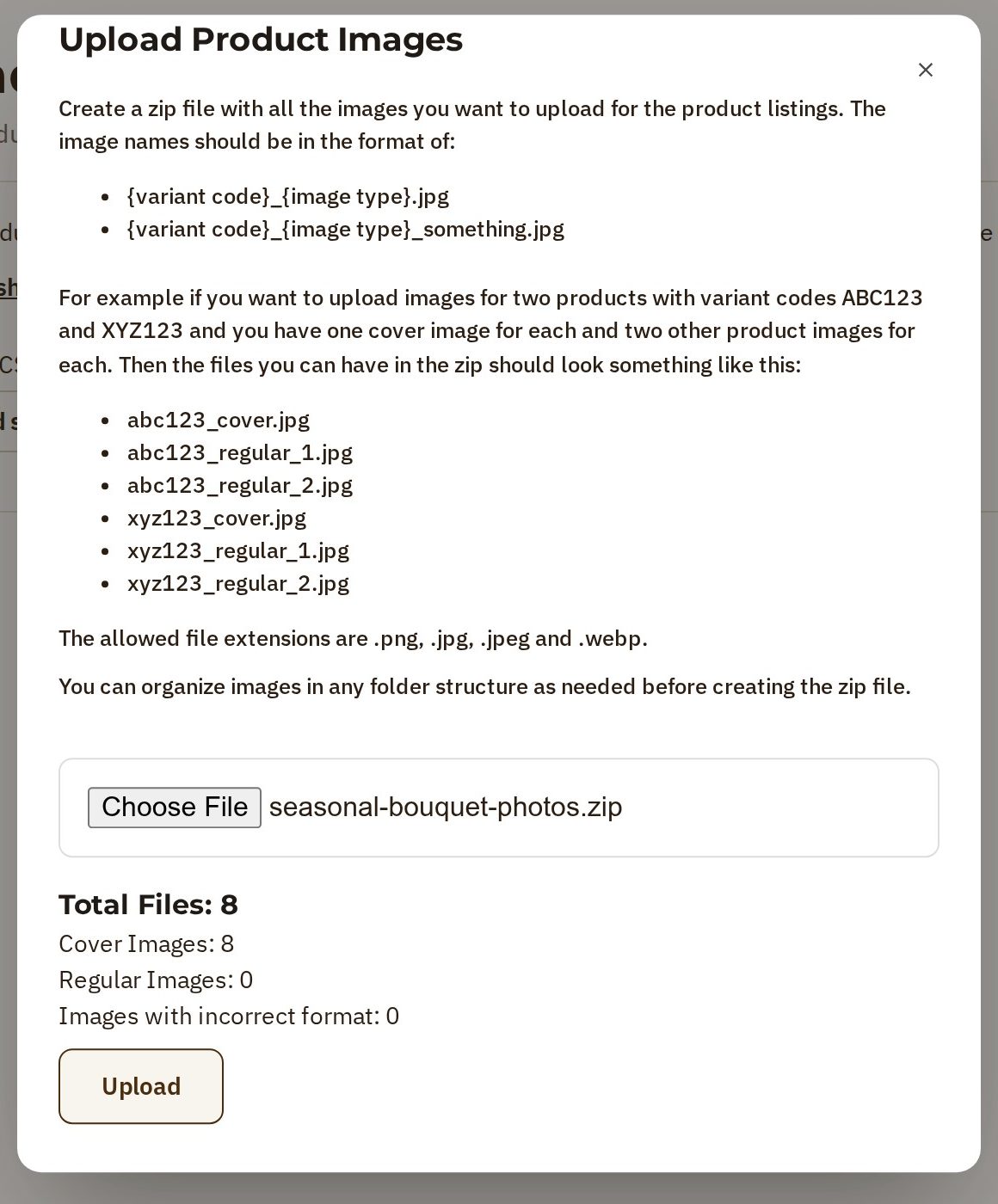
- Press Upload. Opmiz puts each photo on its product, one by one, and says Upload completed successfully! when all are on.
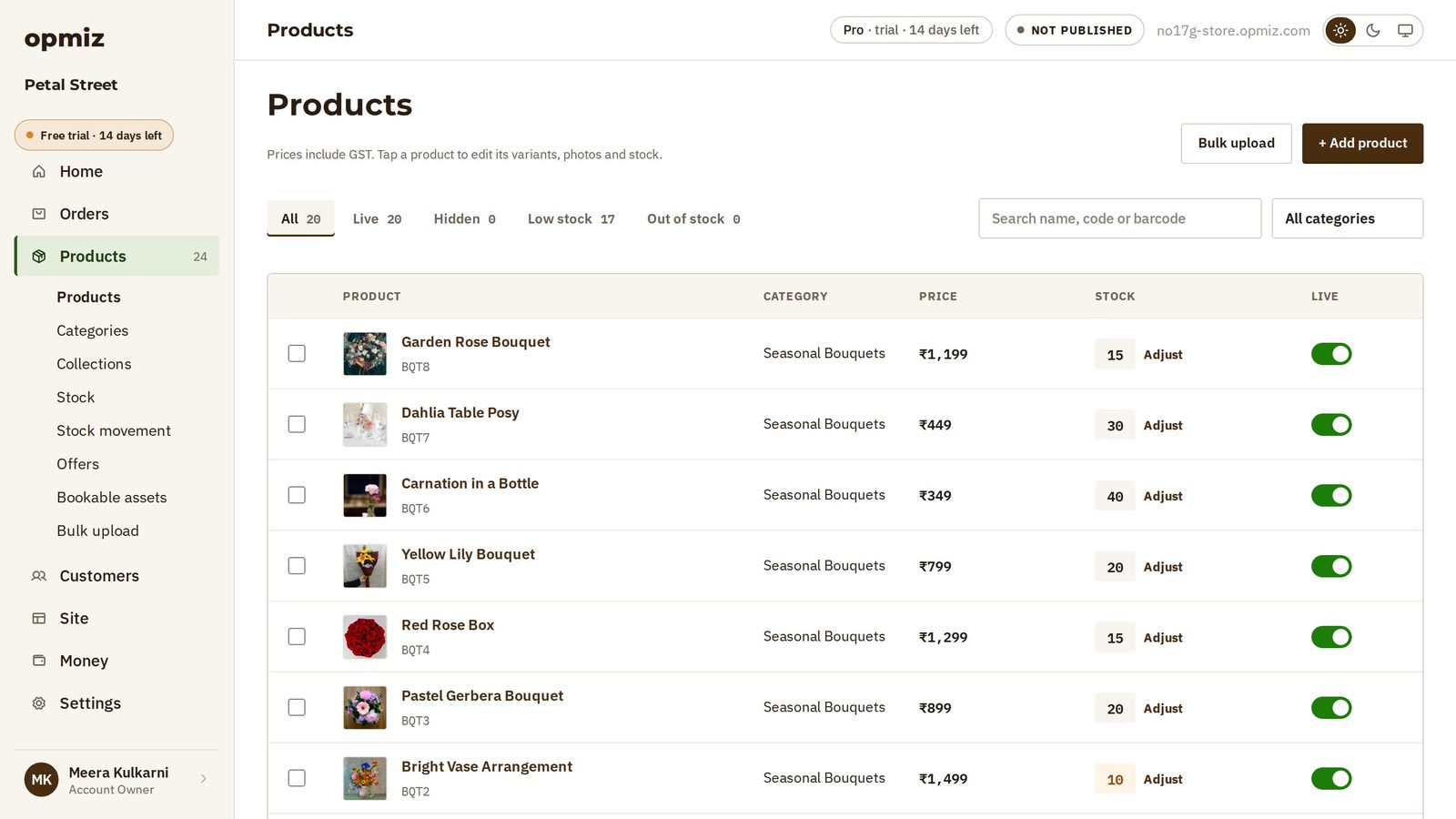
In your Products list, every product now has its photo.
Change prices the same way
The same sheet also updates what you already sell. Change a price or a stock count in your file, and upload it again.
Now the review shows before and after: the old price and the new one, and the stock count going up. The rows you didn't change are left out.
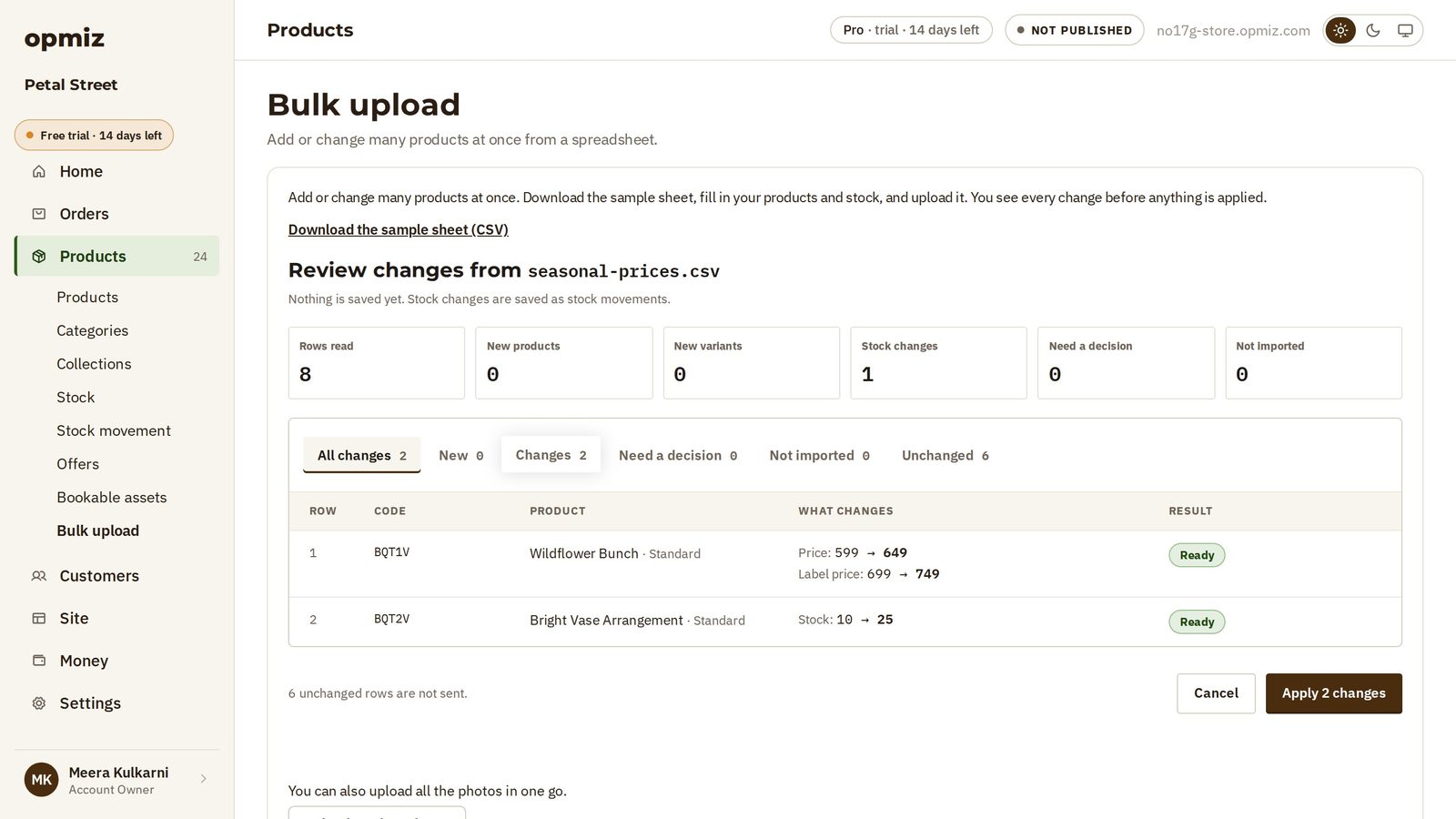
If a row would rename a product you already sell, it waits under Need a decision for you to choose.
Press Apply, and it's done. That's a whole range from one file, with its photos, and you checked every change first.
Was this tutorial helpful?
IN THIS TUTORIAL
AI websites with native commerce. Pages, blog, store, payments and GST invoices in one place, built from a short description.
Start free for 14 days →© 2026 Opmiz · WriterBabu Online Services Private Limited. All rights reserved.
Prices in INR, before 18% GST · Made in Patna, India