YOU WILL LEARN
✓
Make one key for each job, with only what it needs
✓
It shows once, so treat it like a password
✓
Remove stops it straight away
If your developer wants their own program to work with your business, they need an API key. This page shows how to make one, keep it safe, and stop it when the job is done.
In the screenshots, Petal Street, a flower studio in Pune, makes a key for a script that reads its website pages.
Make a key
API keys are in Settings, under AI apps.
A key works on this business only, and it acts as you. So it should do no more than the job needs.
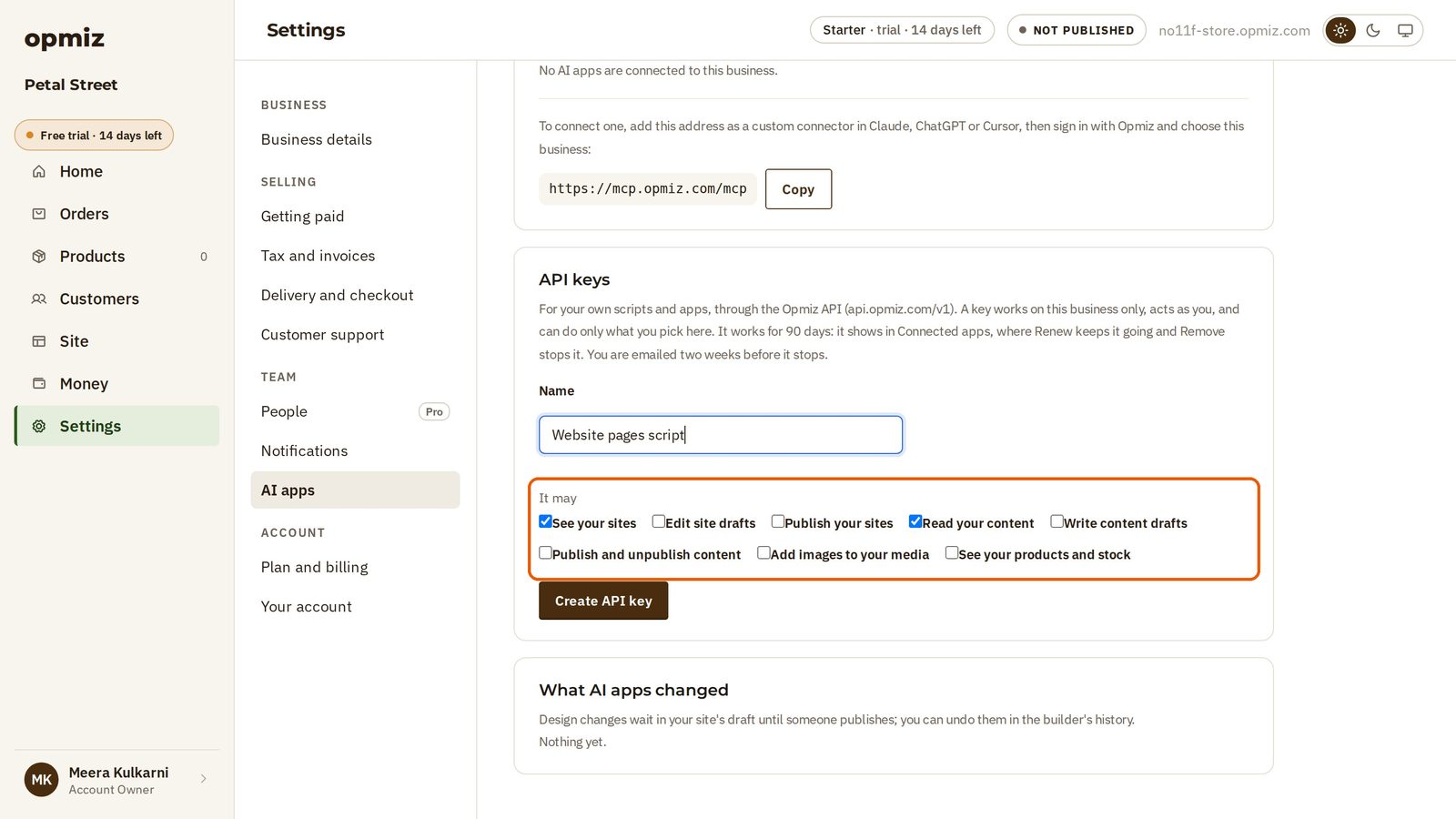
- Under API keys, give it a Name that says what it is for, so you'll recognise it later.
- Under It may, tick only what it may do. In the video, the script only reads, so the two already ticked, See your sites and Read your content, are enough.
- Press Create API key.
Keep it like a password
When you press Create API key, Opmiz shows the key one time only, with a Copy button. Copy it, and give it to your developer somewhere safe. Anyone holding it can act as you.
A key is a password, so the video cuts that moment out, and there is no picture of it here.
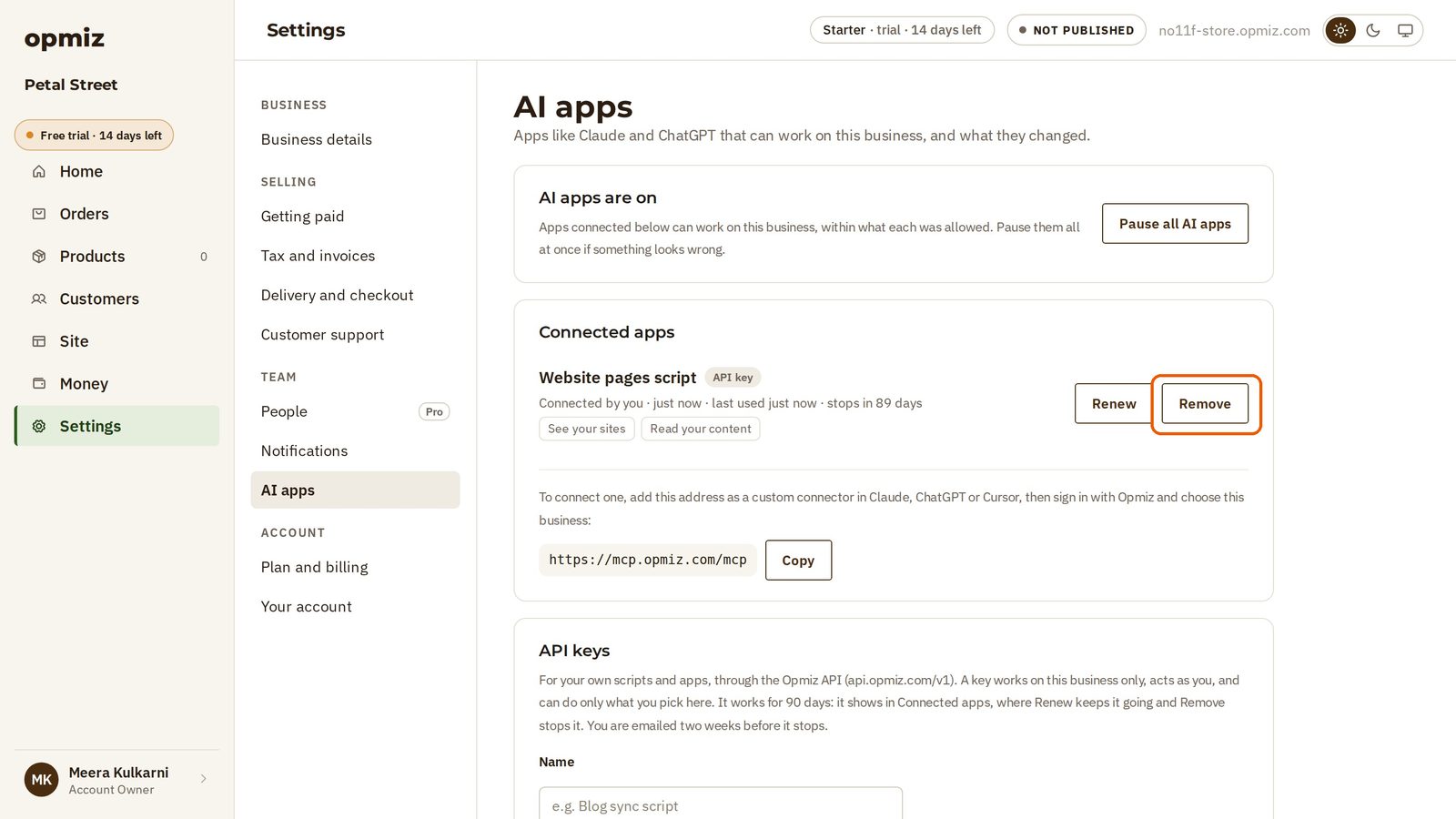
Reload the page, and the key is gone for good. What stays is a row under Connected apps: its name, what it may do, and when it stops. Keys last 90 days, and Renew keeps one going.
A real request
Now the developer's side. A program asks Opmiz which businesses it can use. With no key, the request is refused.
A program sends the key along with each request, out of sight. With the key, the answer comes back naming Petal Street, in a form a program can read. Your developer takes it from there.

Stop a key
Back in Settings, the row now says when the key was last used, so you can tell whether it is still needed.
When the job is done, or the key may have leaked, press Remove. The very same request is refused from that moment on.
Make one key for each job, with only what it needs. Your developer will find the details in the Opmiz API docs.
Was this tutorial helpful?
IN THIS TUTORIAL
AI websites with native commerce. Pages, blog, store, payments and GST invoices in one place, built from a short description.
Start free for 14 days →© 2026 Opmiz · WriterBabu Online Services Private Limited. All rights reserved.
Prices in INR, before 18% GST · Made in Patna, India