YOU WILL LEARN
✓
Describe your business in plain words
✓
Opmiz writes the pages and starts your catalogue
✓
Nothing goes public until you publish
You don't start an Opmiz website from a blank page or a template. You describe your business in your own words, and Opmiz writes the pages, plans the sections and sets up your first products. At the end you have a draft website and a starter catalogue to work from, and nobody else can see either until you publish.
In the screenshots, Meera Kulkarni starts a site for Petal Street, her flower studio in Pune.
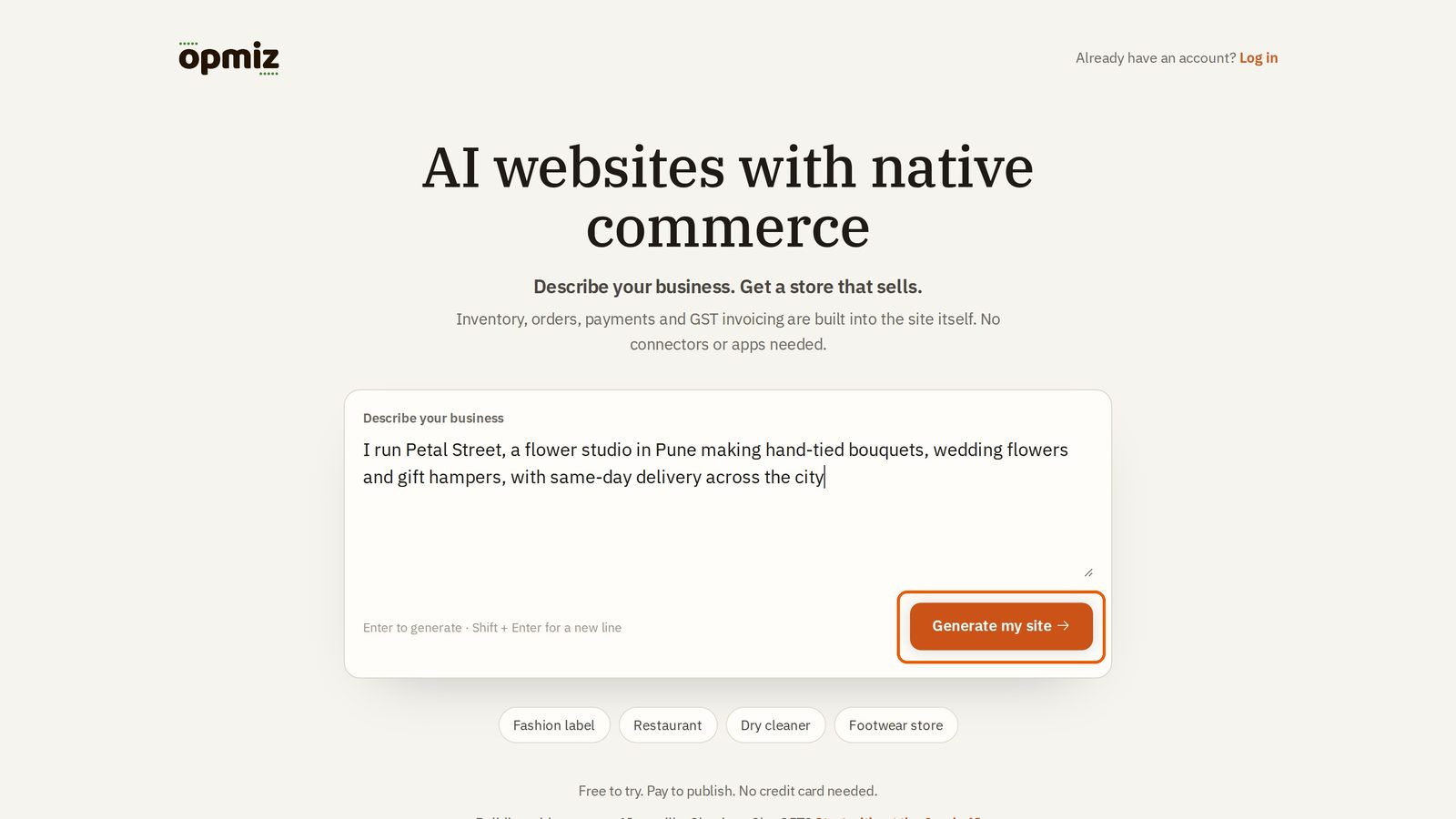
Describe your business
This is where every Opmiz site begins.
- In the Describe your business box, write what you make or sell, where you are, and what makes you different. Write it the way you would tell a friend.
- Press Generate my site.
The more real detail you give here, the more your first draft will sound like you.
Create your account
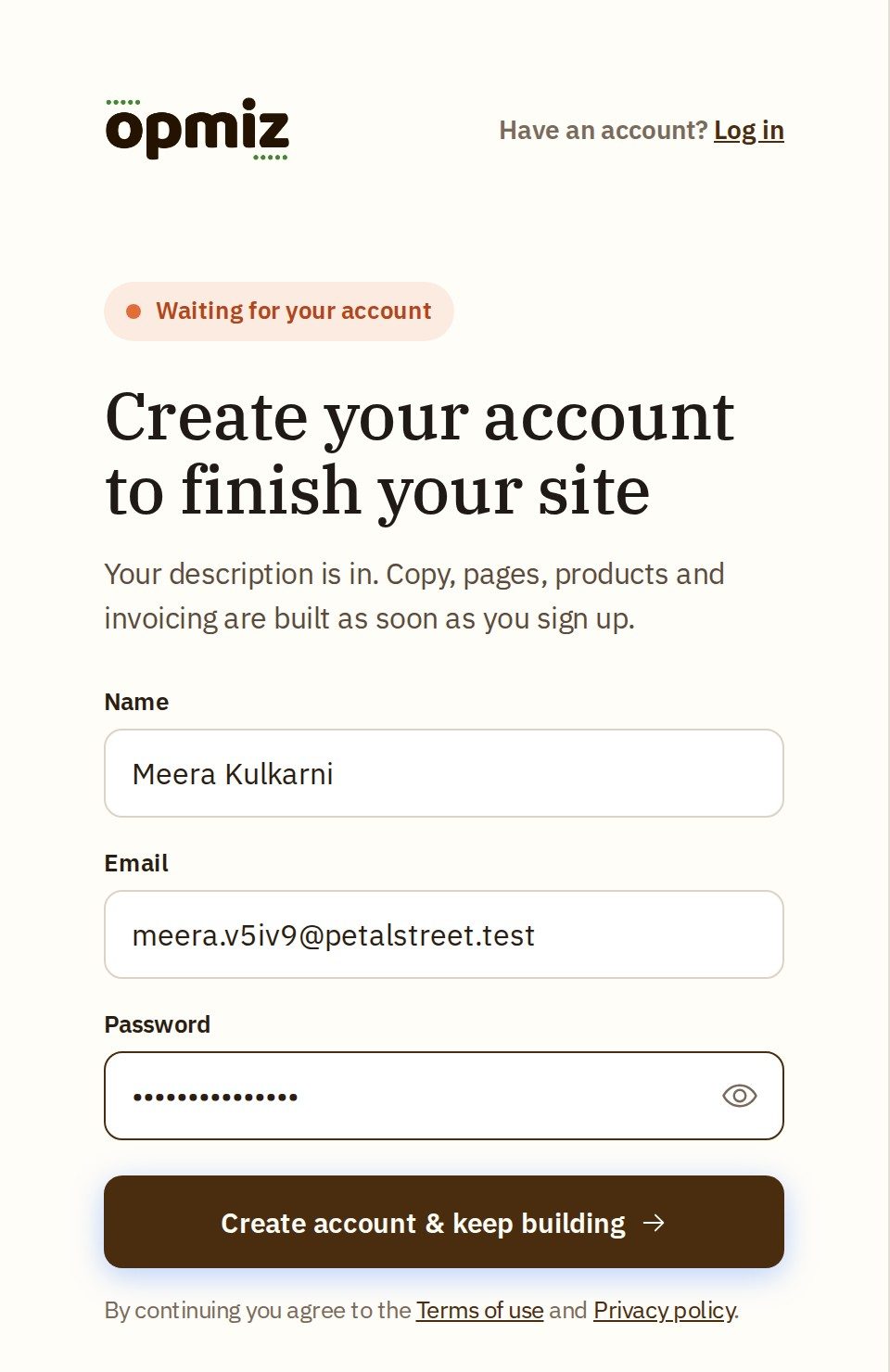
Next you make a quick account, so the site has an owner.
- Fill in your Name, Email and Password.
- Press Create account & keep building.
- Opmiz emails you a short code, to check the address is yours. Type it into Verification Code and press Verify.
That is all the setup there is.
Opmiz builds the first draft
Now Opmiz gets to work. It reads your description, plans the pages, writes the wording and sets up your products.
This part usually takes several minutes. The video shortens it.
Look around your draft
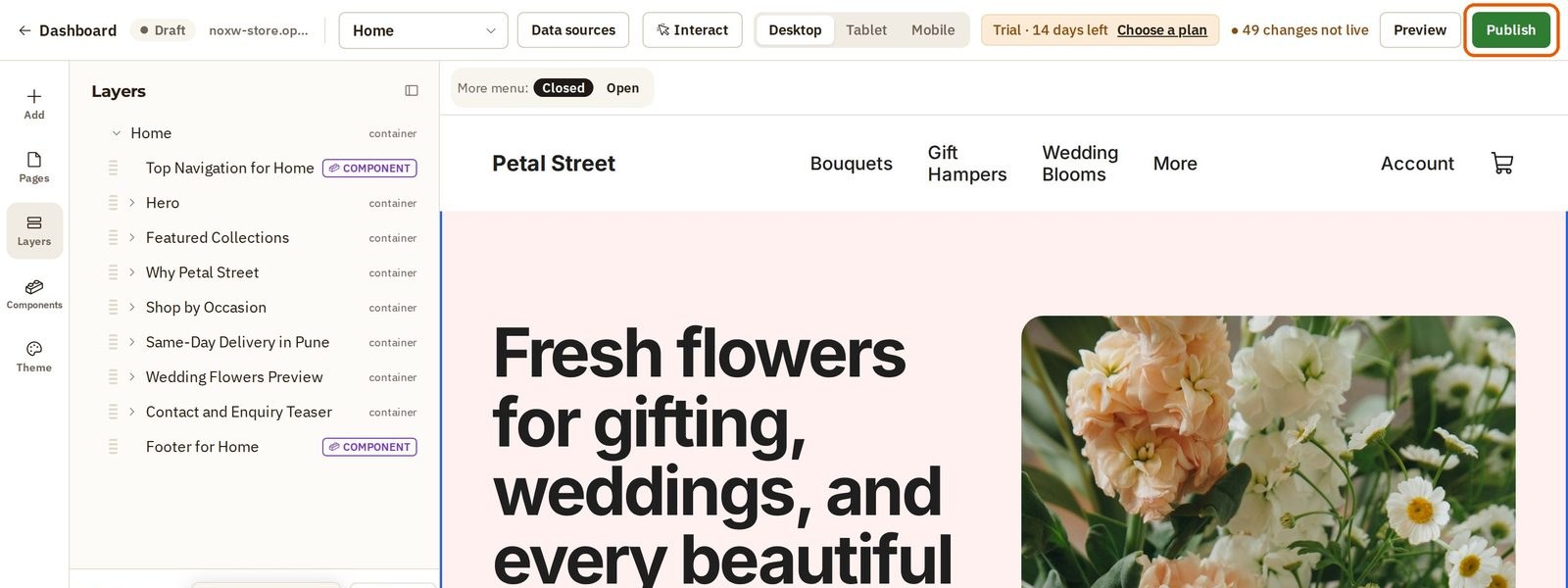
When it is ready, your draft opens in the builder, with your business in the headline and on the page.
- On the left, each section of the page is listed in order. For Petal Street that is Why Petal Street, Shop by Occasion, Same-Day Delivery in Pune, Wedding Flowers Preview and more, all written for this one business. Click any section, and the page jumps straight to it.
- Below that is the Assistant. Ask it for a change in your own words, like "make the headline shorter".
- At the top right is Publish. Until you press it, this is only a draft, and nobody else can see it.
So you start by editing, not from a blank page.
Your products are ready too
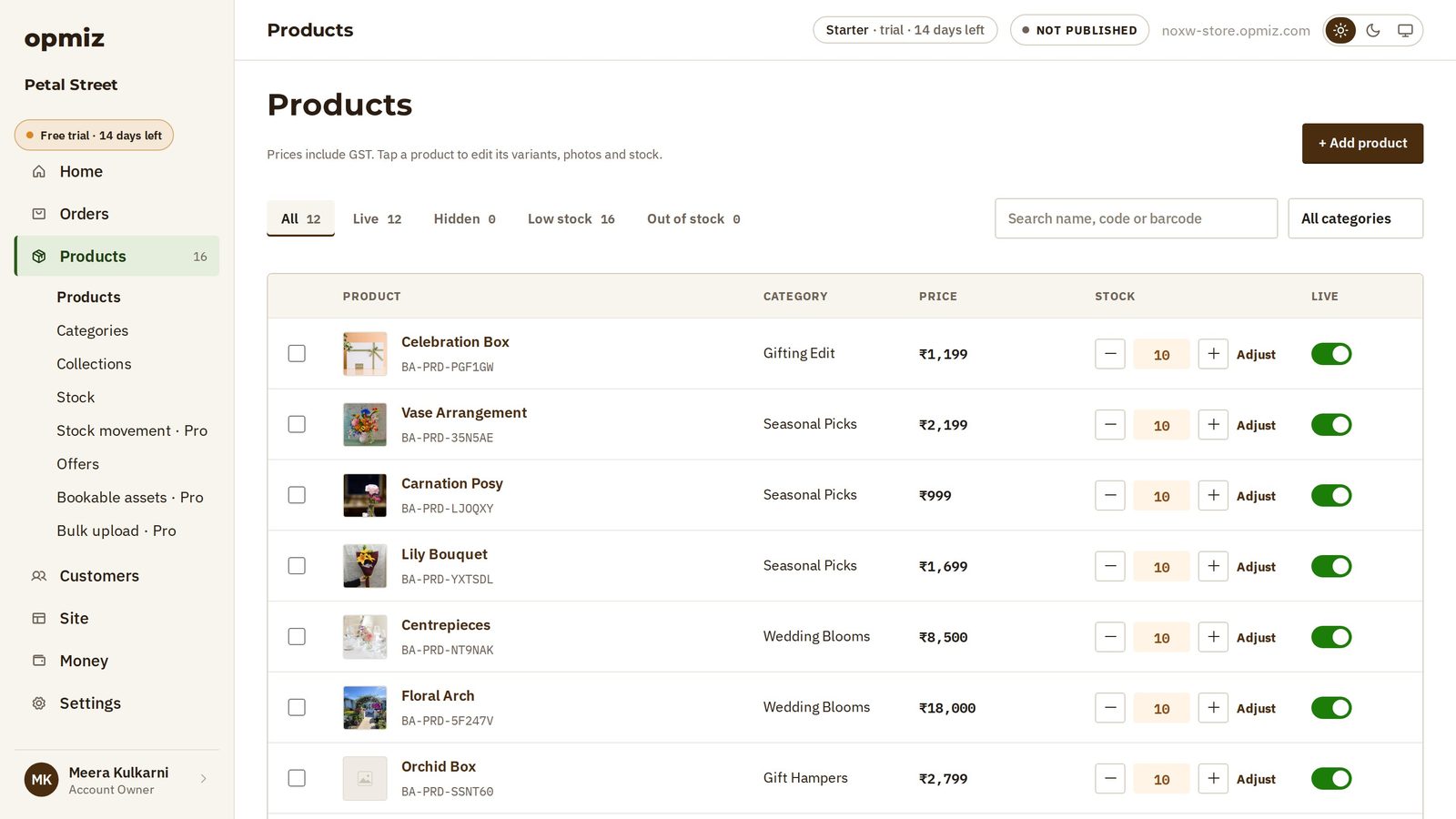
Press Dashboard at the top left. Your dashboard is where the rest of the business lives. Open Products in the menu on the left.
Opmiz has also started your catalogue from what you described. Petal Street got twelve products, with names, prices and photos. They are starting points, so swap in your own whenever you like.
Was this tutorial helpful?
IN THIS TUTORIAL
AI websites with native commerce. Pages, blog, store, payments and GST invoices in one place, built from a short description.
Start free for 14 days →© 2026 Opmiz · WriterBabu Online Services Private Limited. All rights reserved.
Prices in INR, before 18% GST · Made in Patna, India