YOU WILL LEARN
✓
Click any text on the page to change it
✓
Theme changes the look of the whole site
✓
Preview shows exactly what visitors will see
The draft Opmiz writes for you is a starting point. Here you change its words and its colours so it sounds and looks like your business. Nothing goes public while you work: your visitors see the change only when you publish.
In the screenshots, Petal Street, a flower studio in Pune, changes its headline and its main colour.
Change the wording
This is the builder. What you see in the middle is your actual page, and you can edit it right there.
- Click the text you want to change, such as the headline. A small toolbar appears above it.
- Press Edit text, and type, as you would in any document.
- Press Enter, and the change is saved to your draft.
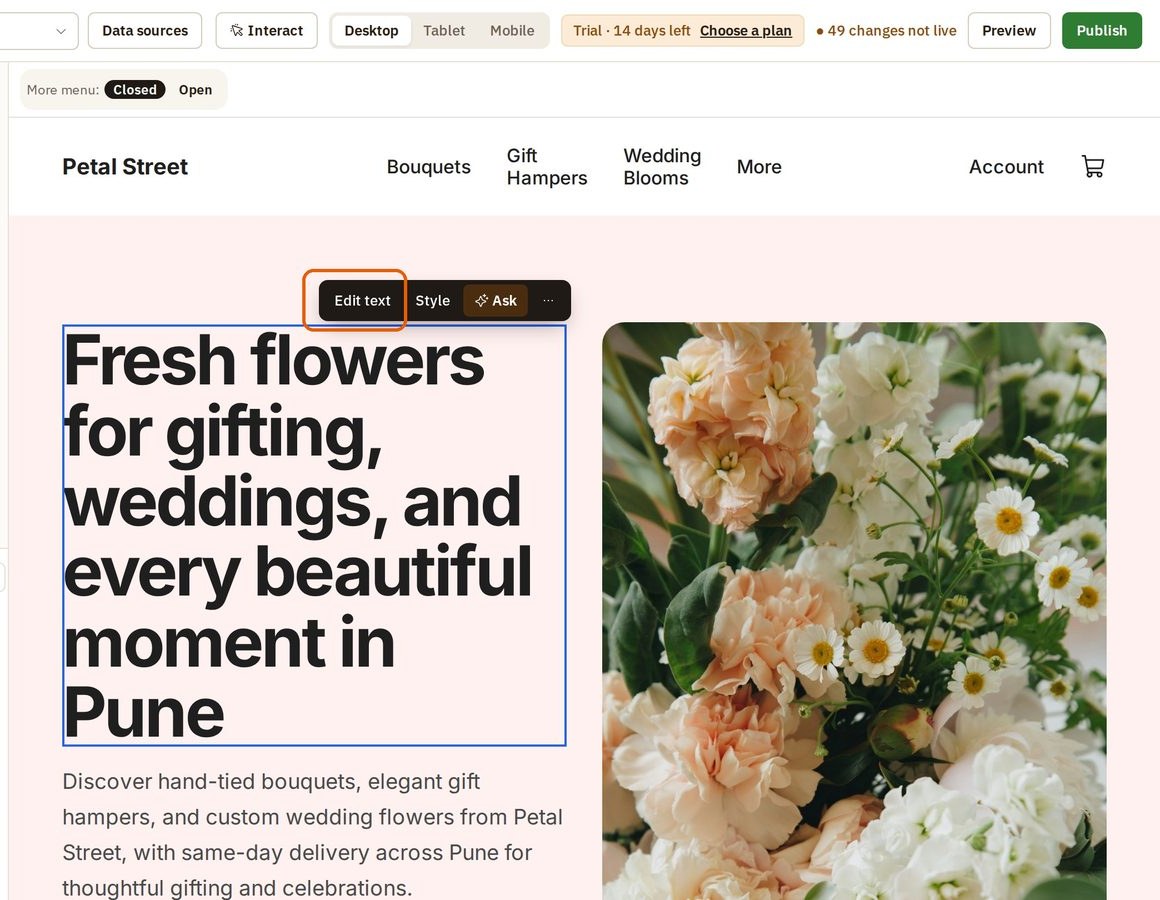
Petal Street's long headline became "Fresh flowers, hand-tied in Pune".
Change the look
Colours and fonts live under Theme, because they apply to the whole site.
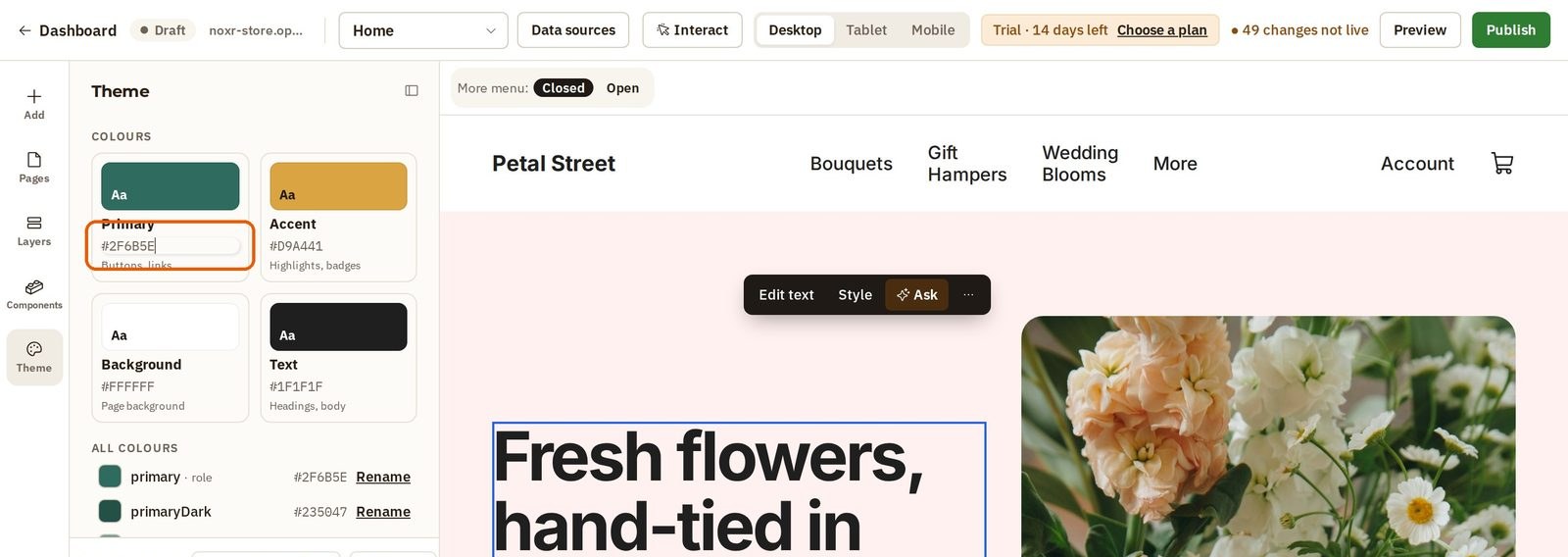
- Press Theme in the bar on the far left.
- Under Colours, find Primary. This is the main colour of your brand, used for buttons and links.
- Click its colour code and type a new one.
Change it once here, and it changes everywhere it is used. There is nothing to redo page by page. On Petal Street, the Shop Flowers Now button turned from pink to green.
Check it before anyone sees it
At the top, Opmiz keeps count of the changes that aren't live yet, for example 49 changes not live. Your visitors still see the last version you published.
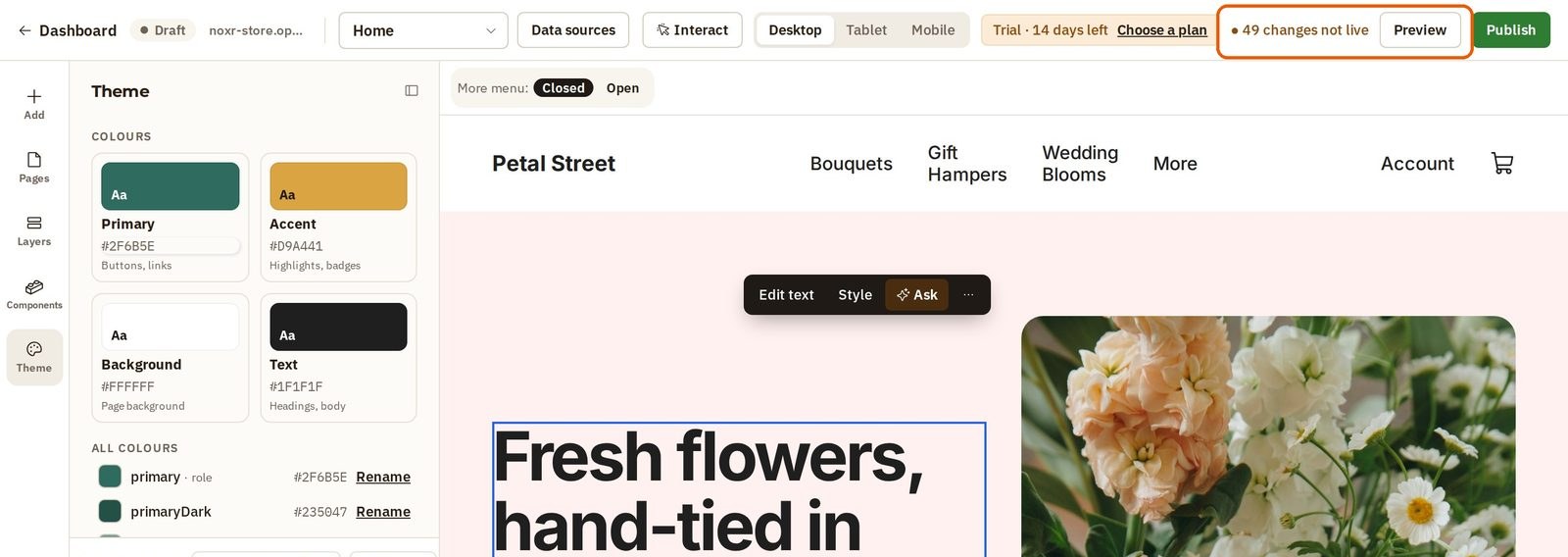
- Press Preview. It opens the page just as a visitor would see it, in its own tab.
- Take a good look.
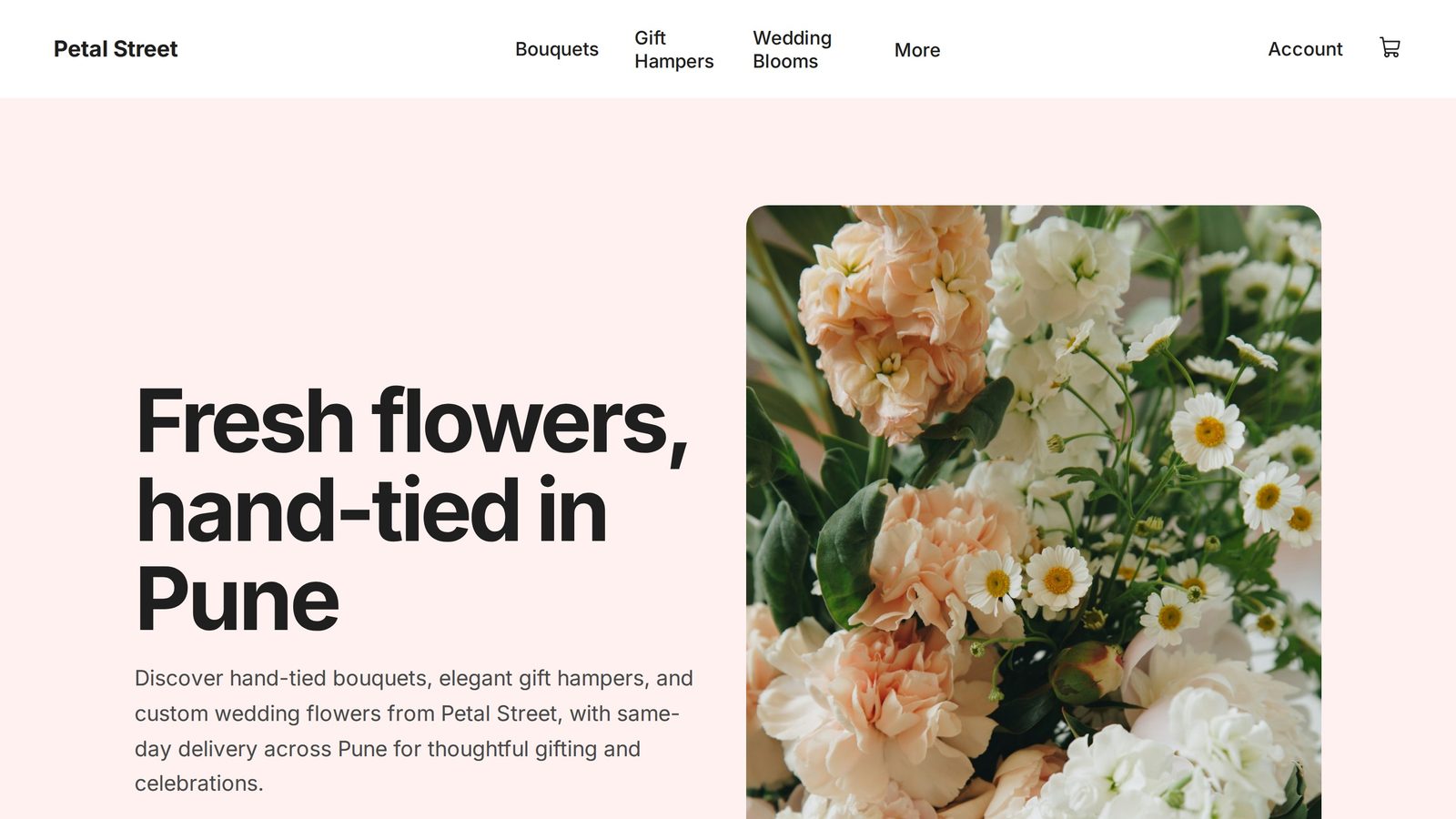
Happy with it? The Publish button at the top right takes it live. Not sure? Close the tab and carry on. Nothing has changed for anyone else.
Was this tutorial helpful?
IN THIS TUTORIAL
AI websites with native commerce. Pages, blog, store, payments and GST invoices in one place, built from a short description.
Start free for 14 days →© 2026 Opmiz · WriterBabu Online Services Private Limited. All rights reserved.
Prices in INR, before 18% GST · Made in Patna, India