YOU WILL LEARN
✓
Add your contact and legal details
✓
Read and approve your Terms and Privacy
✓
Go live free on the trial, and pay when you are ready
Everything you have done so far is a private draft. Publishing opens the doors: your store goes on the internet, and customers can browse and buy. Before it does, Opmiz checks a few things, so your customers know who they are buying from.
In the screenshots, Petal Street, a flower studio in Pune, publishes its store for the first time.
The pre-flight checks
When you are ready, press Publish at the top right of the builder. The Publish your store box opens on its first step, Checks.
Red marks what is still needed. Everything else can wait. Tax details · GSTIN, for example, is marked recommended, not required.
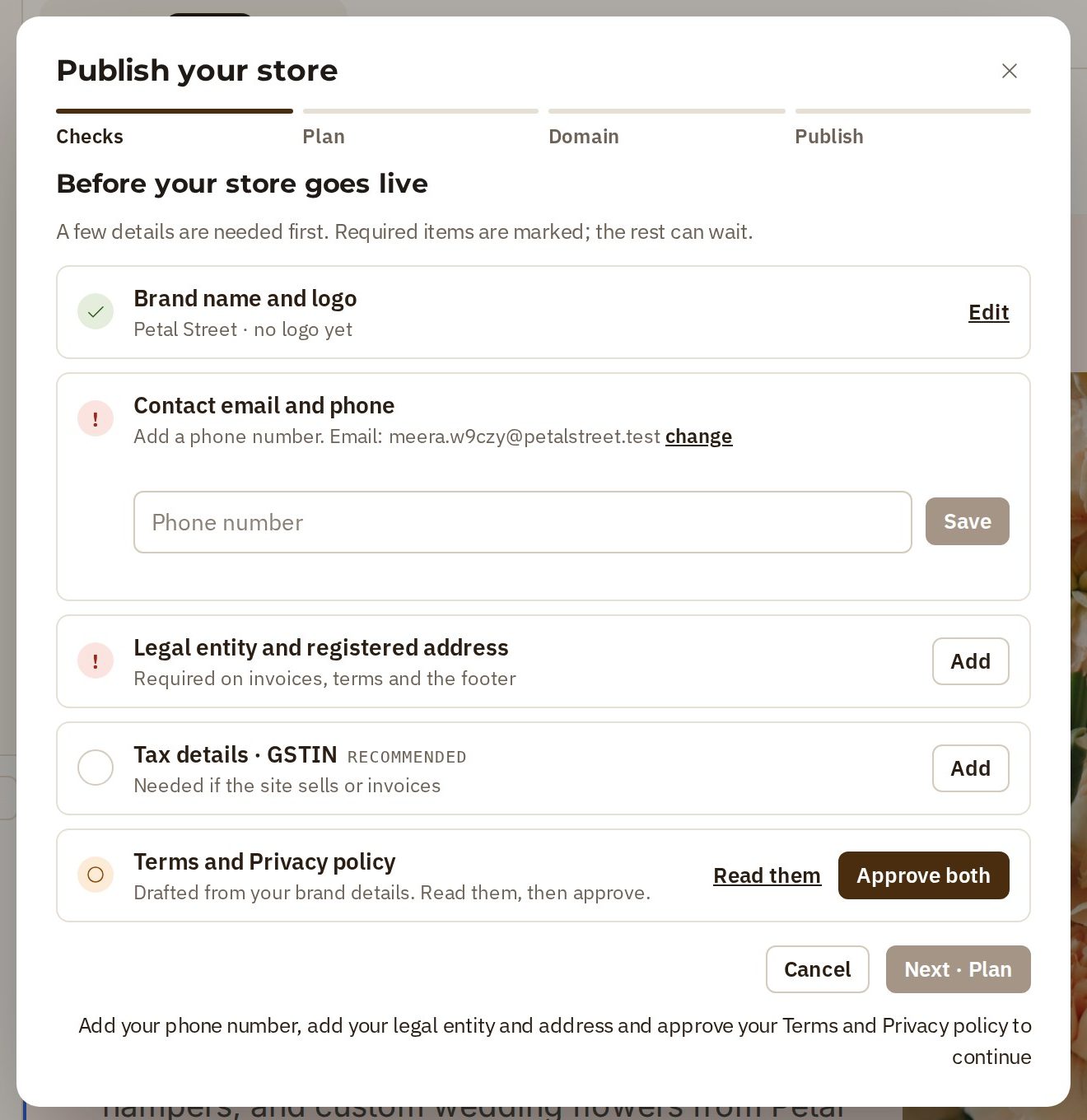
Your contact details
Your email came from sign-up. Add a phone number, so customers can reach you.
- Under Contact email and phone, type your number into Phone number.
- Press Save.
Your legal details
Next comes the name and address your business is registered under. It appears on your invoices, your Terms and your footer.
- Under Legal entity and registered address, press Add.
- Legal name starts with your brand name. Change it if your registered name is different.
- Fill in PIN code, Street address, State and City.
- Press Save.
Terms and Privacy
Every store needs Terms and a Privacy policy. Opmiz has drafted both, using your business details.
- Under Terms and Privacy policy, press Read them.
- Please do read them, on both the Terms of service and Privacy policy tabs. They are written for you, but you are the one agreeing to them.
- If anything doesn't fit, press Edit text and change it.
- Tick I have read these and they are correct for my business, and press Approve both.
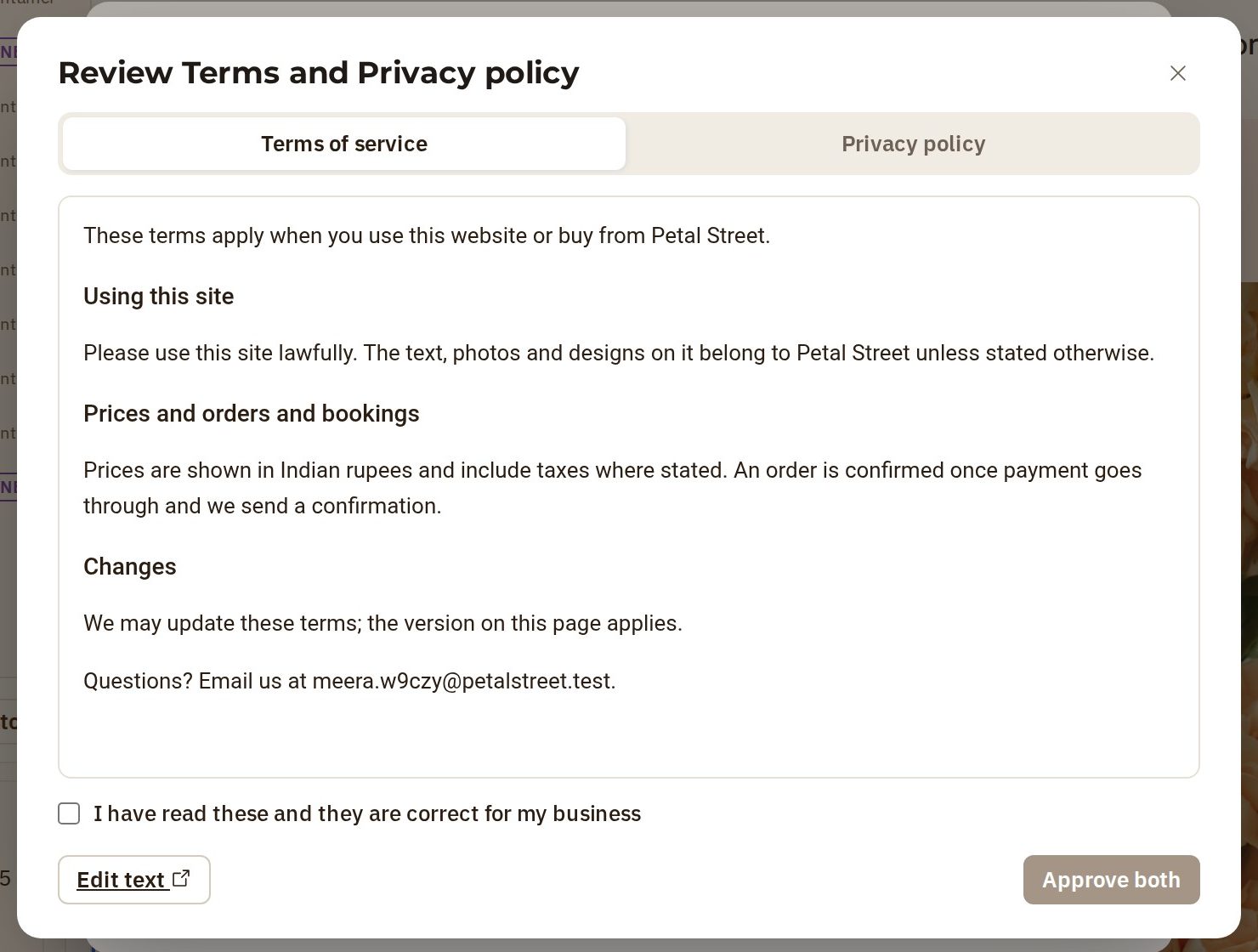
That is every required check done. Press Next · Plan.
Your plan and address
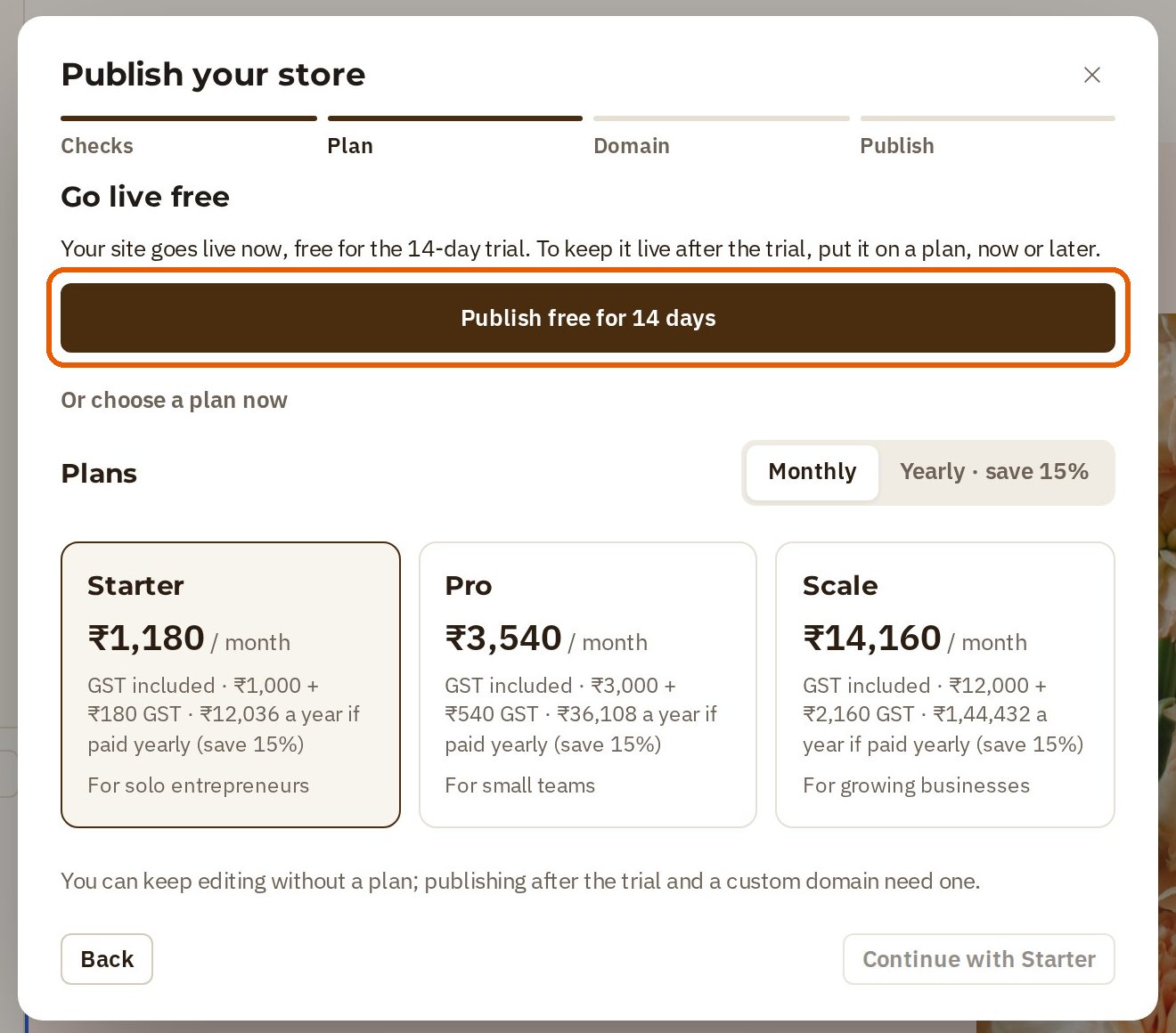
Now the plan. You don't have to choose today. The free trial lets you go live right away, for 14 days, and you can pick a plan when you are ready. Press Publish free for 14 days.
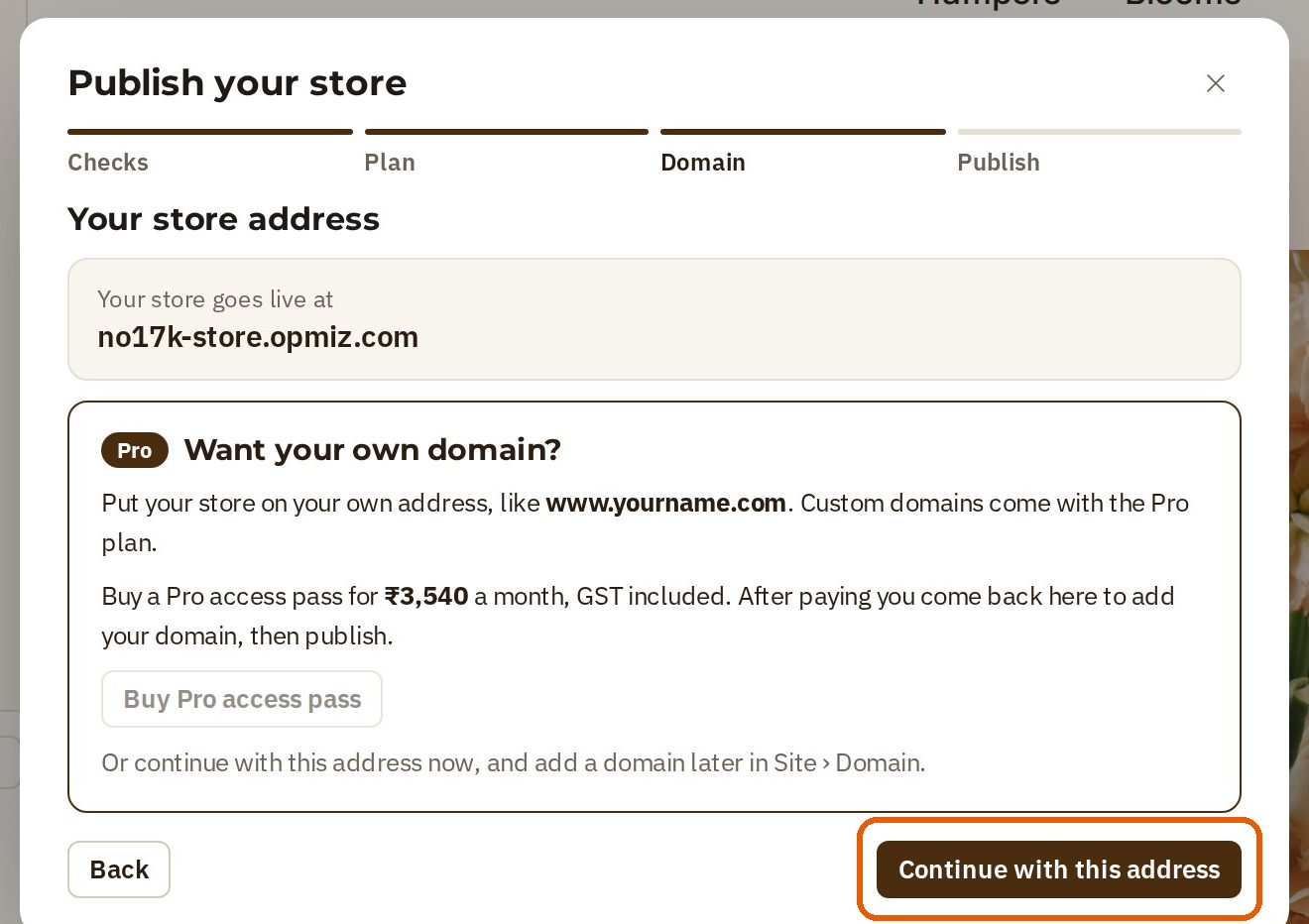
Your store gets a free Opmiz address to start with, such as no17k-store.opmiz.com. Your own domain comes with the Pro plan, and you can add it later, in Site, then Domain. Press Continue with this address.
Publish
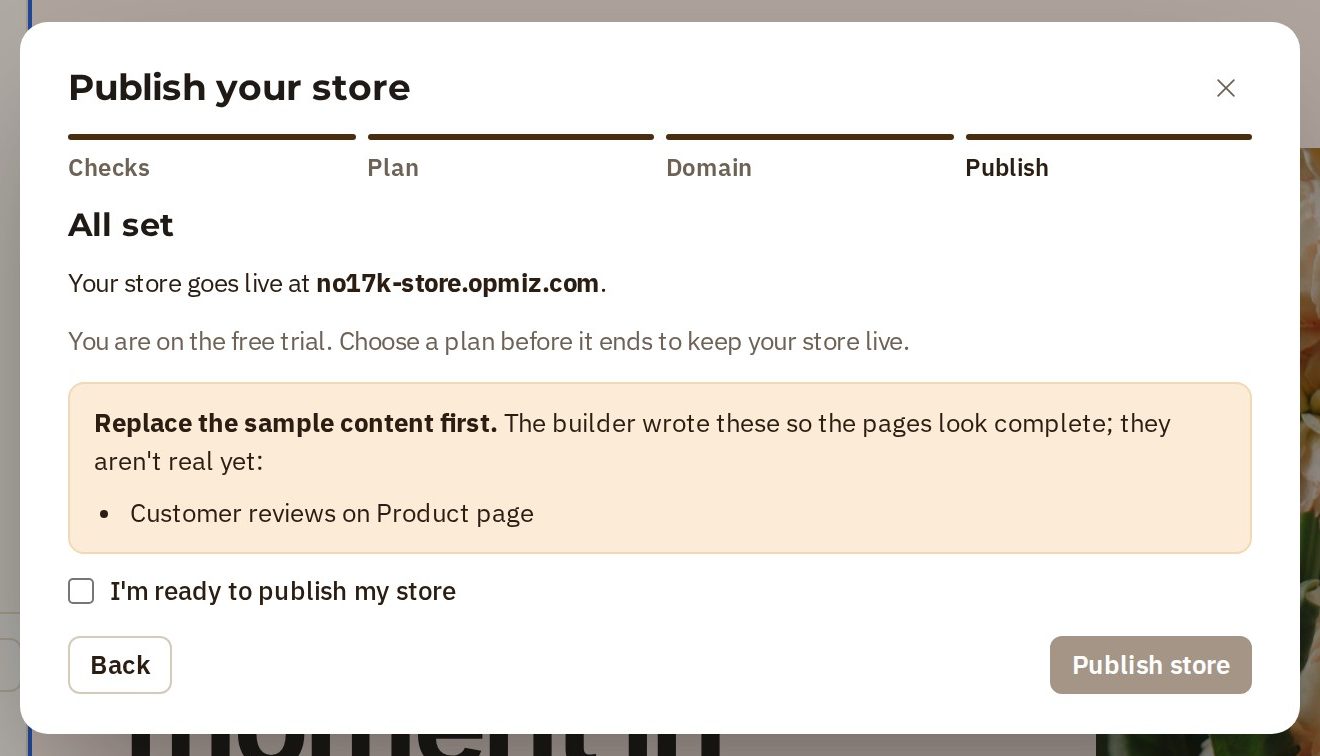
The last step shows where your store will go live. Opmiz also flags anything that is still sample content, so you can replace it. For Petal Street, it is the customer reviews on the product page.
- Tick I'm ready to publish my store.
- Press Publish store.
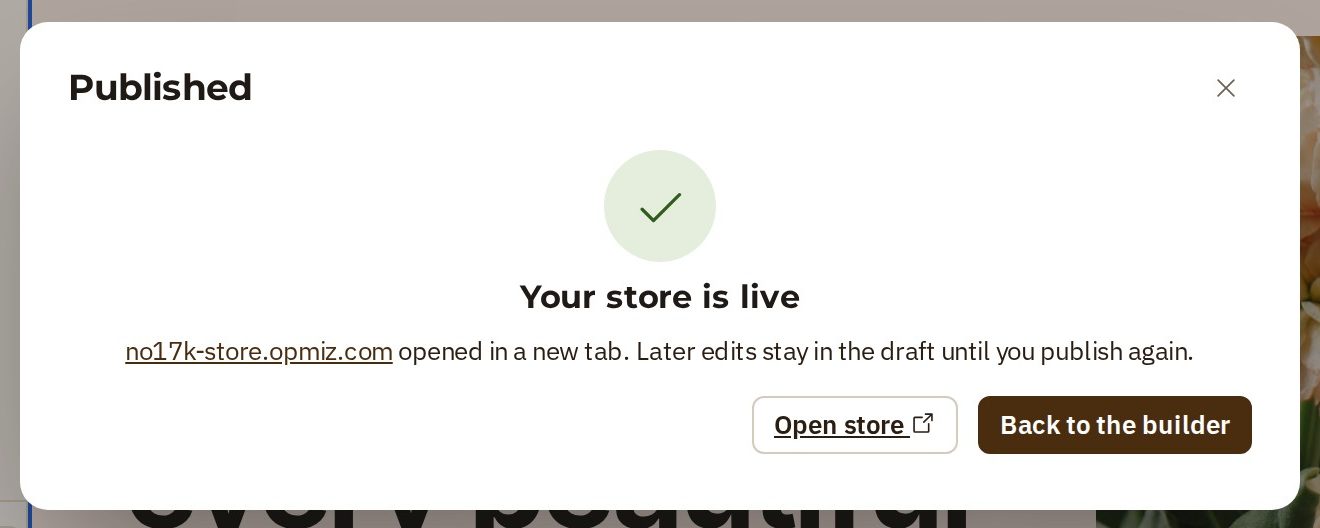
That's it. Your store is on the internet, and it opens in a new tab. Later edits stay in your draft until you publish again.
See it as a customer
Your customers see your brand and your wording, on your own address. They can browse by category from the menu, open any product, and buy it.
Share the link, and you are open for business.
Was this tutorial helpful?
‹ Previous
Make your website your ownNext ›
Handle your first orderIN THIS TUTORIAL
AI websites with native commerce. Pages, blog, store, payments and GST invoices in one place, built from a short description.
Start free for 14 days →© 2026 Opmiz · WriterBabu Online Services Private Limited. All rights reserved.
Prices in INR, before 18% GST · Made in Patna, India