YOU WILL LEARN
✓
The tabs show what needs you next
✓
Pack, ship and deliver from one panel
✓
Record cash when you collect it
Every order in Opmiz follows the same path: the shopper places it, you pack it, ship it and deliver it, and then you record the payment. All of it happens from one panel on your Orders page, and Opmiz keeps the record for you.
In the screenshots, Petal Street, a flower studio in Pune, gets an order for a rose bouquet from a shopper called Aarav.
A shopper places an order
This part happens on your store, in the shopper's own browser. It helps to know what they see.
- The shopper presses Add to cart on a product, then goes to Checkout.
- They add the address it should be delivered to, and carry on to payment.
- They choose how to pay. Petal Street has Pay on Delivery turned on, so the shopper can pay in cash when the order arrives.
- They press Place Order. The store shows Order Successful! and an order number, such as #UPGG.
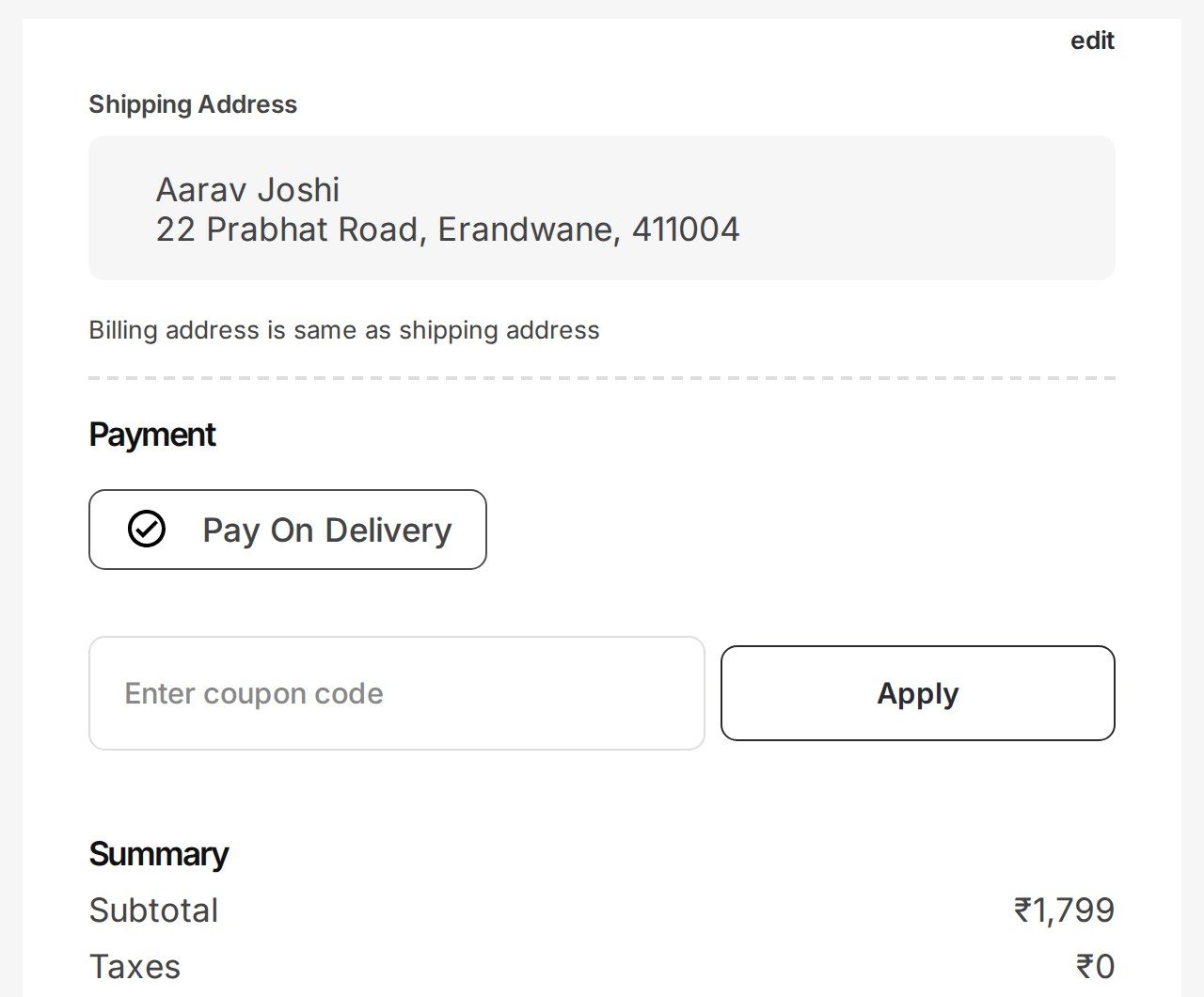
That is the shopper's part done.
It appears in your Orders
Open Orders in the menu on the left. The new order is there.
The tabs along the top follow the life of an order: To confirm, To pack, To ship, On the way, Delivered, Returns and Cancelled. Each shows how many orders are waiting there, so what needs you next is always easy to find. This order is already confirmed, so it waits under To pack.
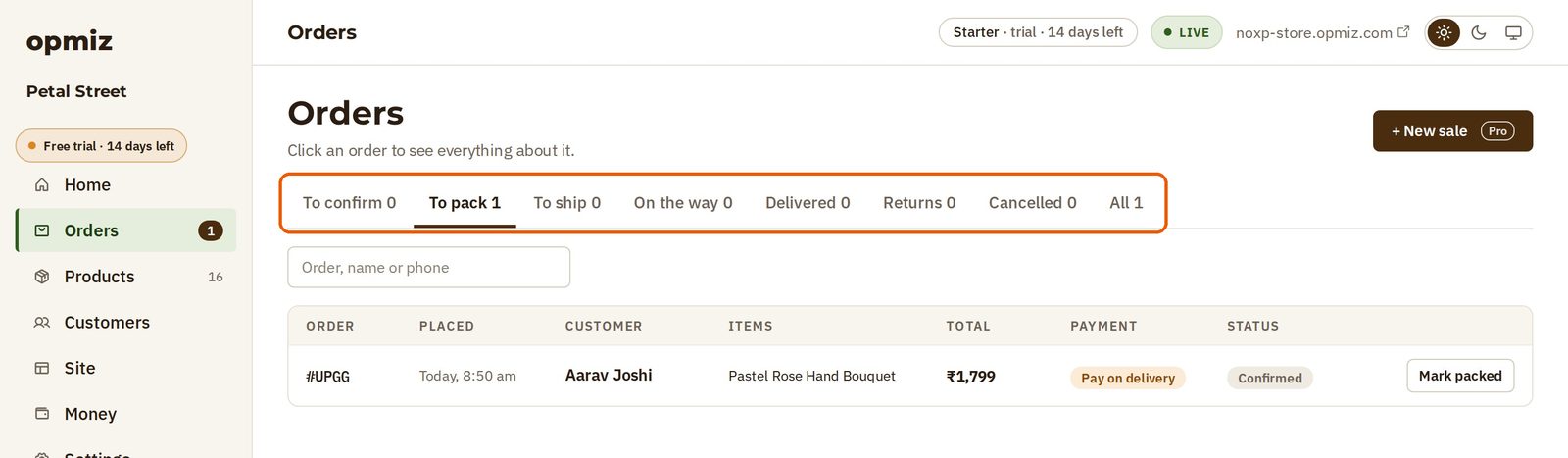
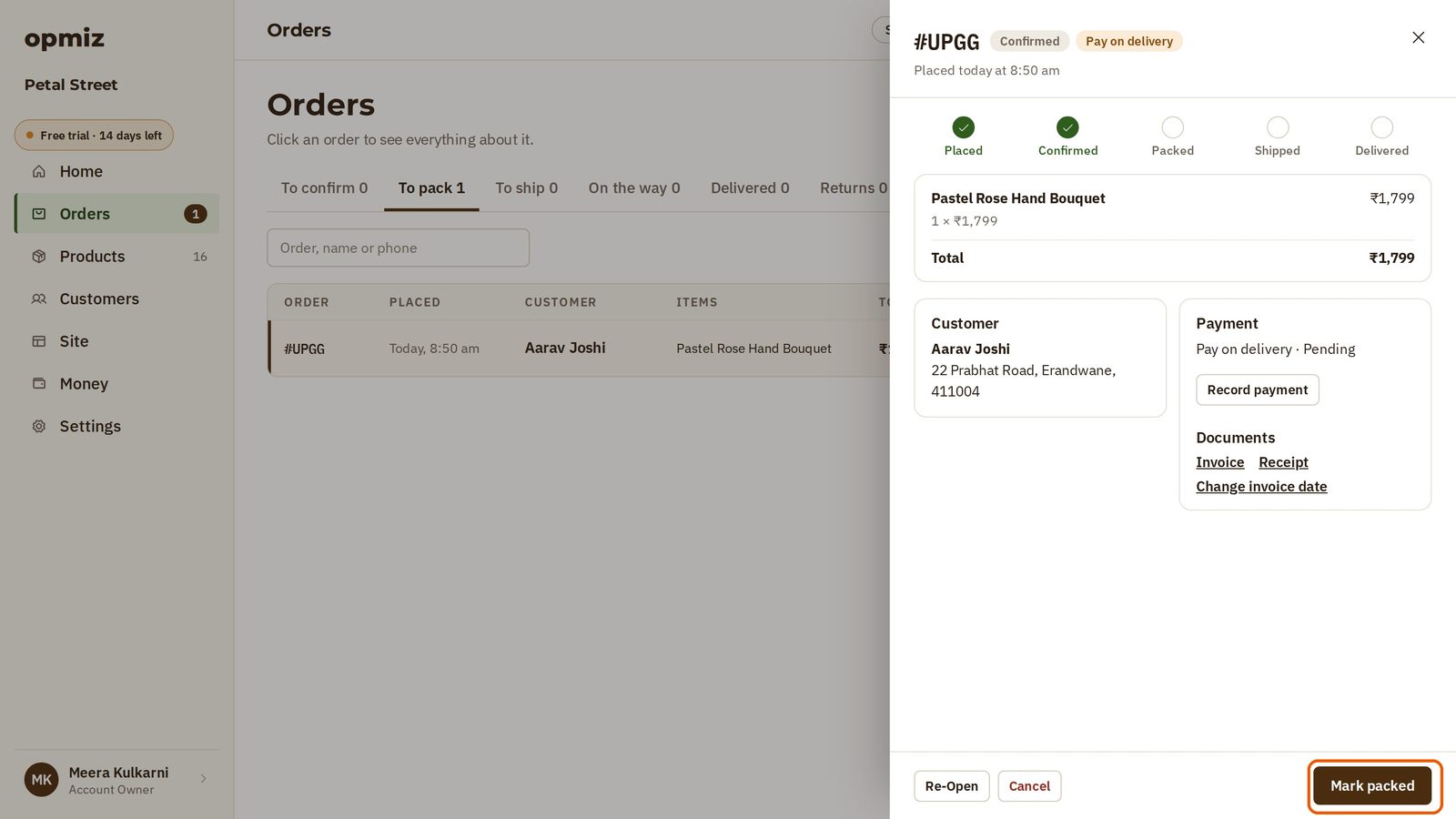
Click the order to see the details. A panel opens with what was bought, where it is going, and how it is being paid for. Everything you need to fulfil it is in one place.
Pack, ship, deliver
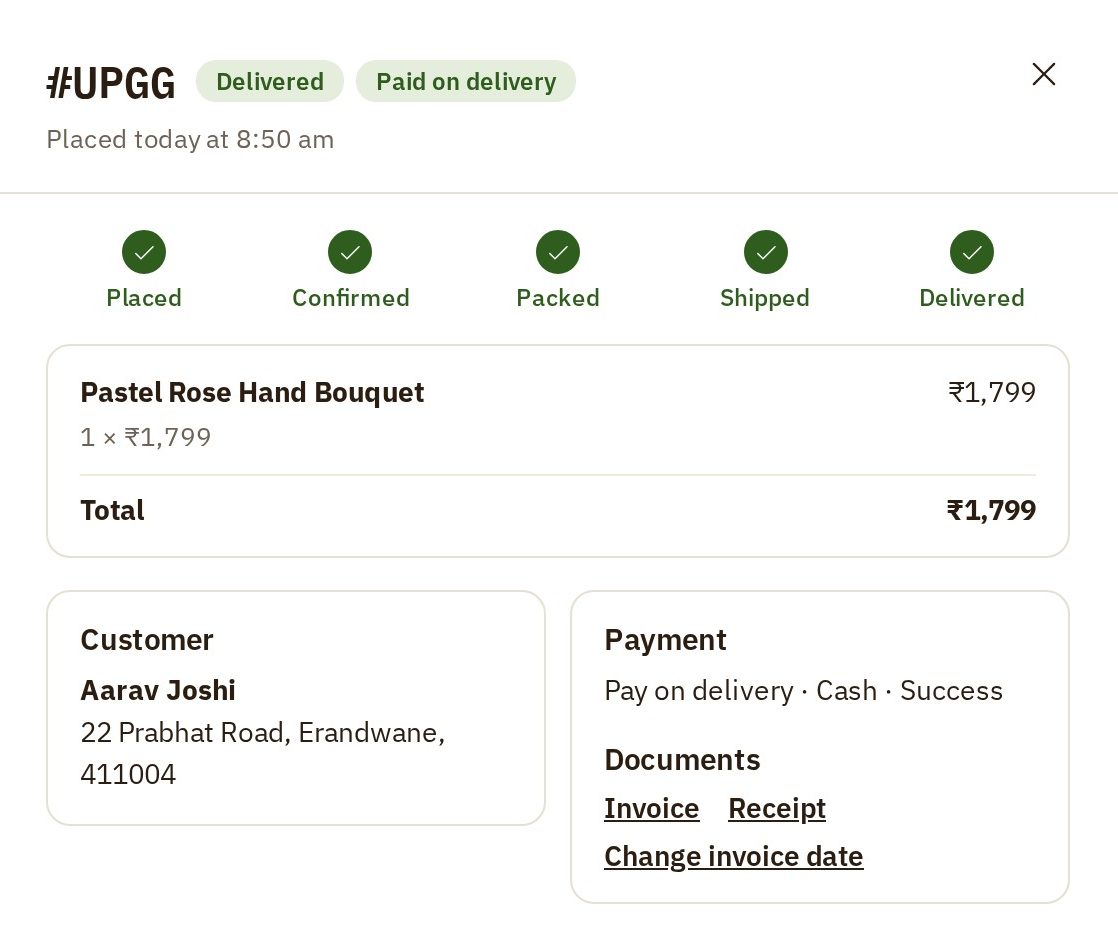
The steps along the top of the panel show how far along the order is: Placed, Confirmed, Packed, Shipped and Delivered.
- Once the order is wrapped, press Mark packed at the bottom right.
- A small box asks you to confirm. Press Mark packed again.
- When it leaves your studio, press Mark shipped, and confirm.
- When it arrives, press Mark delivered, and confirm.
Record the payment
One step is left. This was a cash order, so tell Opmiz you have been paid.
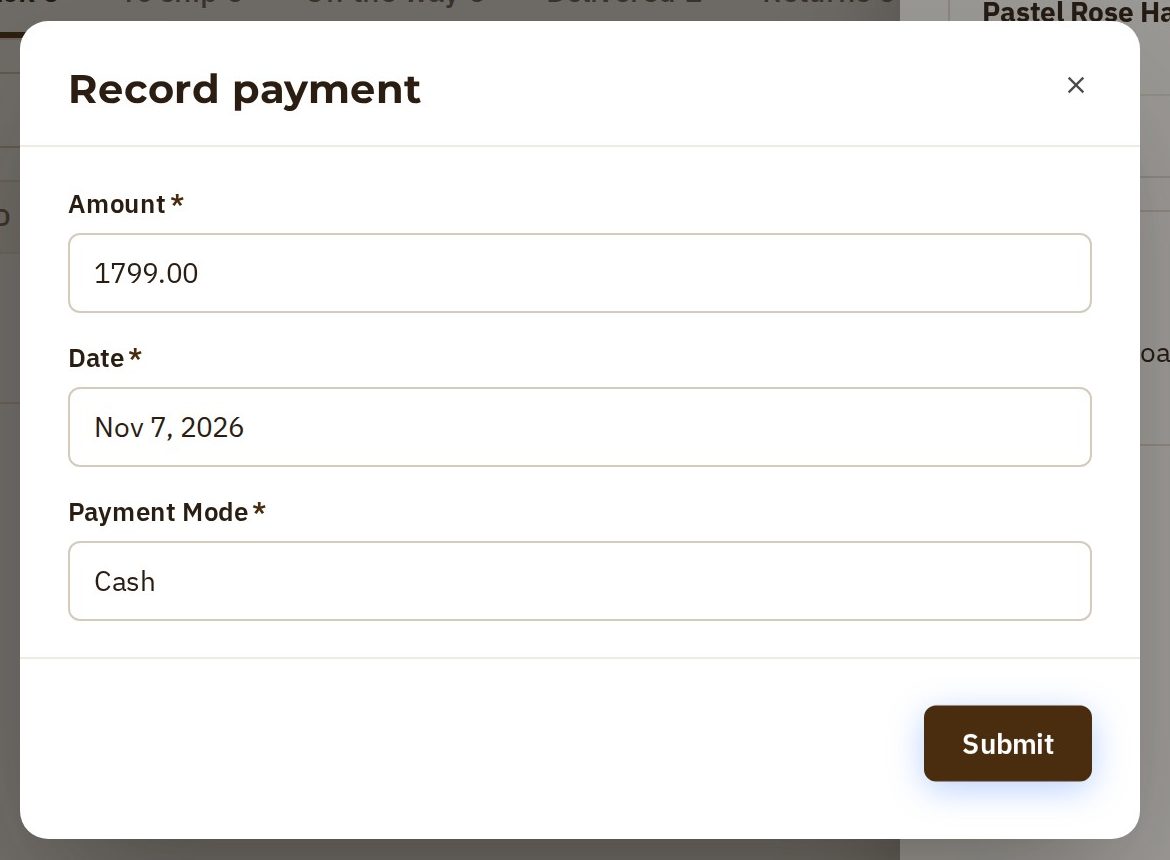
- In the Payment box of the order panel, press Record payment.
- The amount is filled in for you. Choose the Date and the Payment Mode, such as Cash.
- Press Submit.
The order now reads Delivered and Paid on delivery, and every step along the top is ticked. It is delivered, paid for and on record.
Every order works the same way. Check which tab has something waiting, take the next step, and Opmiz keeps the record.
Was this tutorial helpful?
‹ Previous
Add a product to your storeIN THIS TUTORIAL
AI websites with native commerce. Pages, blog, store, payments and GST invoices in one place, built from a short description.
Start free for 14 days →© 2026 Opmiz · WriterBabu Online Services Private Limited. All rights reserved.
Prices in INR, before 18% GST · Made in Patna, India