YOU WILL LEARN
✓
One page for name, category, price, stock and photo
✓
Stock counts itself down with every order
✓
Live in store decides what shoppers can see
Everything about a product is on one page in Opmiz: its name, category, price, stock and photos. Fill it in, save, and the product is on your store straight away. There is no separate publishing step for products.
In the screenshots, Petal Street, a flower studio in Pune, adds a bunch of sunflowers.
Start from your Products page
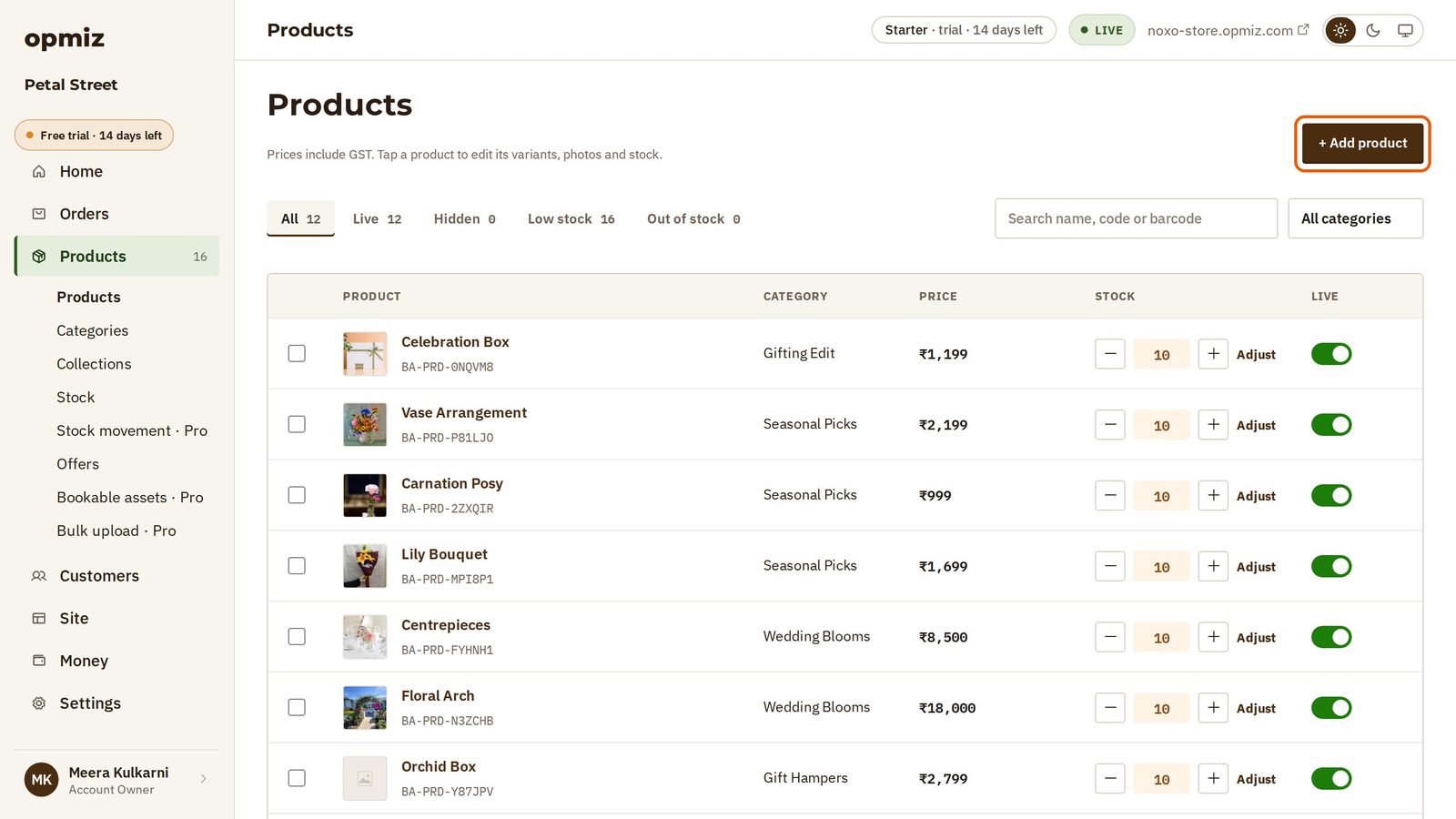
Open Products in the menu on the left. Each row shows a product's price and how many you have in stock, and you can change the stock right there with the − and + buttons.
Press + Add product at the top right.
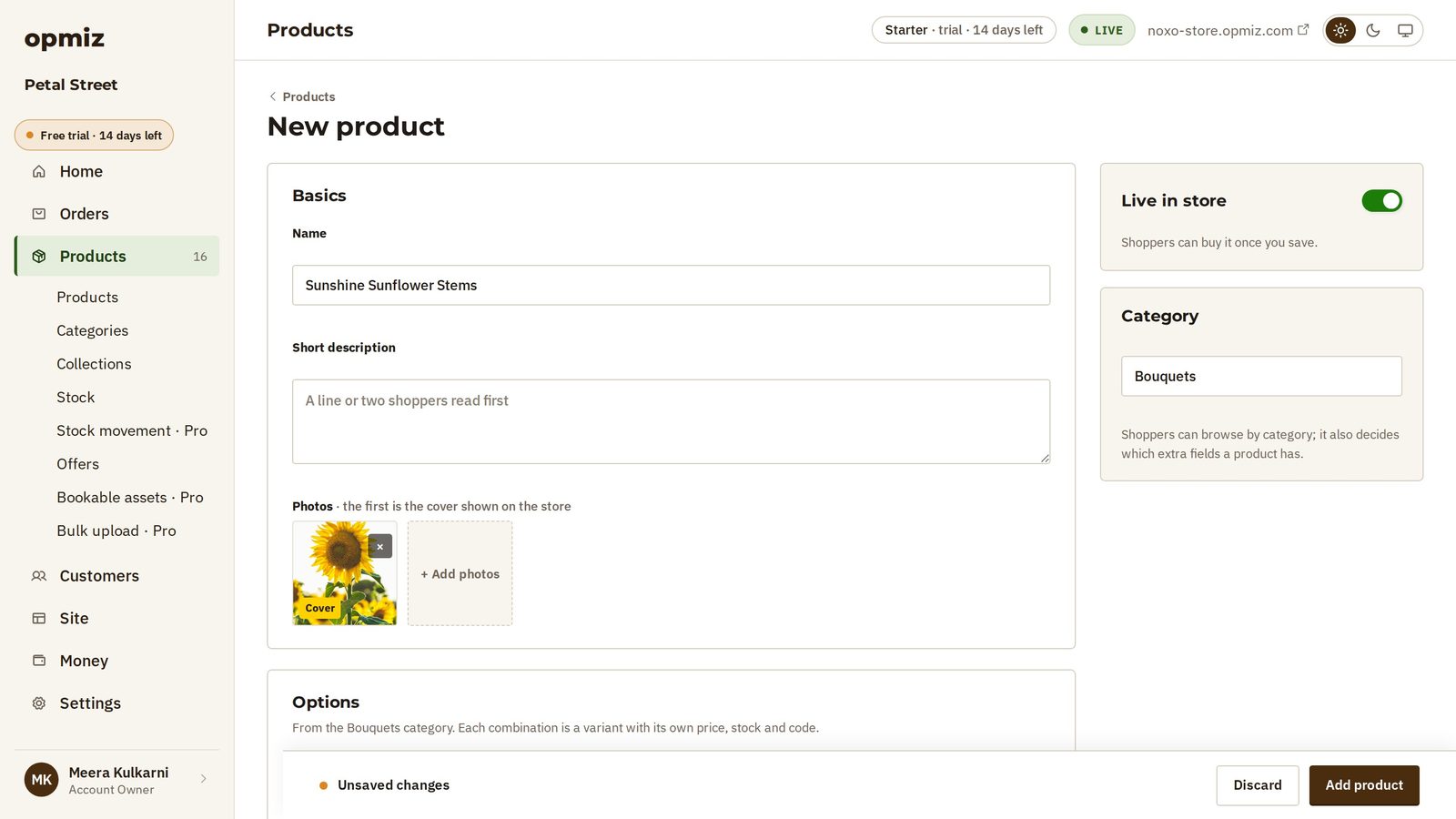
Name, category and photo
- Name: type it exactly as you want shoppers to read it.
- Category: choose where it belongs. Shoppers can browse your store by category, and the category also decides which extra fields the product has.
- Photos: press + Add photos and choose one. The first photo is the cover shoppers see on your store. A bright, close-up photo works best.
- Short description (optional): a line or two that shoppers read first.
Price and stock
- Price: what the customer pays. Prices in Opmiz include GST.
- Label price (optional): a higher price, shown crossed out next to yours, so the store shows your price as a saving.
- Stock: how many you can sell. Opmiz counts it down with each order, so you don't sell what you don't have.
- Barcode (optional): if the product has one.
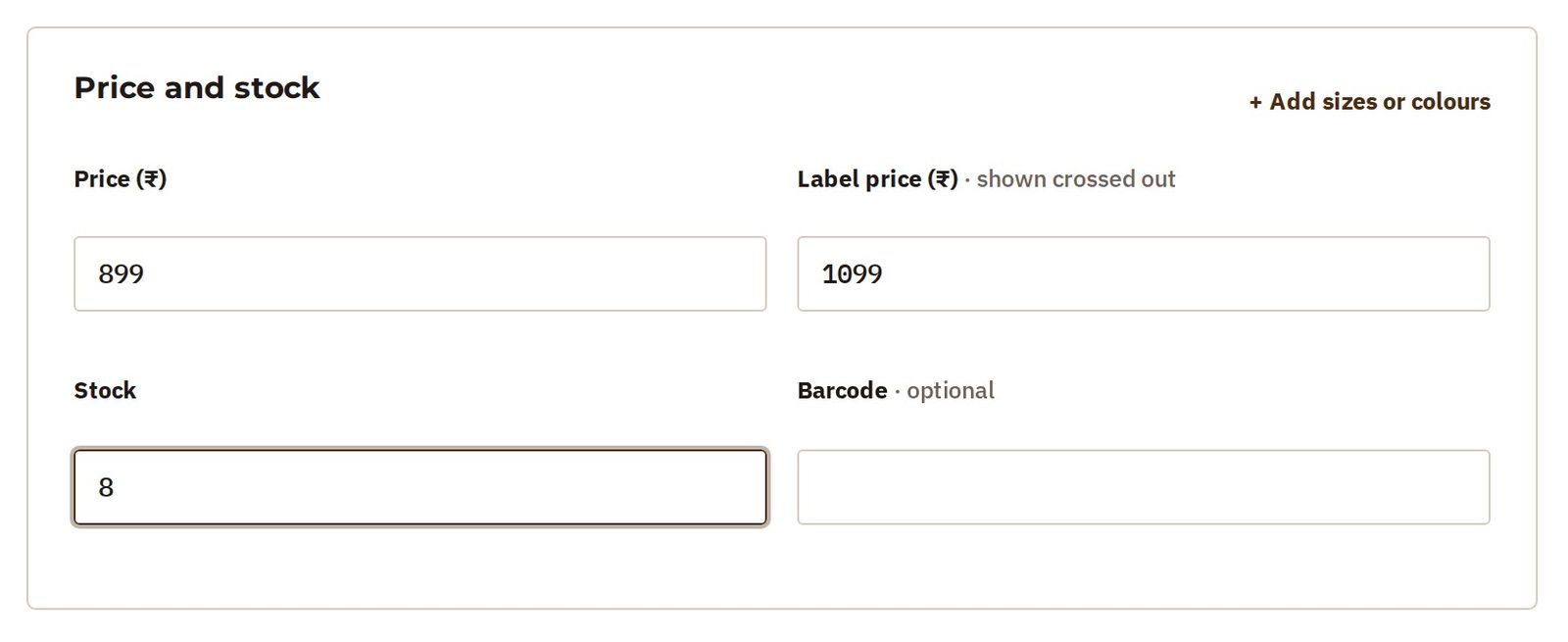
If the product comes in sizes or colours, use + Add sizes or colours here. The tutorial Products with sizes and colours shows how.
Put it on sale
The Live in store switch at the top right decides whether shoppers can see the product. Turn it on when it is ready to sell, then press Add product at the bottom of the page.
Leave the switch off to save a product you are still working on. It stays hidden from the store, and only you can see it.
See it on your store
Open your store. The product is there, with its photo, its price, the label price crossed out above it, and an Add to cart button.
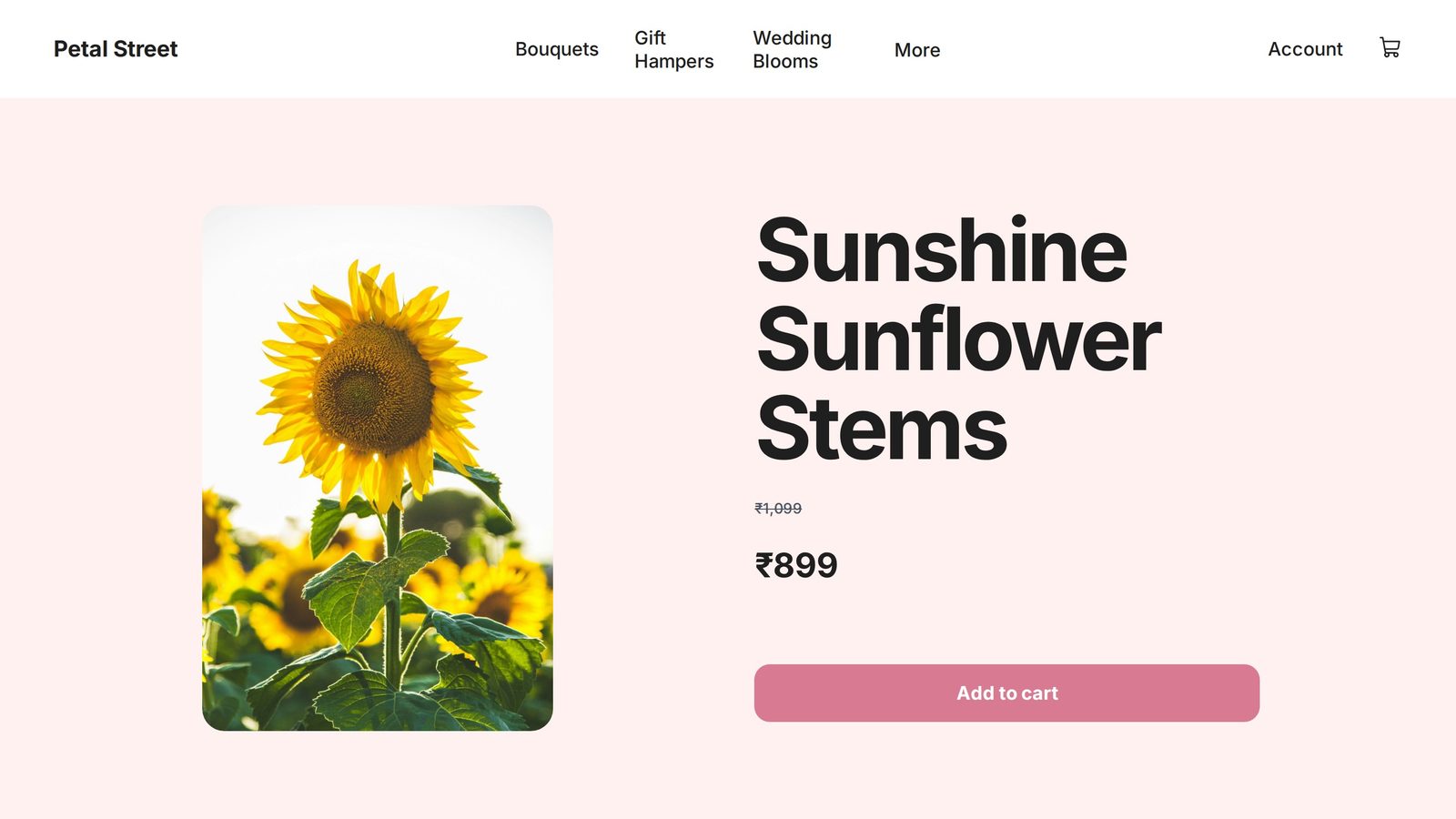
Add the rest of your products the same way, or open one of the sample products and change it into one of your own.
Was this tutorial helpful?
‹ Previous
Reuse a block with ComponentsNext ›
Handle your first orderIN THIS TUTORIAL
AI websites with native commerce. Pages, blog, store, payments and GST invoices in one place, built from a short description.
Start free for 14 days →© 2026 Opmiz · WriterBabu Online Services Private Limited. All rights reserved.
Prices in INR, before 18% GST · Made in Patna, India