YOU WILL LEARN
✓
Invite from Settings, People, on the Pro plan
✓
A role sets what each person can see and do
✓
Change a role or remove someone whenever you need to
Sharing one password with your staff means anyone can change anything. Instead, give each person their own login, with a role that decides what they can see and do. At the end, your team member has their own dashboard with just what they need.
Inviting a team needs the Pro plan.
In the screenshots, Meera runs Petal Street, a flower studio in Pune, and invites Priya, who packs the orders.
The People page
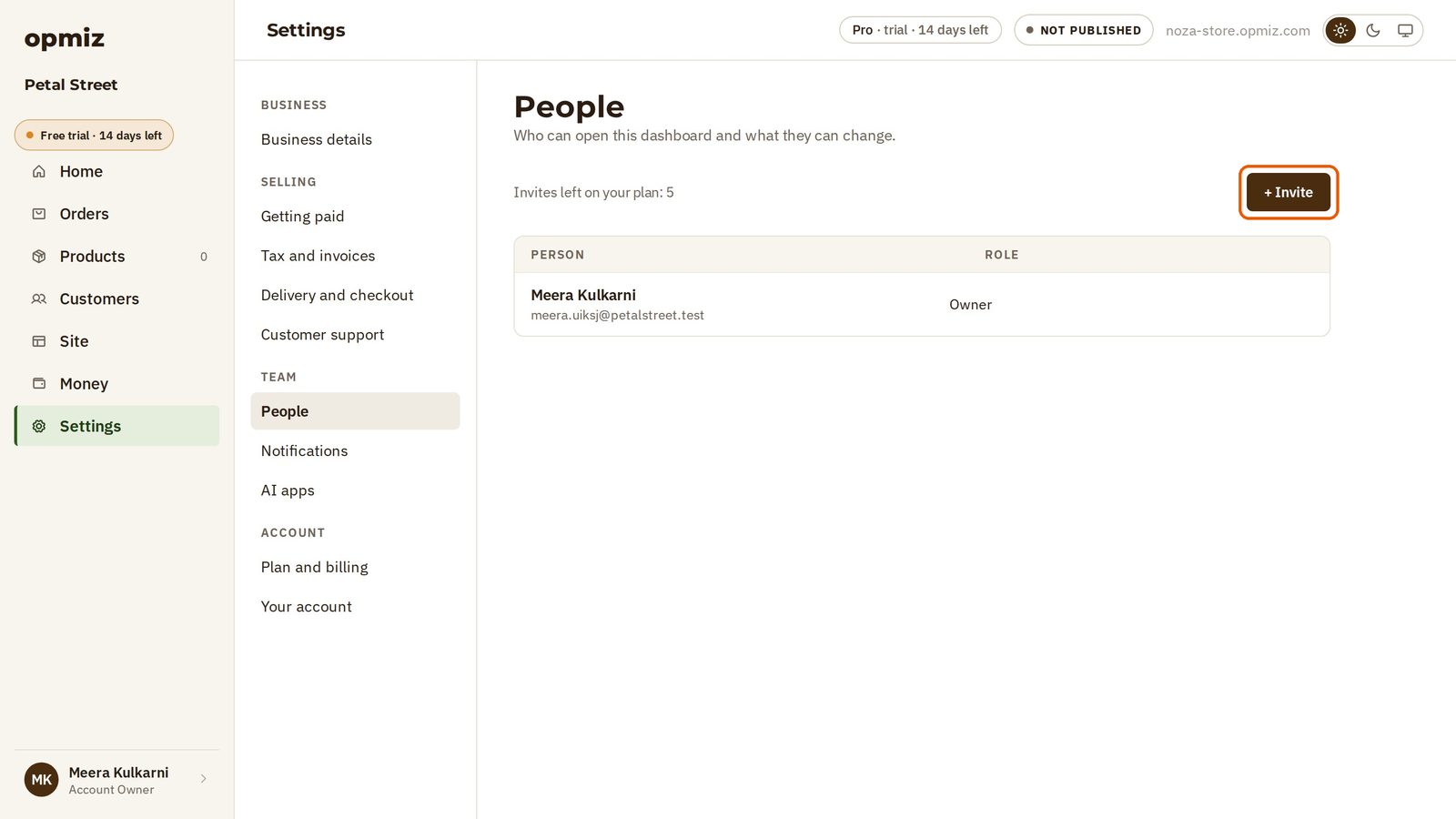
Open Settings, then People. The list shows everyone who can open your dashboard, with their role. At first, it is only you.
The line Invites left on your plan tells you how many more people your plan lets you invite.
Send an invitation
- Press + Invite.
- Type their Full name.
- Type their own Email. The invitation goes there.
Choose a role
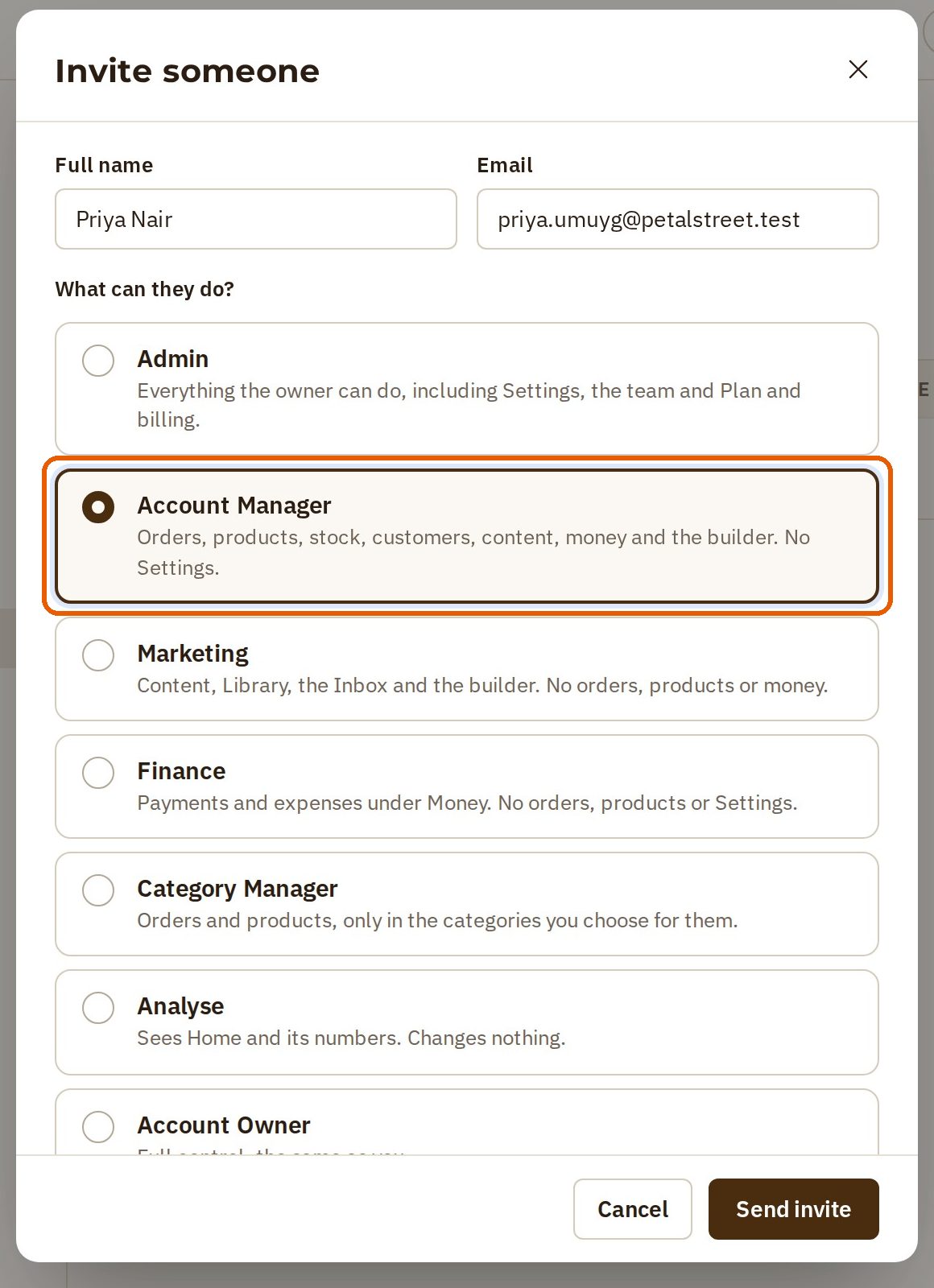
This is the important part. Under What can they do?, each role says in plain words what it allows. For example:
- Marketing gets content and the builder, but no orders, products or money.
- Account Manager gets orders, products, stock, customers, content, money and the builder, but not Settings.
- Finance gets payments and expenses under Money, but no orders, products or Settings.
Priya needs orders and products, so Meera chooses Account Manager. Then press Send invite.
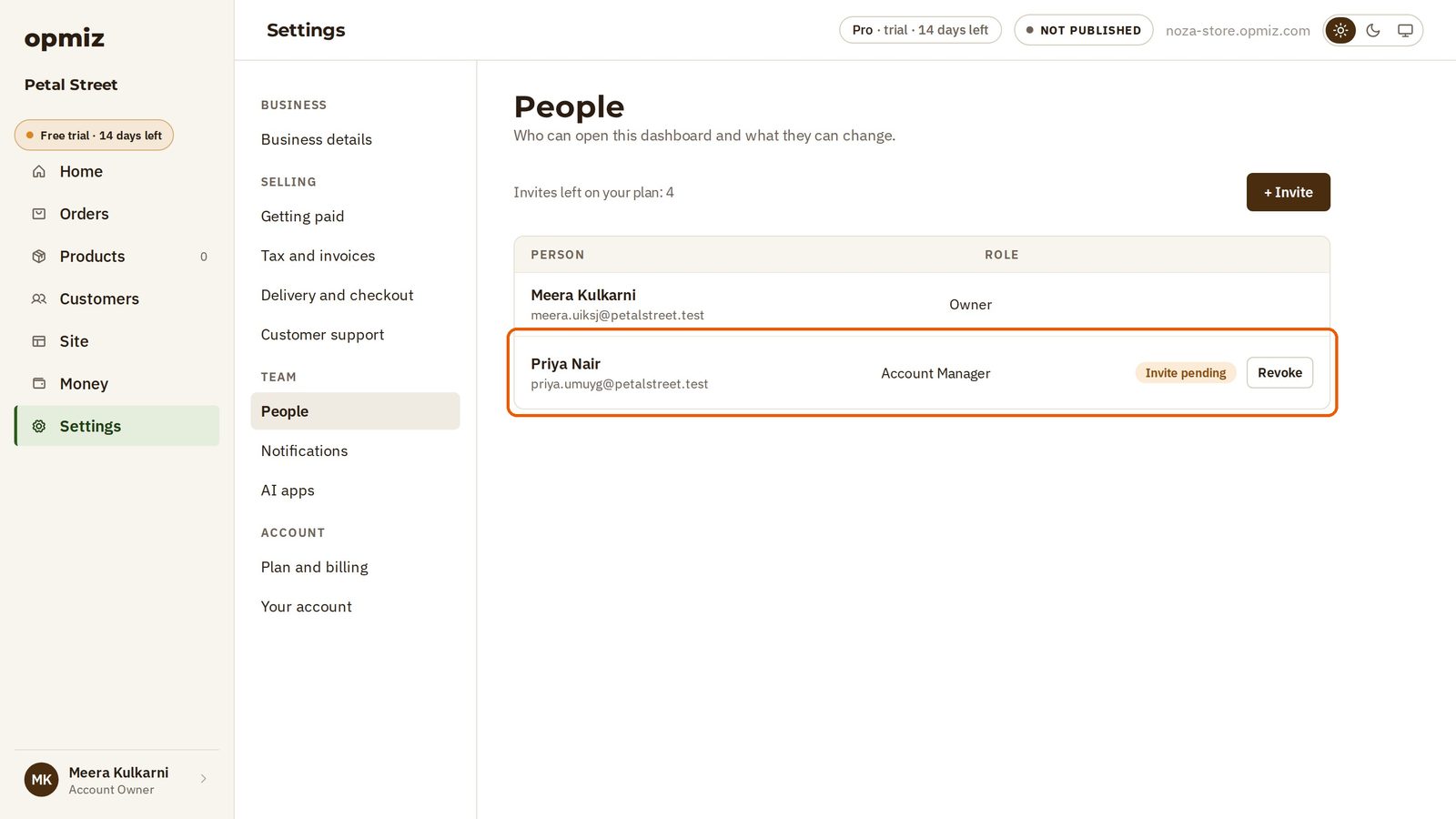
The person is now on your list, marked Invite pending, until they accept. If you change your mind, Revoke cancels the invitation.
Their side
Your team member opens the link from their email, on their own computer. The page shows your business and the role you gave them. They choose a password and press Join.
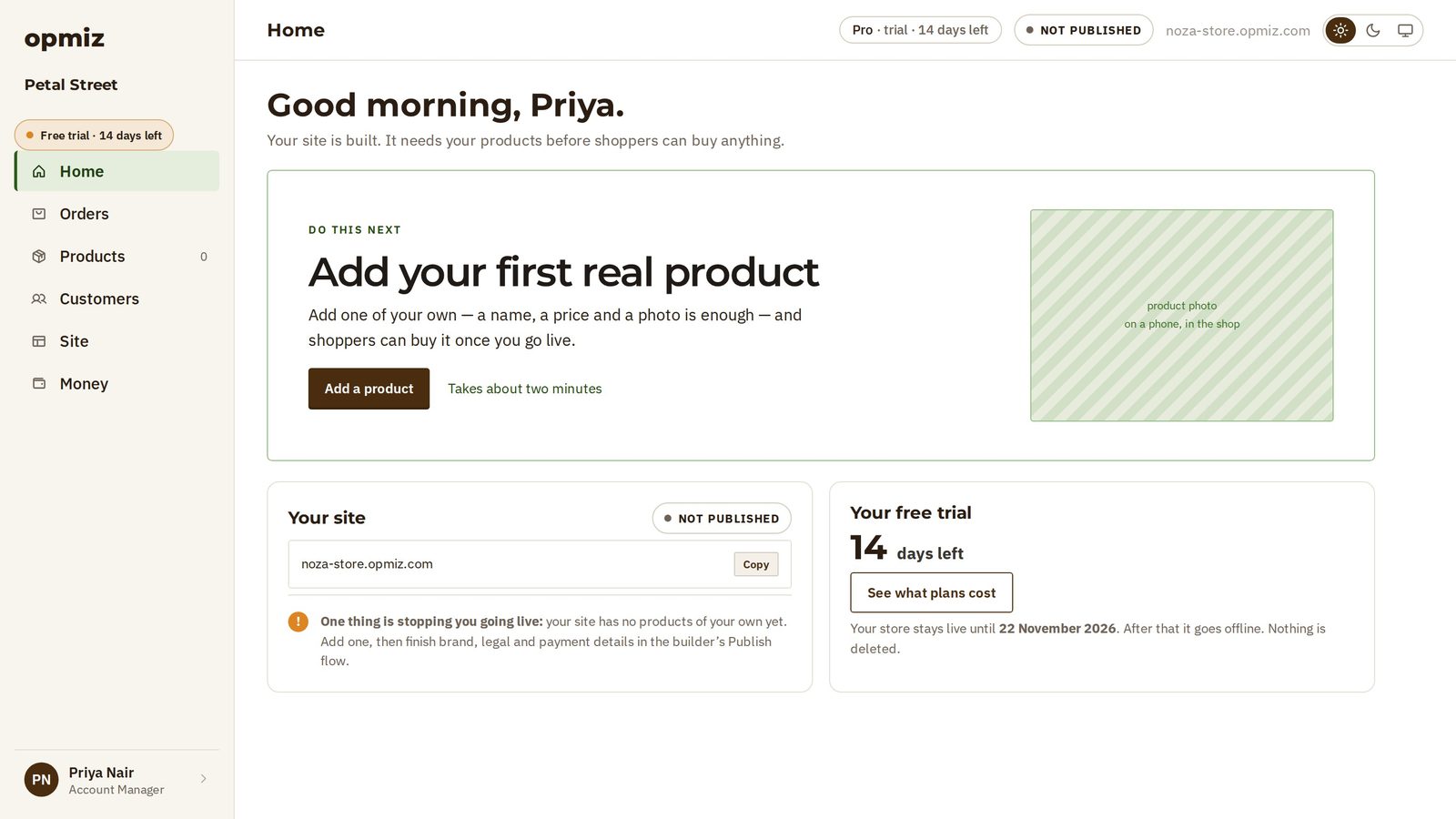
They are in, on your business's dashboard, under their own name. Their menu only shows what their role allows. Priya's menu has Orders, Products, Customers, Site and Money. Settings isn't there, because Account Manager leaves it out.
Change a role later
Back on your People page, the person is now a member, with their role beside their name.
Work changes, and so can a role.
- Press the ··· button at the end of their row. This menu changes their role. It also removes them, the day they leave, and they lose access straight away.
- To change the role, choose a new one. Say Priya moves to the accounts: Meera chooses Finance.
- Press Save role.
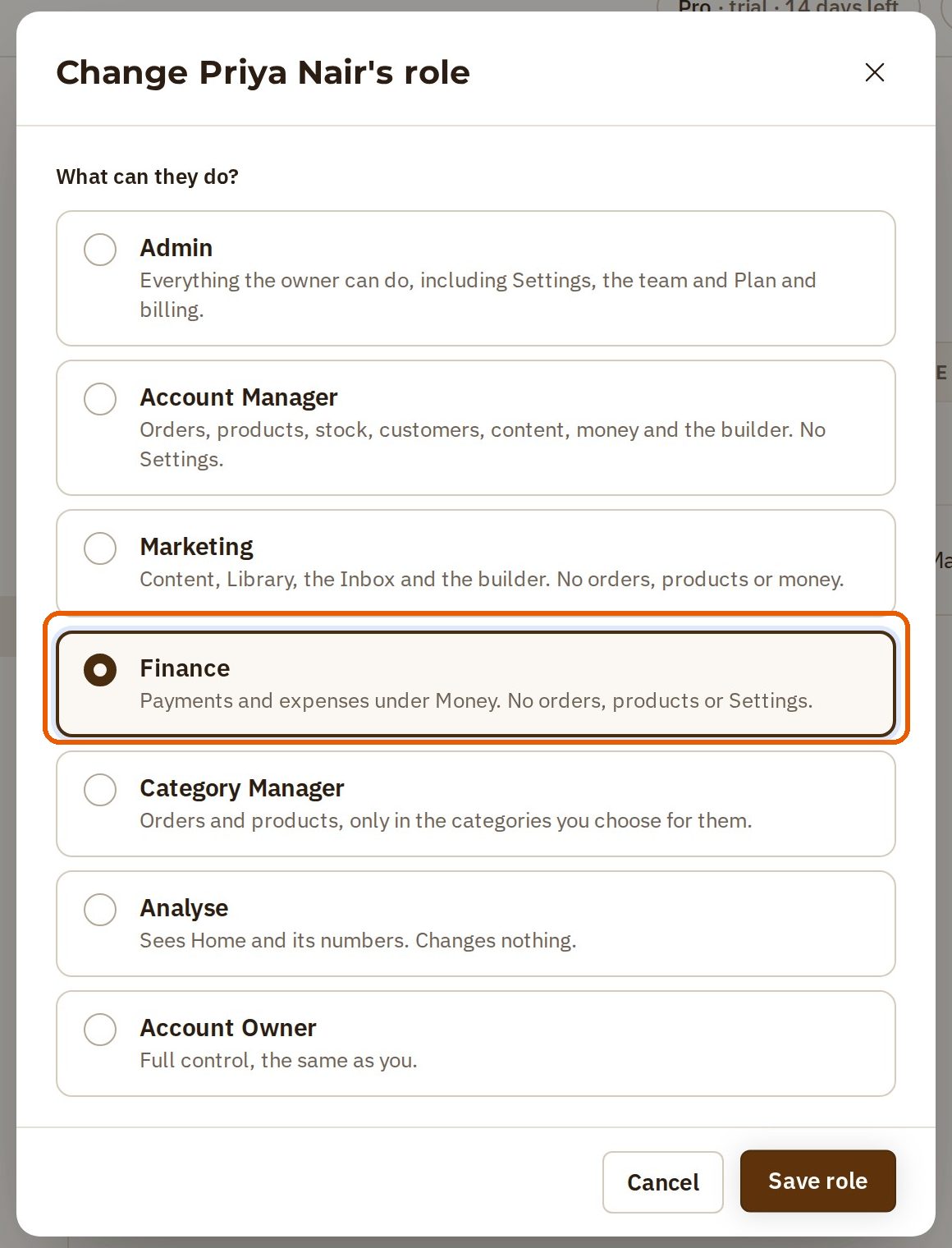
Their access follows the new role, and the list shows the new role beside their name.
Was this tutorial helpful?
AI websites with native commerce. Pages, blog, store, payments and GST invoices in one place, built from a short description.
Start free for 14 days →© 2026 Opmiz · WriterBabu Online Services Private Limited. All rights reserved.
Prices in INR, before 18% GST · Made in Patna, India