YOU WILL LEARN
✓
Click a photo, then Replace
✓
Upload your own and describe it
✓
Find it again in your Library, or search Unsplash
The website builder starts you off with stock photos. They look good, but your customers want to see your own work. Here you upload your own photo, use it again on other pages, and pick a free stock photo where you don't have one yet.
In the screenshots, Petal Street, a flower studio in Pune, puts its own bouquet on its home page.
Upload your own photo
- In the website builder, click any photo on the page.
- Press Replace, the first button on the toolbar. It opens the image picker, Choose an image.
- To use a photo you took yourself, go to Upload.
- Press Choose File and pick a photo from your computer. Opmiz keeps it in your Library for next time.
- Write the Alt text: a short description of the photo, for people who can't see it.
- Press Use image.
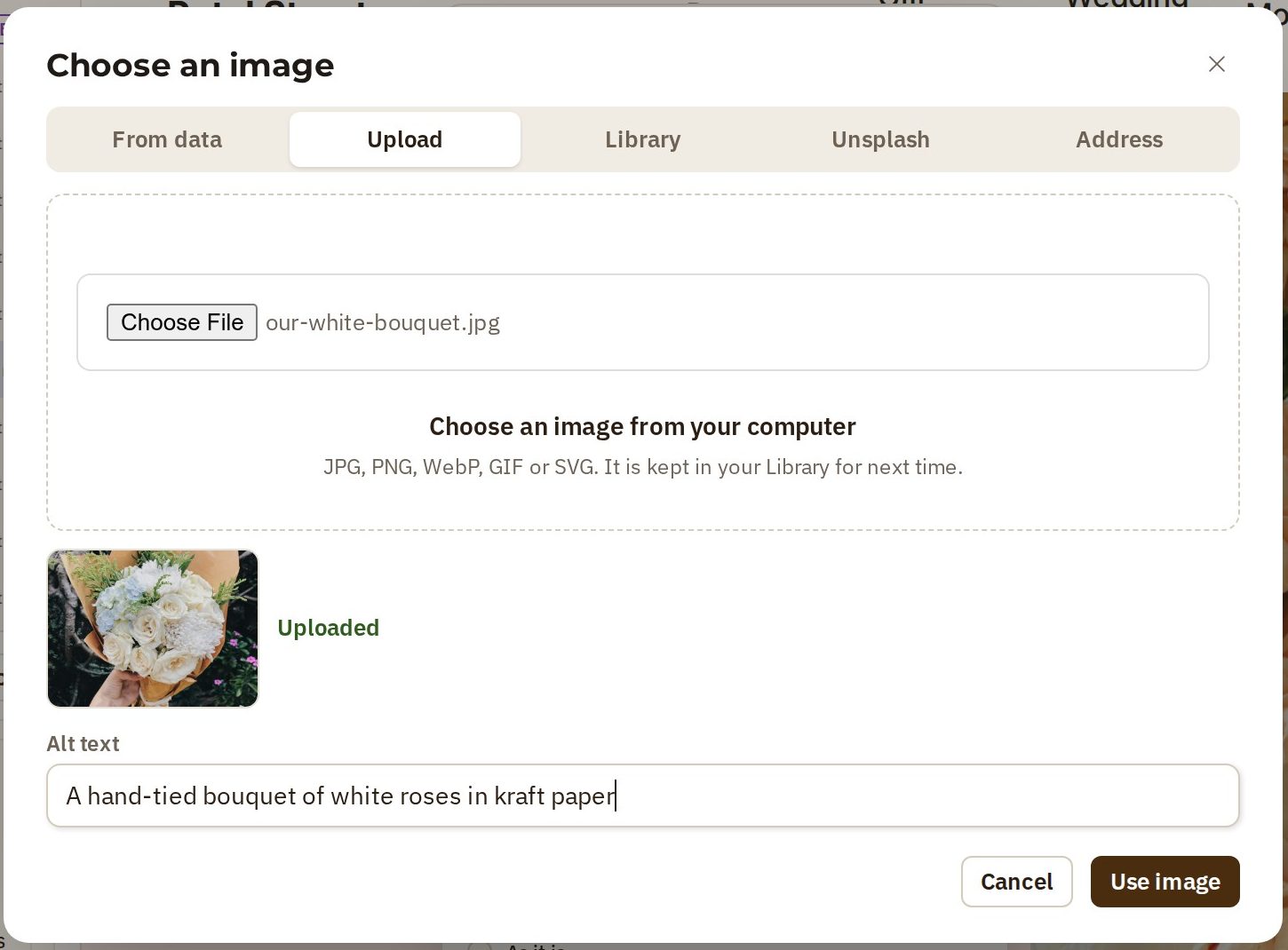
The photo is now on your page, saved to your draft.
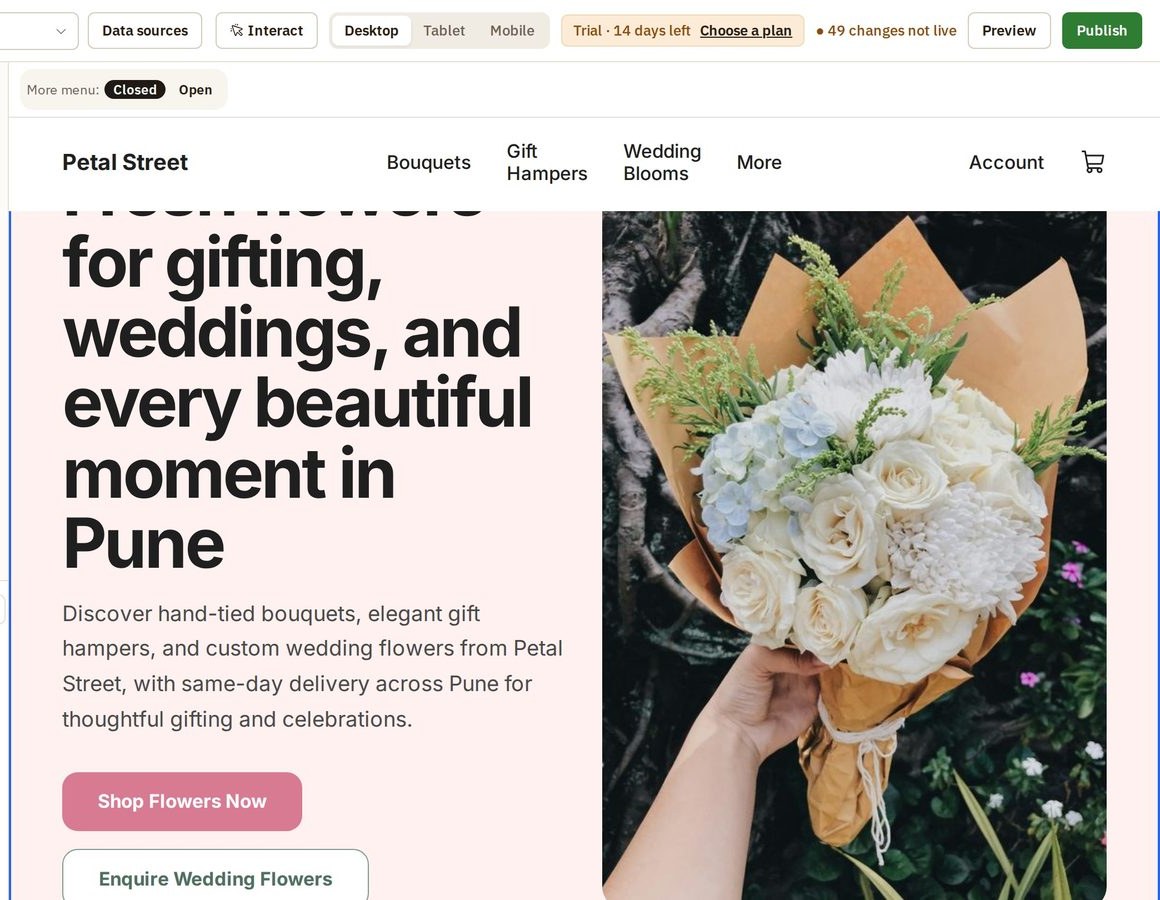
Go through each page
A photo changes only where you replace it. Go through your pages one by one. Here, the Wedding Flowers page still has the old photo.
- Click the photo and press Replace.
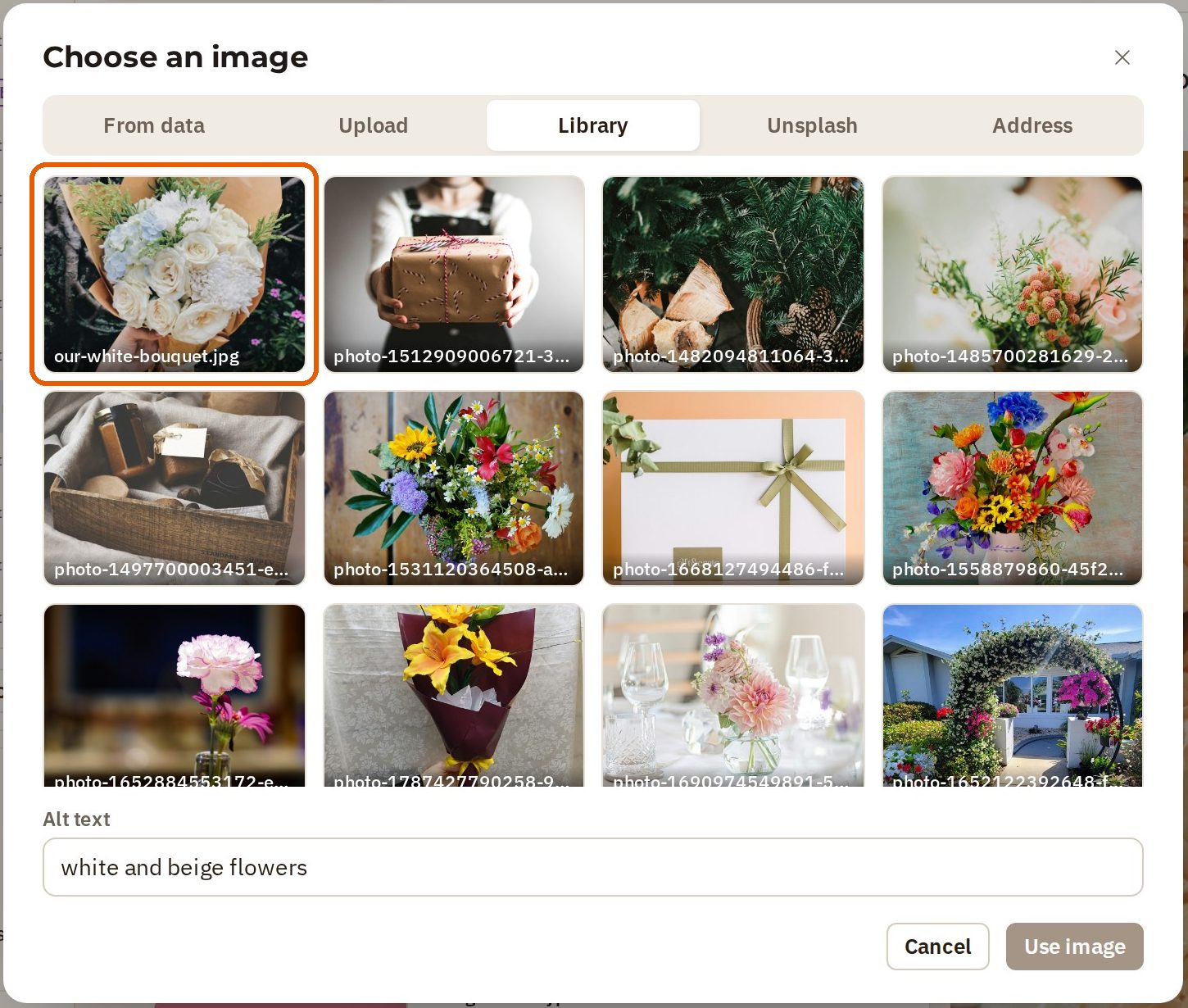
- Go to Library. It holds the photos already on your site, and everything you have uploaded.
- Your uploaded photo is there, ready to use again anywhere. Pick it and press Use image.
No photo of your own yet?
Unsplash is a free library of stock photos, and you can search it from the image picker.
- Click the photo and press Replace, then go to Unsplash.
- Type what the photo should show, such as wedding bouquet, and press Search.
- Pick one. Each stock photo comes with a credit to its photographer, and the alt text is filled in for you. Opmiz keeps both with the photo.
- Press Use image.
Your changes stay in your draft until you publish, so take your time.
Was this tutorial helpful?
AI websites with native commerce. Pages, blog, store, payments and GST invoices in one place, built from a short description.
Start free for 14 days →© 2026 Opmiz · WriterBabu Online Services Private Limited. All rights reserved.
Prices in INR, before 18% GST · Made in Patna, India