YOU WILL LEARN
✓
Options belong to the category
✓
Each combination has its own price and stock
✓
New variants stay off until you switch them on
Some things come in more than one size or colour. In Opmiz you sell them as one product, with every choice on one page. Each choice gets its own price, stock and photo, and the shopper picks the one they want.
In the screenshots, Petal Street, a flower studio in Pune, sells a hand-tied bouquet in small, medium or large, in pink or red. That is six choices, and Meera, the owner, doesn't want six products.
One product, many choices
Open Products, find the product (the search box helps), and click it to open it.
Set up the options
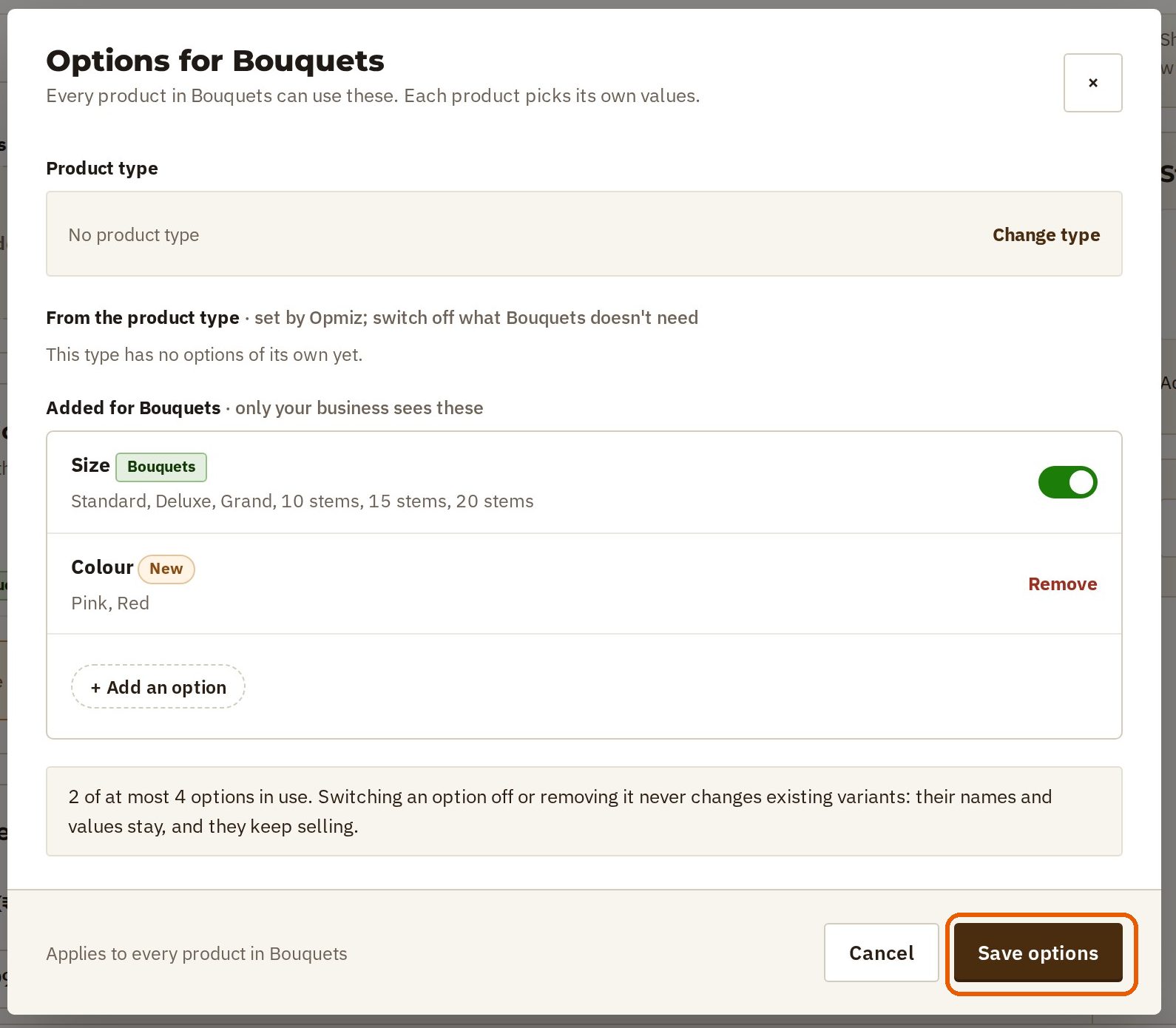
Options are the choices a shopper makes, such as size or colour. They belong to the category, so every product in that category can use them. In the demo, the Bouquets category already has Size, but not colour.
- In the Options box, press Edit options.
- Press + Add an option.
- Give it a name, such as Colour, and suggest the values you will use most, such as Pink, Red.
- Press Add option, then Save options. The new option is now there for every product in the category.
Add the sizes and colours
Now choose what this product comes in.
- Next to Size, press + Add and pick a size. If your size isn't in the list, choose Other and type it. Then press Add.
- Do the same for each size. Petal Street adds Small, Medium and Large.
- Next to Colour, add the colours the same way, from the values you suggested.
A price for each size
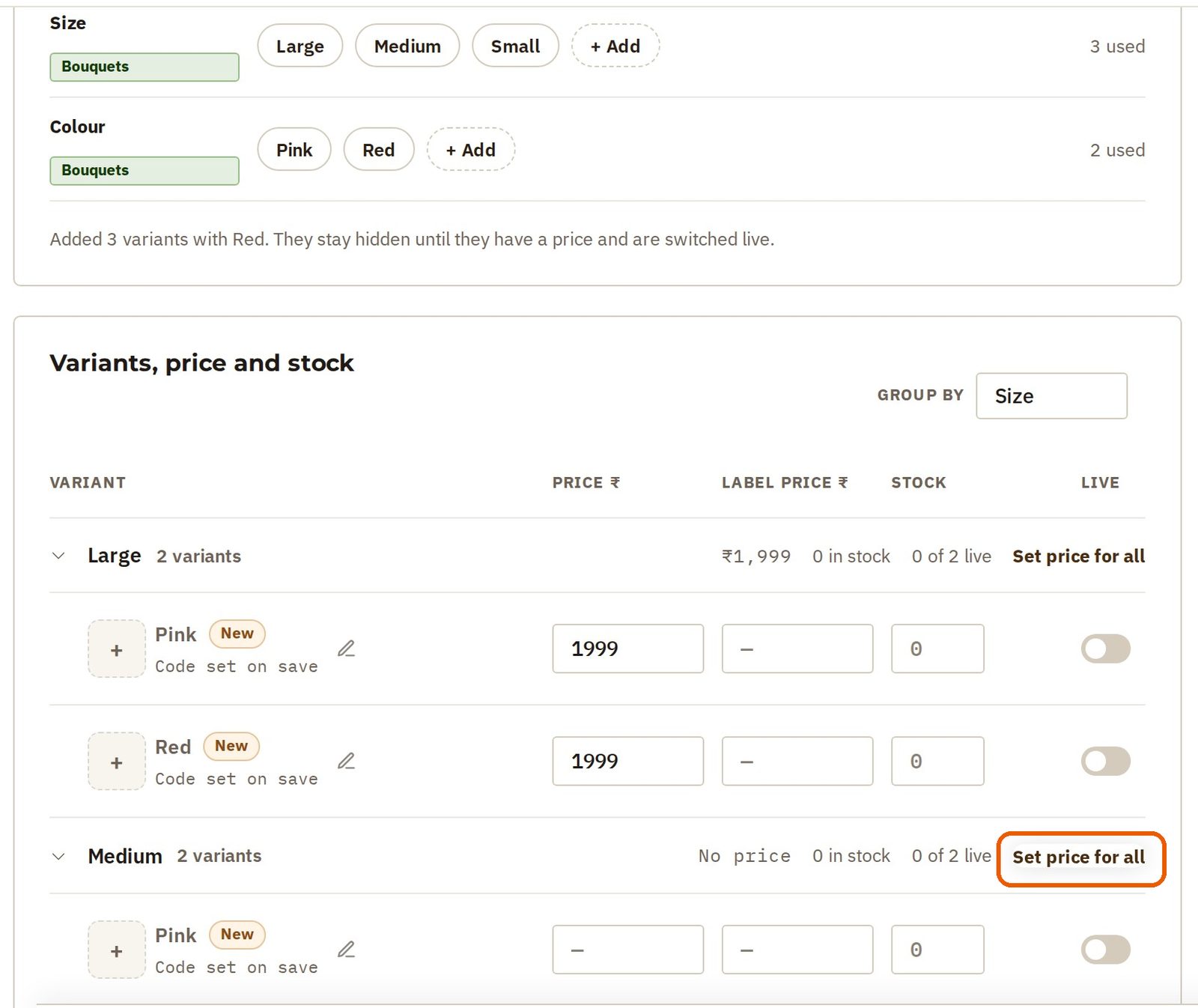
Every combination is now a variant, with its own price and stock. They are listed under Variants, price and stock, grouped by size.
The new ones start switched off, so nothing half-finished reaches your store.
A size usually has one price, whatever the colour. So set it for the whole group: press Set price for all next to a size, type the price, and apply it. Petal Street sets Large to 1999, Medium to 1599 and Small to 1299.
Stock, and switching on
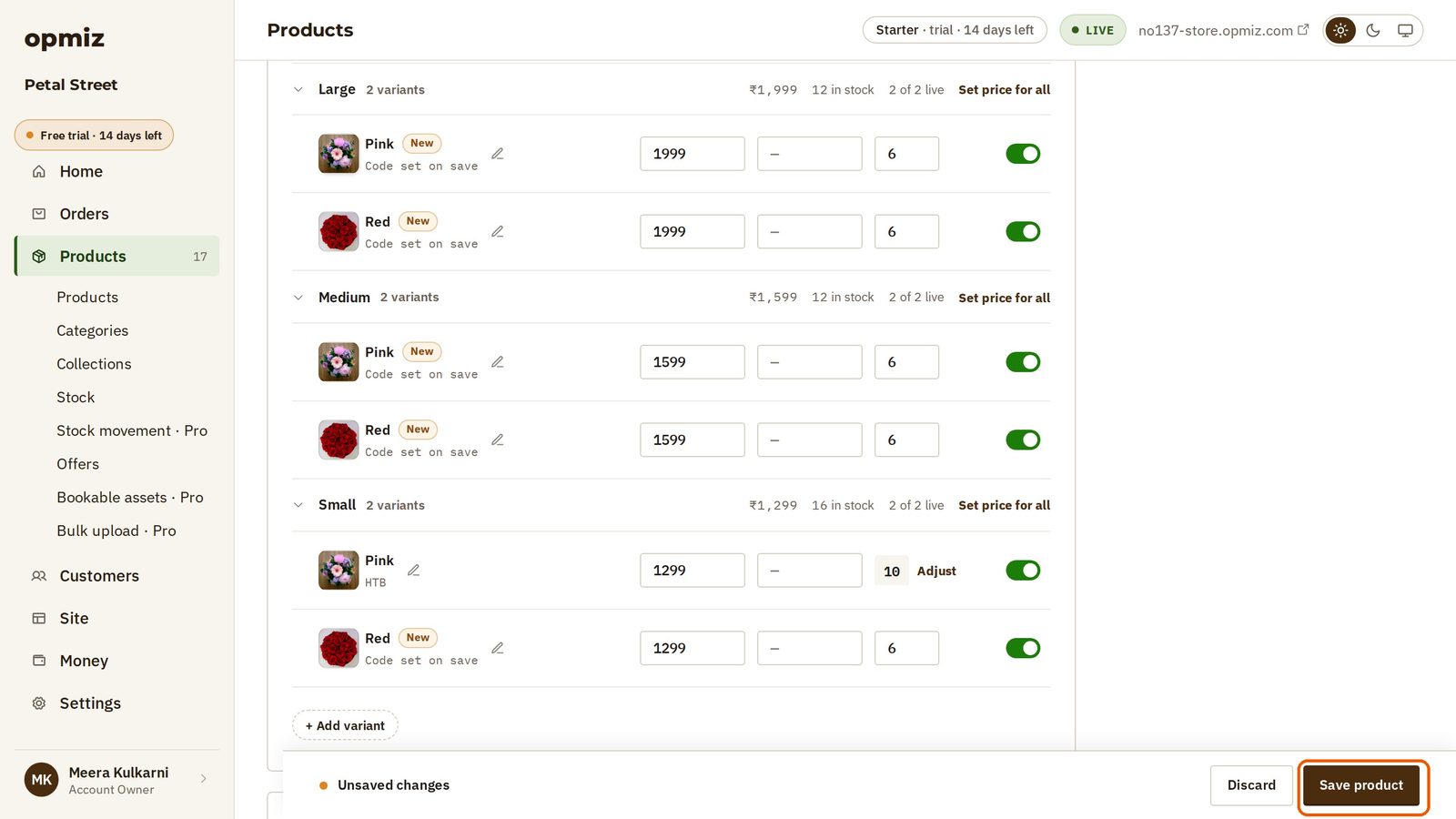
Stock is counted per variant.
- In each row, type how many you can make in the Stock box.
- Turn on the switch under Live, so that variant can be bought.
A photo for each colour
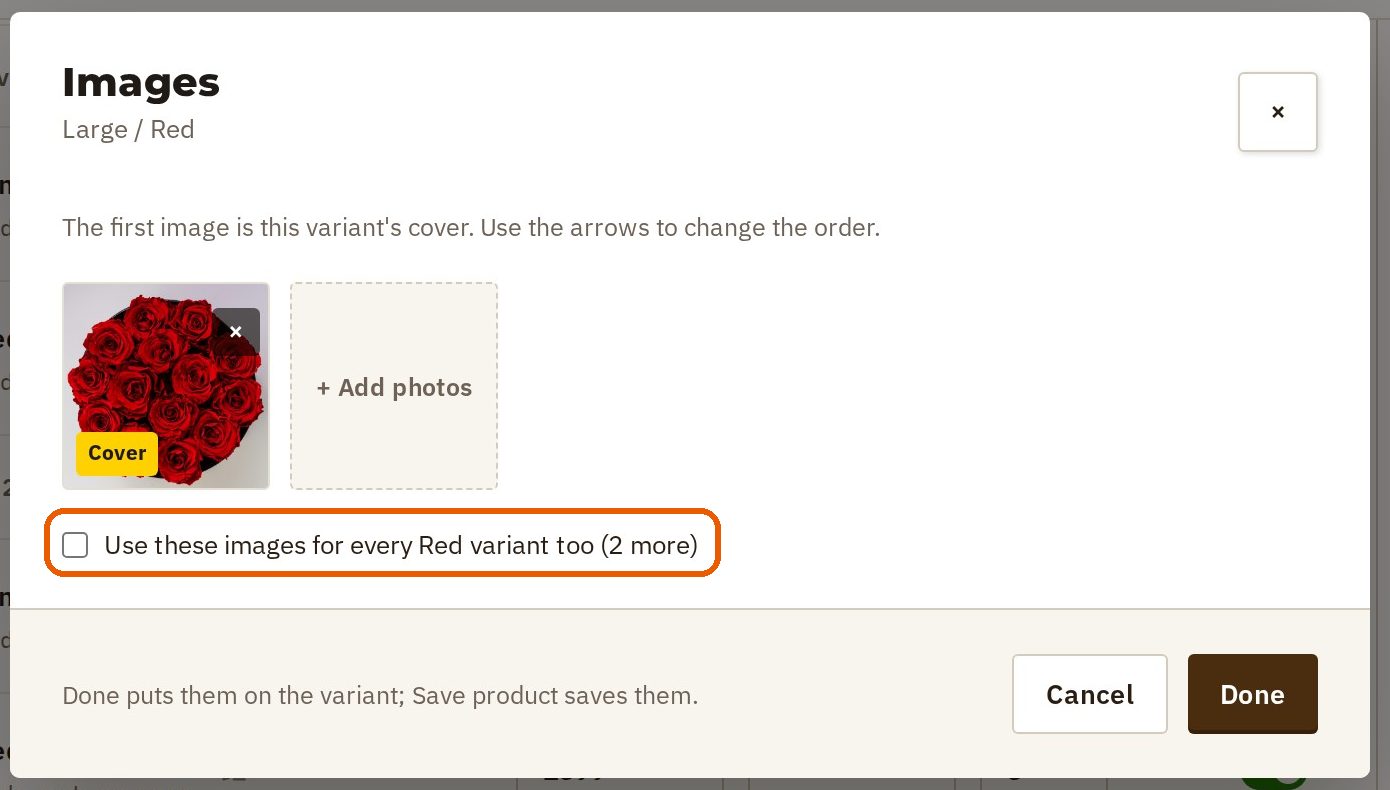
A shopper who picks red should see red. Each variant's photo opens from its row.
- Press the small photo box at the start of a red row.
- Add the photo.
- Tick Use these images for every Red variant too, so you only add it once per colour.
- Press Done.
Do the same for the other colour. Then press Save product, and every choice is on your store.
What shoppers see
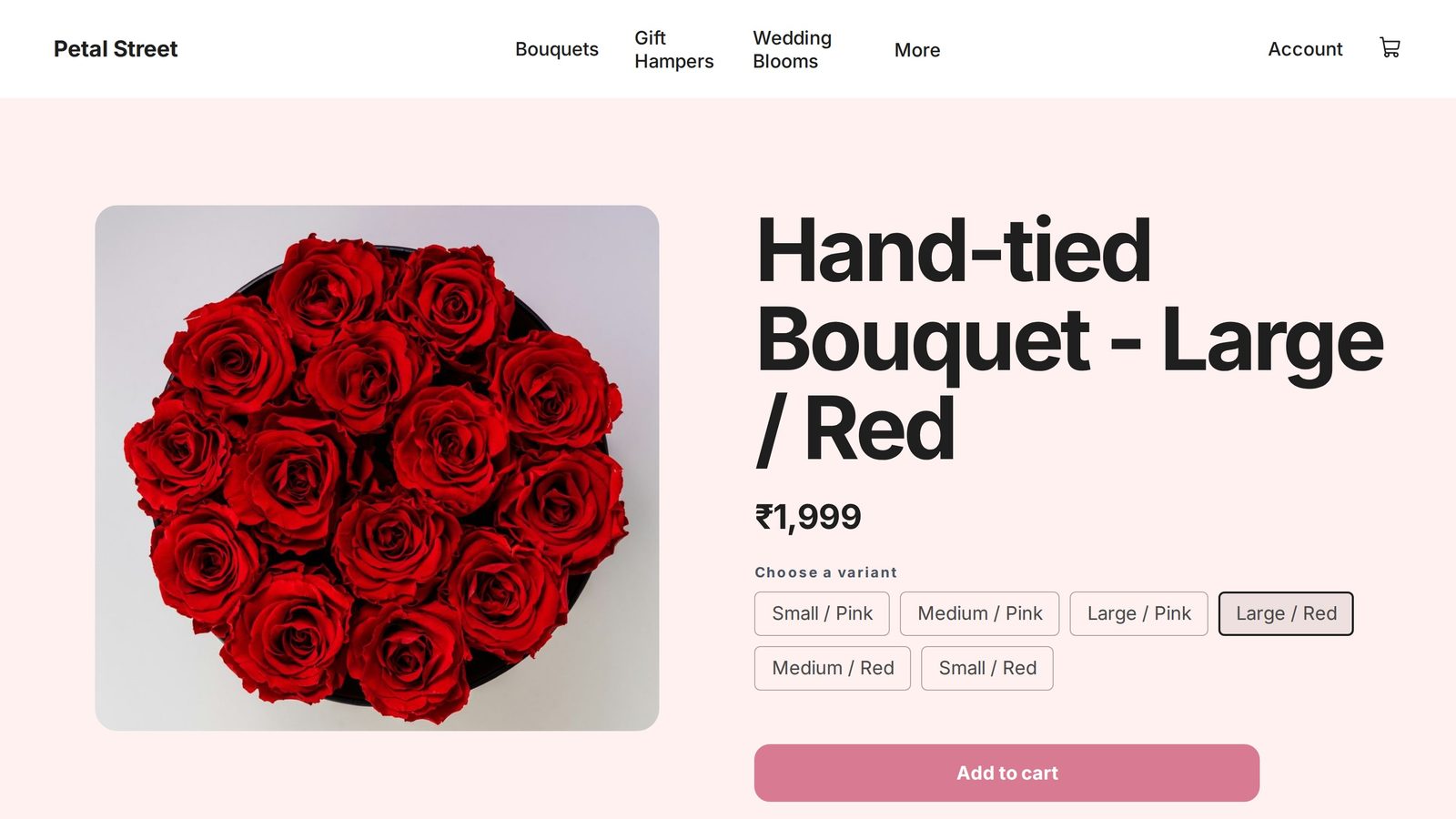
On your store, the product has one page with every choice on it, under Choose a variant. When the shopper picks a choice, the photo and the price change with it. Add to cart puts that exact choice in their cart.
Was this tutorial helpful?
‹ Previous
Turn on Pay on DeliveryNext ›
Keep your stock rightIN THIS TUTORIAL
AI websites with native commerce. Pages, blog, store, payments and GST invoices in one place, built from a short description.
Start free for 14 days →© 2026 Opmiz · WriterBabu Online Services Private Limited. All rights reserved.
Prices in INR, before 18% GST · Made in Patna, India