YOU WILL LEARN
✓
Site, then Brand, holds your name, logos and contact details
✓
A PNG or SVG with a transparent background works best
✓
Changes save themselves and go live straight away
Your site already has your name on it. Adding your logo and contact details makes it look like your business and tells customers how to reach you. At the end, your logo, address, phone and social link sit in your site's footer.
In the screenshots, Petal Street, a flower studio in Pune, adds its logo and its address.
Find your brand details
Your brand details live with your site.
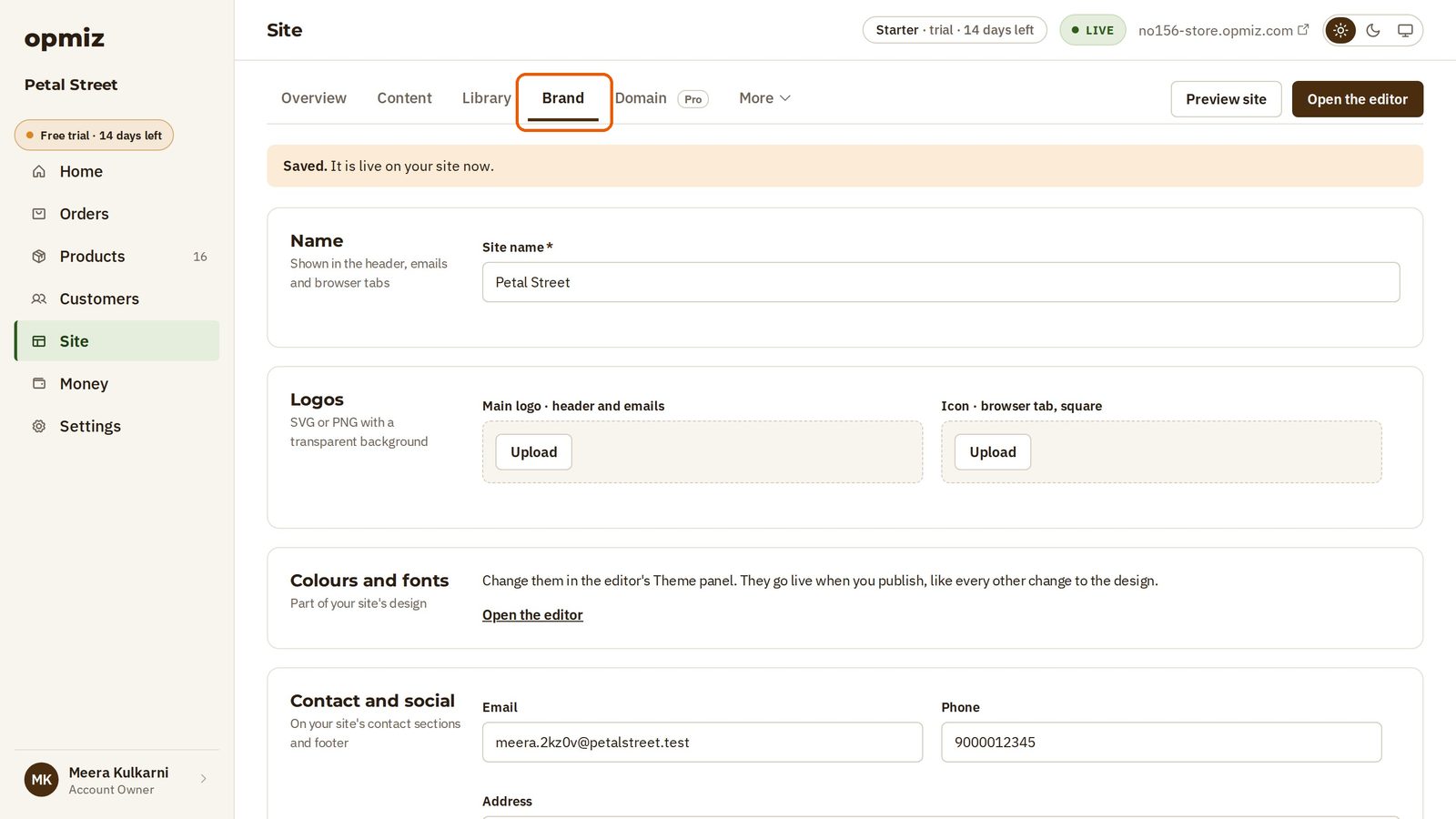
- Open Site in the menu on the left.
- Open the Brand tab.
Your site name is already here, from when you made the site.
There is no Save button on this page. Whatever you change saves itself, and goes on your live site straight away.
Upload your logo
Under Logos there are two pictures to add.
- Main logo: the wide one, with your full name. Use a PNG or SVG with a transparent background, so it sits cleanly on any colour. Press Upload and choose your file, and it's in.
- Icon: the small square picture that shows on a browser tab. A simple mark works best at that size. Press Upload under Icon · browser tab, square and choose it.

Add your contact details
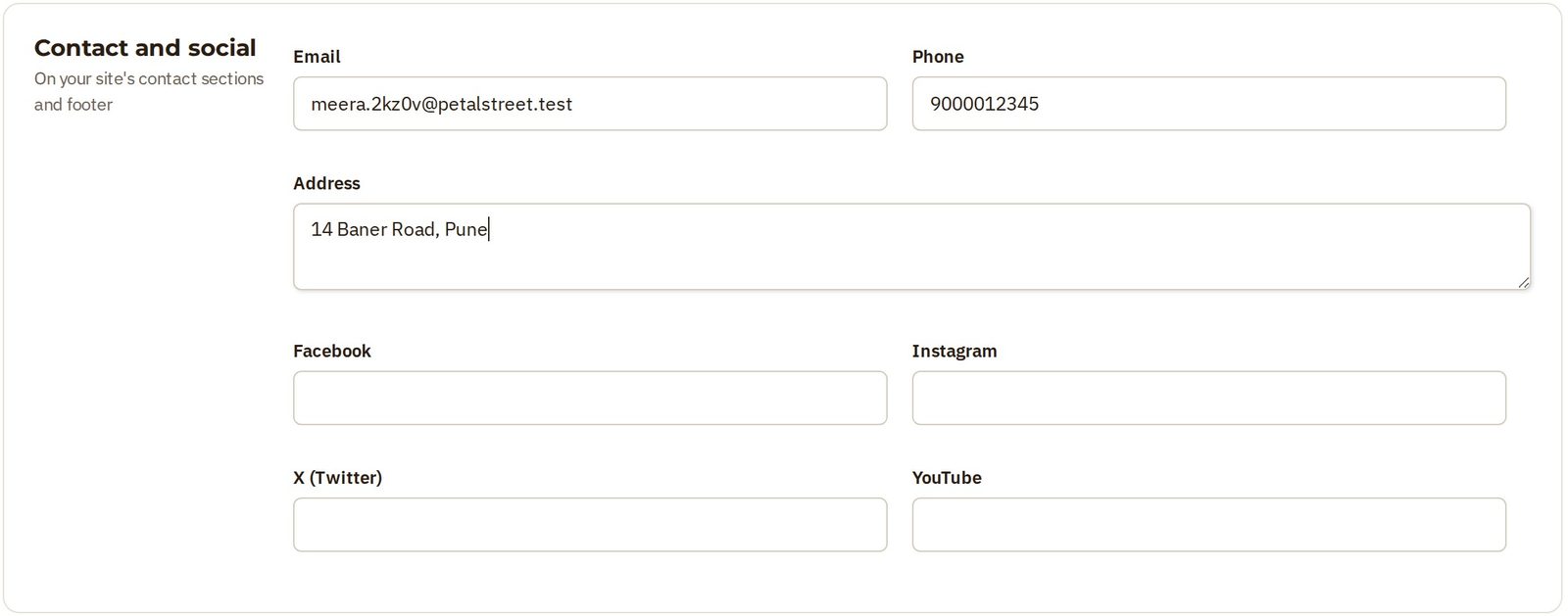
Further down, Contact and social is how people reach you. Your email and phone are here already.
- In Address, put your full address.
- Add the link to any social page you keep up, in Facebook, Instagram, X (Twitter) or YouTube. Petal Street added its Instagram page.
See it on your site
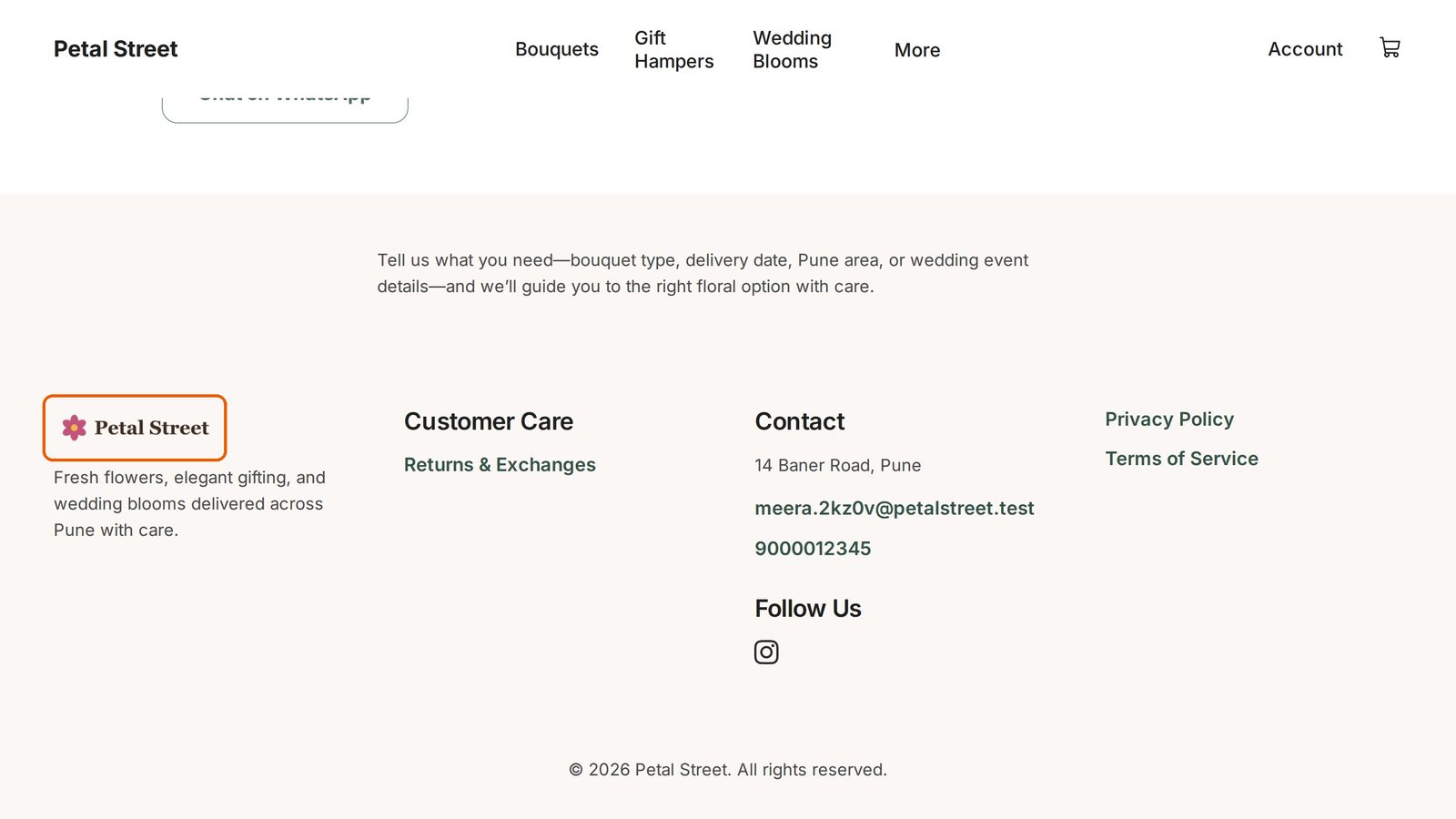
Open your live site the way a customer does, and scroll to the foot of the page. Your logo is there, with the address, phone and Instagram link beside it. There is nothing to publish.
At the top of the page, the site still shows your name in words, not the logo.
Was this tutorial helpful?
‹ Previous
Change your site by asking the assistantNext ›
Connect your own domainAI websites with native commerce. Pages, blog, store, payments and GST invoices in one place, built from a short description.
Start free for 14 days →© 2026 Opmiz · WriterBabu Online Services Private Limited. All rights reserved.
Prices in INR, before 18% GST · Made in Patna, India