YOU WILL LEARN
✓
Site, then Domain, on the Pro plan
✓
Add the two records where you bought the domain
✓
Your site stays on its address until the new one is ready
Your site starts on a free Opmiz address. When you are ready for an address of your own, you connect a domain you have bought, and customers reach your site there. Connecting a domain is part of the Pro plan.
In the screenshots, Petal Street, a flower studio in Pune on the Pro plan, connects a domain. The domain in the video is made up, so nothing real changes.
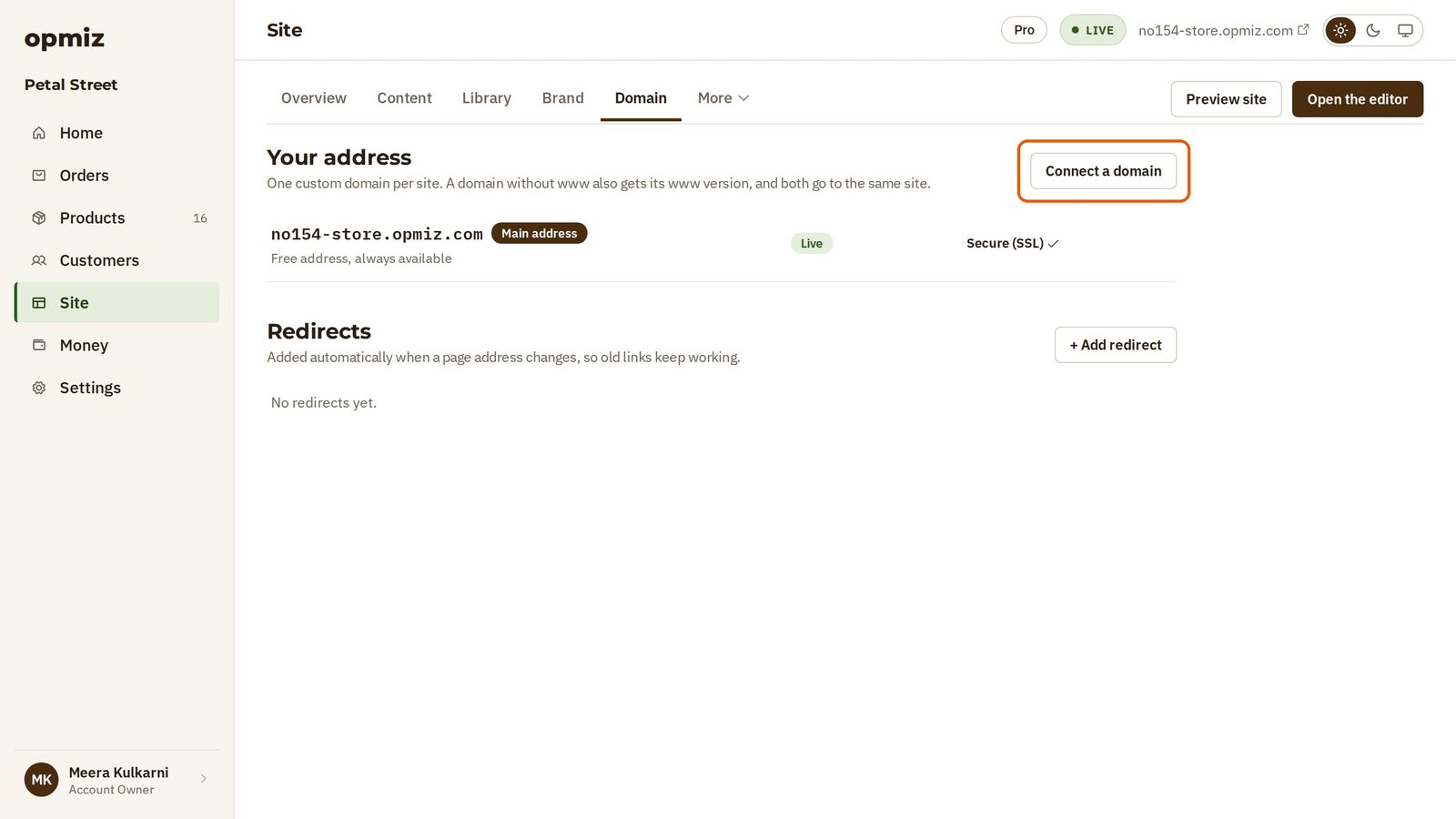
Your address today
- Open Site in the menu on the left.
- Open the Domain tab.
Under Your address is your free address, and it is live now. It stays available, whatever you do next.
Tell Opmiz your domain
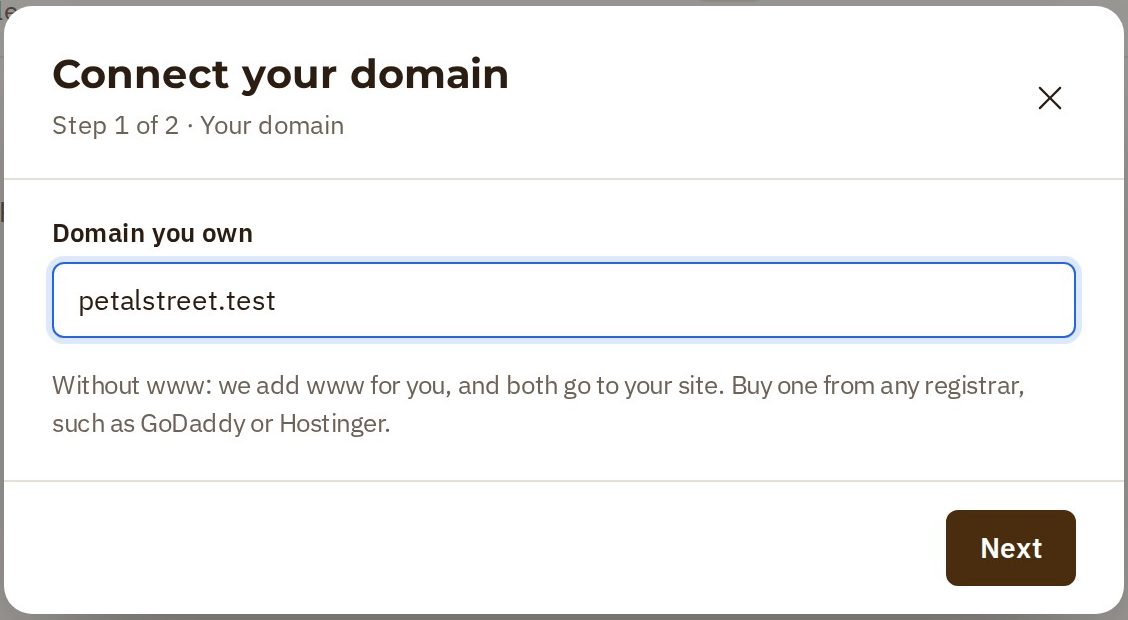
You need a domain you have bought already, from any registrar, such as GoDaddy or Hostinger.
- Press Connect a domain.
- In Domain you own, type your domain without the www. Opmiz adds the www version for you, and both go to your site.
- Press Next.
Add the two records
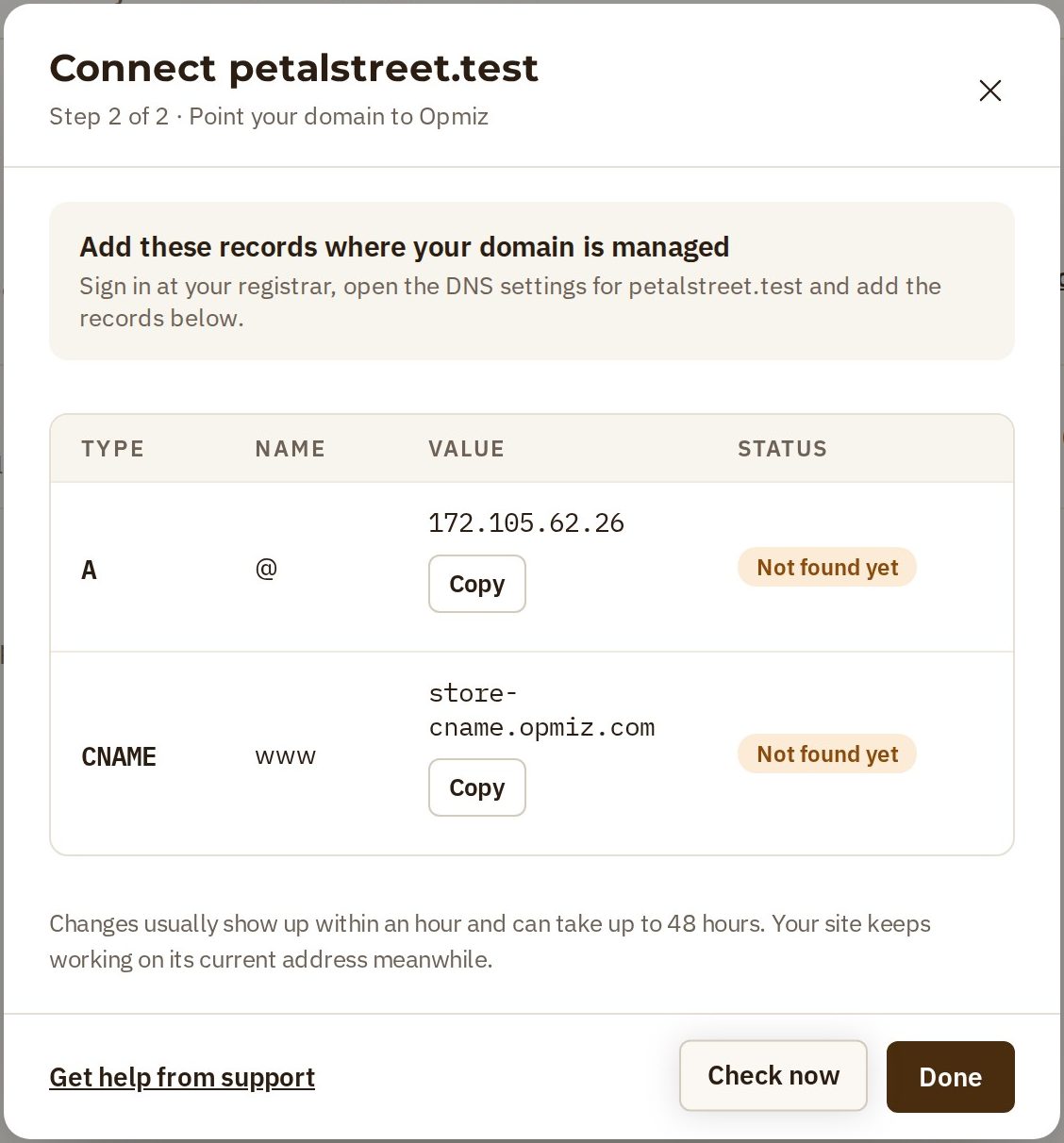
This is the one step that happens outside Opmiz. Two records tell the internet that your domain belongs to your site.
- Sign in where you bought the domain, and open its DNS settings.
- Add each record just as Opmiz shows it. For Petal Street they were:
| Type | Name | Value |
|---|---|---|
| A | @ | 172.105.62.26 |
| CNAME | www | store-cname.opmiz.com |
The Copy buttons next to each value save you typing.
Check the records
Come back to Opmiz and press Check now. Each record shows its status.
In the video it says Not found yet. That is right for a made-up domain, because nobody can add records for it. With a real domain, it usually takes less than an hour for the records to show, and it can take up to 48 hours. Your site keeps working on its current address meanwhile.
If you get stuck, Get help from support is right there in the same box.
While you wait
You don't need to keep this box open. Press Done.
Your domain now waits on the Domain tab, marked Connecting. It takes over when its records point at Opmiz. Until then, your site stays where it is. Press See records on that row whenever you need the records again.
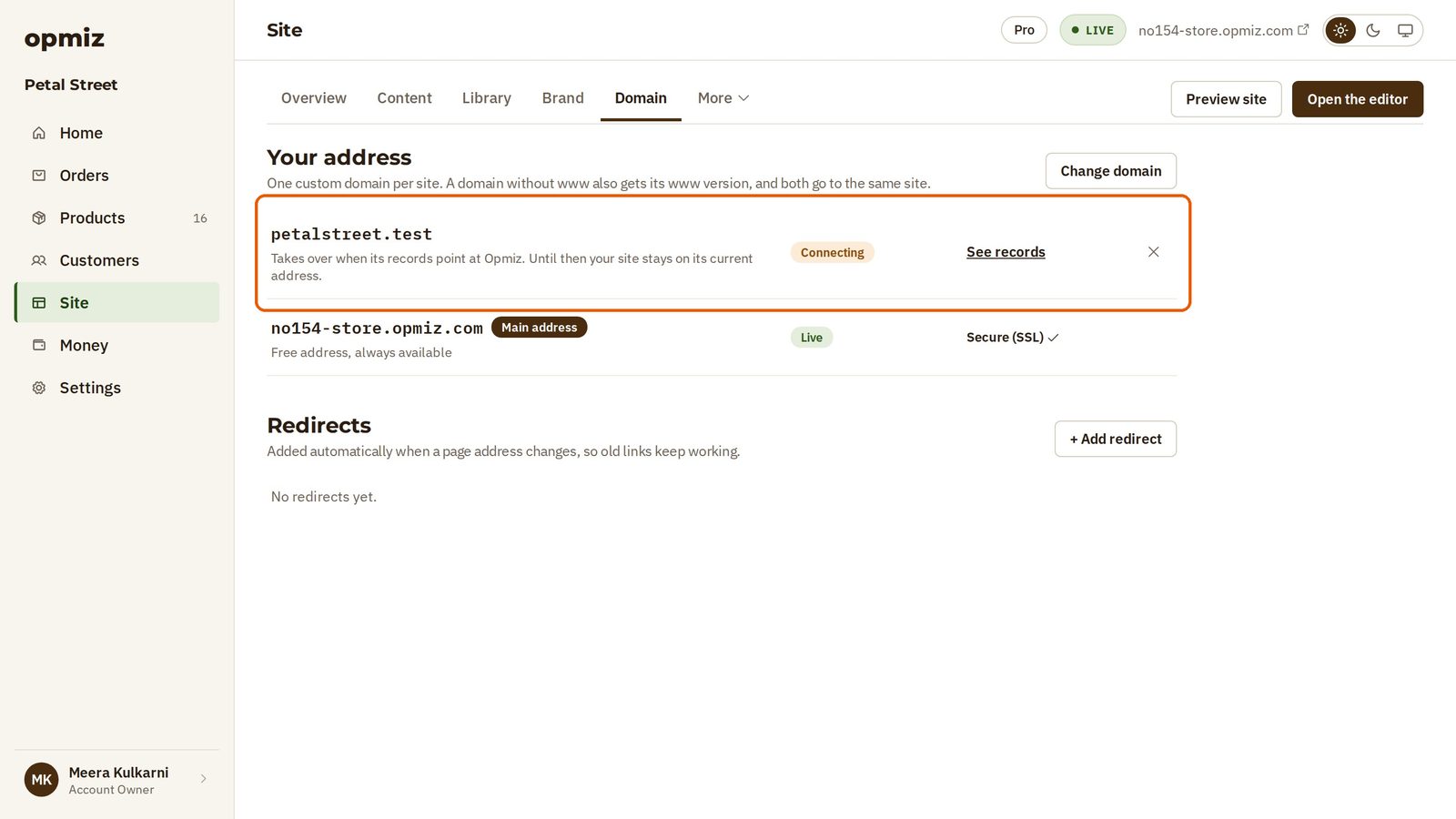
That is everything you do. The rest is waiting for the records to show.
Was this tutorial helpful?
‹ Previous
Add your logo and brand detailsIN THIS TUTORIAL
AI websites with native commerce. Pages, blog, store, payments and GST invoices in one place, built from a short description.
Start free for 14 days →© 2026 Opmiz · WriterBabu Online Services Private Limited. All rights reserved.
Prices in INR, before 18% GST · Made in Patna, India