YOU WILL LEARN
✓
GST summary and Sales by product to download
✓
Invoices emailed on the day you choose
✓
No dashboard access for your accountant
It's filing time, and your accountant wants the numbers. Opmiz has the reports ready to download, and it can also email your invoices to your accountant every month, so you don't have to remember. Your accountant gets what they need without access to your dashboard.
In the screenshots, Meera does this for Petal Street, a flower studio in Pune.
Download the reports
- Open Money in the menu on the left.
- Open the Reports tab.
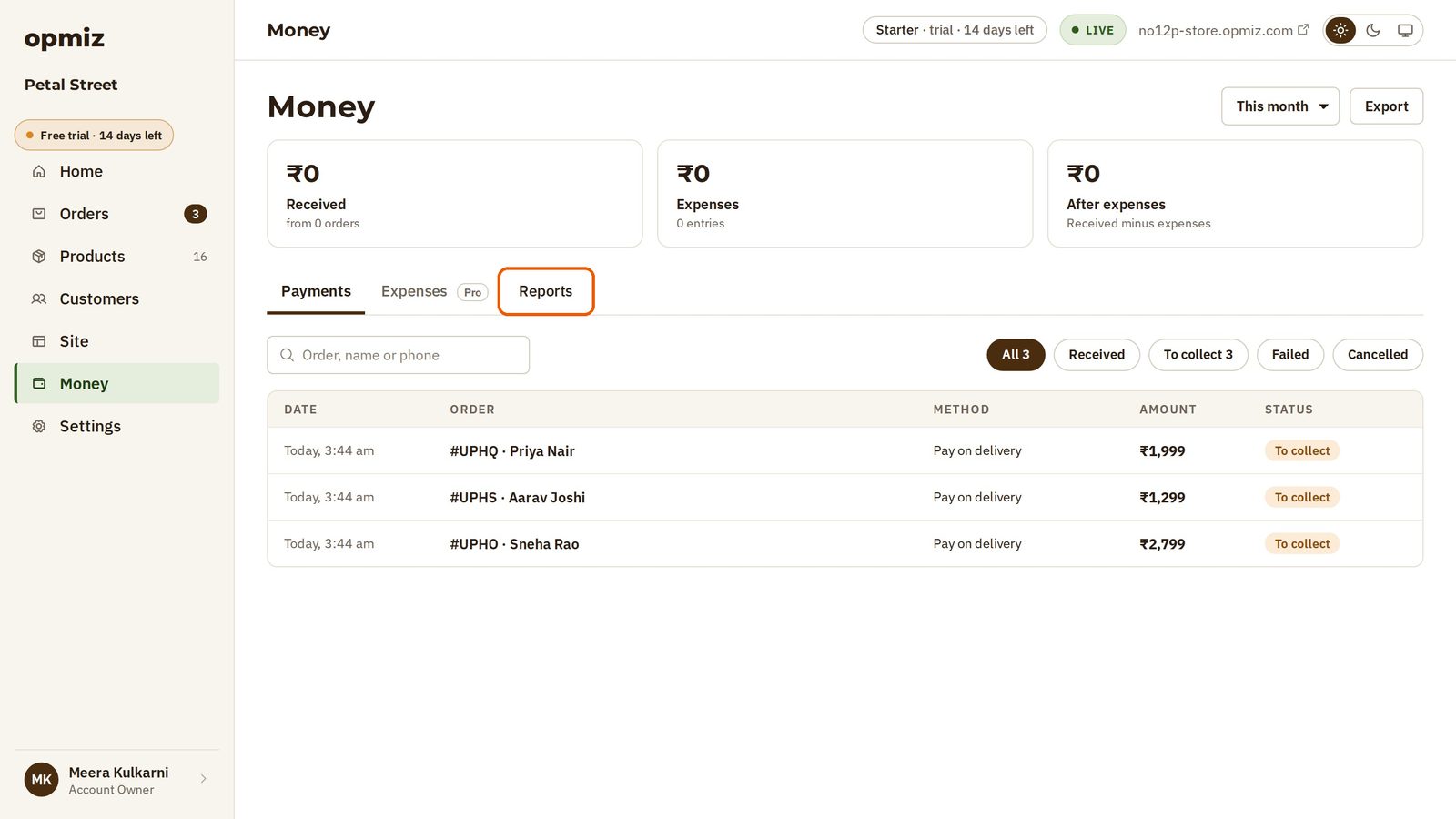
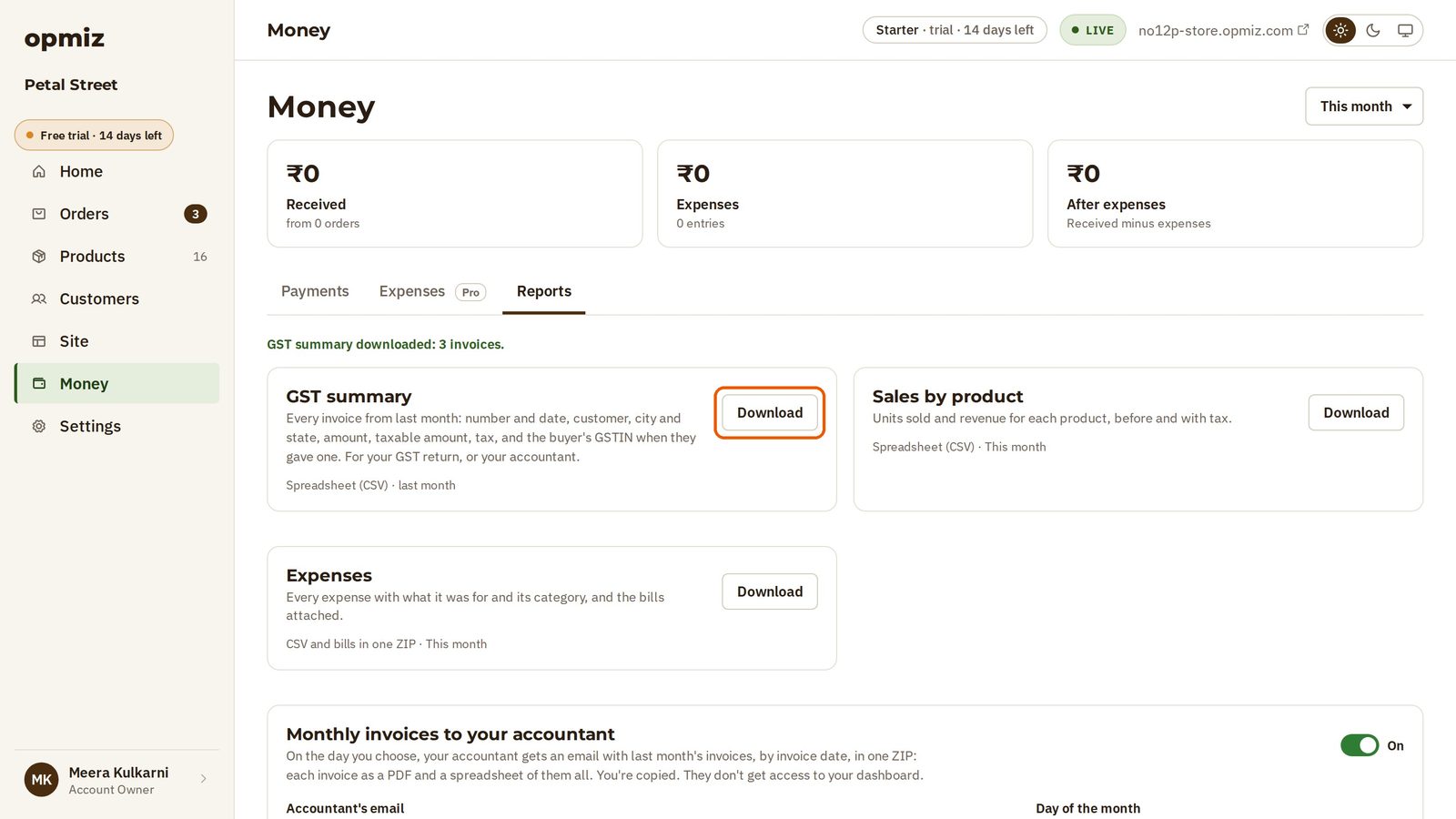
There are three reports:
- GST summary: every invoice from last month, with the customer, the amount and the tax. This is what your GST return is made from. Press Download to get it as a spreadsheet. Opmiz tells you how many invoices were in it. In the video, there were three.
- Sales by product: what you sold and what it brought in, for the period chosen at the top of the page.
- Expenses: every expense in one file, with the bills. Recording expenses needs the Pro plan, so on Starter this one stays empty.
Send invoices every month
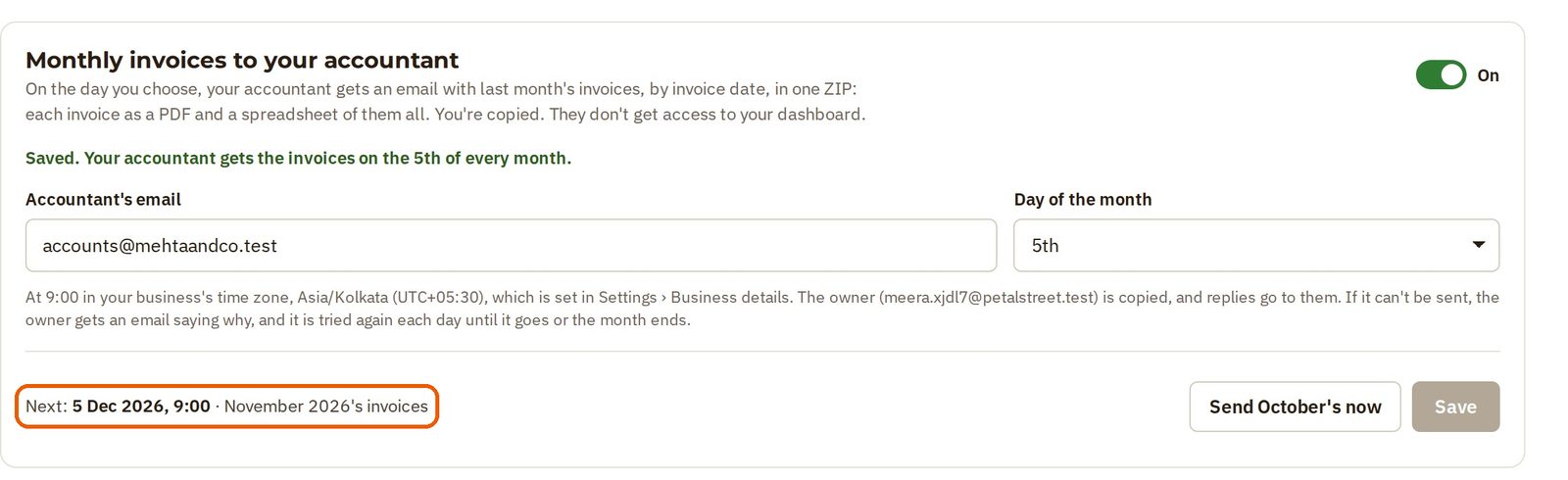
Better still, stop doing this by hand. Under Monthly invoices to your accountant, your accountant can get last month's invoices by email, every month. They come in one ZIP file, you are copied on the email, and your accountant does not get access to your dashboard.
- Type your accountant's email in Accountant's email.
- Choose a Day of the month.
- Press Save.
Opmiz confirms it is set. The email goes on the day you chose, at 9:00 in the morning, and the card shows when the next one will go.
That's it. The next time filing comes around, the invoices are already with your accountant.
Was this tutorial helpful?
‹ Previous
See what you've earnedIN THIS TUTORIAL
AI websites with native commerce. Pages, blog, store, payments and GST invoices in one place, built from a short description.
Start free for 14 days →© 2026 Opmiz · WriterBabu Online Services Private Limited. All rights reserved.
Prices in INR, before 18% GST · Made in Patna, India