YOU WILL LEARN
✓
Orders take stock off by themselves
✓
Adjust for deliveries, damage and shelf counts
✓
Low stock and Out of stock show what needs you
Few things are worse than selling something you can't make. Opmiz counts your stock down with every order, and you record the rest: deliveries, damage and shelf counts. At the end you have a number you can trust, and two lists that show what needs reordering.
In the screenshots, Petal Street, a flower studio in Pune, keeps count of its carnation posies.
Orders count themselves
Open Products. The Stock column shows how many of each product you have ready to sell.
Petal Street started with ten carnation posies. A shopper ordered one, so Opmiz took it off, and there are nine ready to sell. You did not have to do anything.
Flowers arrive
But deliveries come in, flowers wilt, and counts drift. For those, press Adjust next to the stock number.
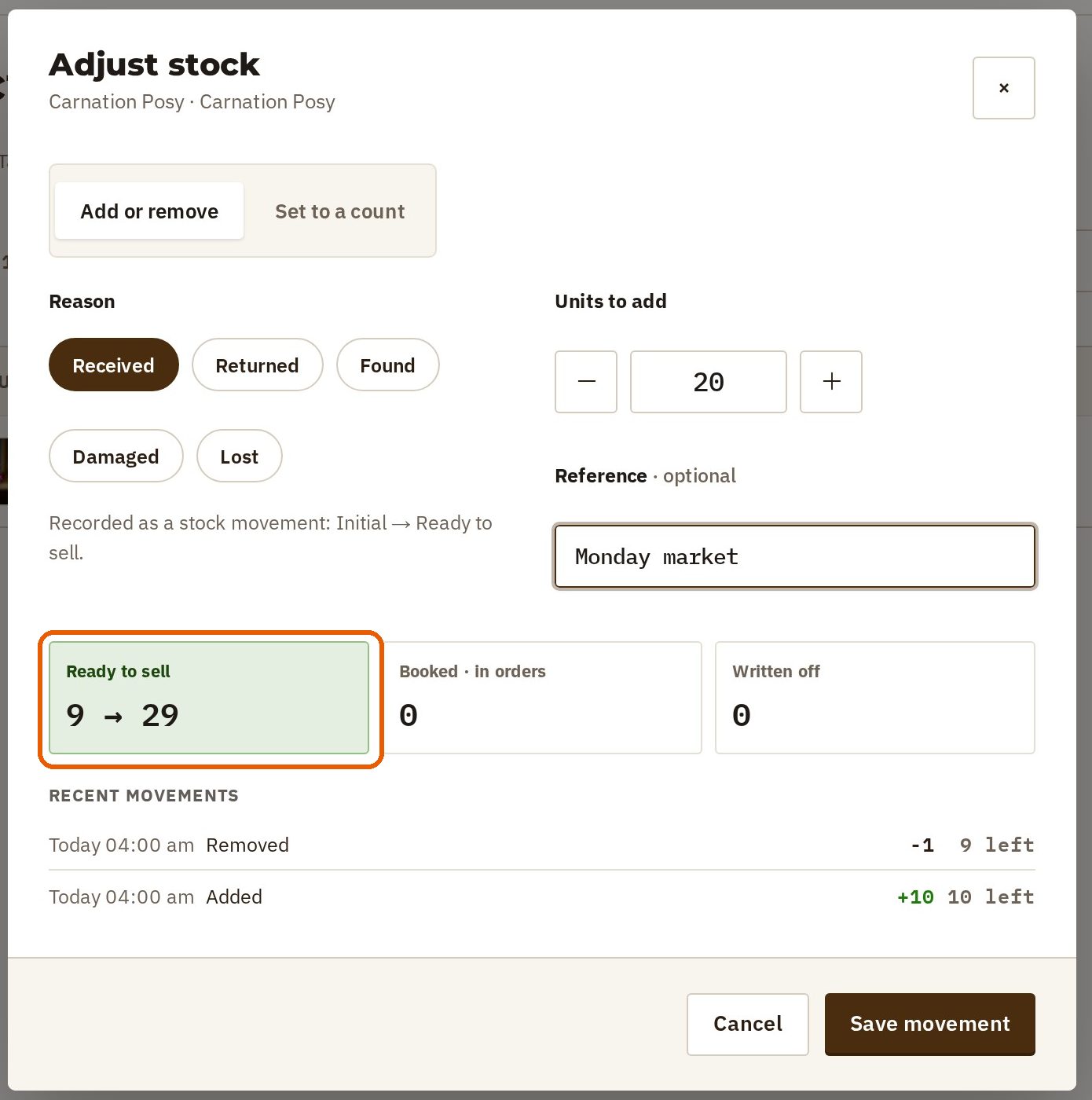
- Choose the reason. Twenty more posies came from the market, so the reason is Received.
- Type how many in Units to add.
- Add a note under Reference, such as "Monday market". A note helps you find this change later.
- Before you save, the Ready to sell box shows what the number will become: nine goes to twenty-nine.
- Press Save movement.
Flowers wilt
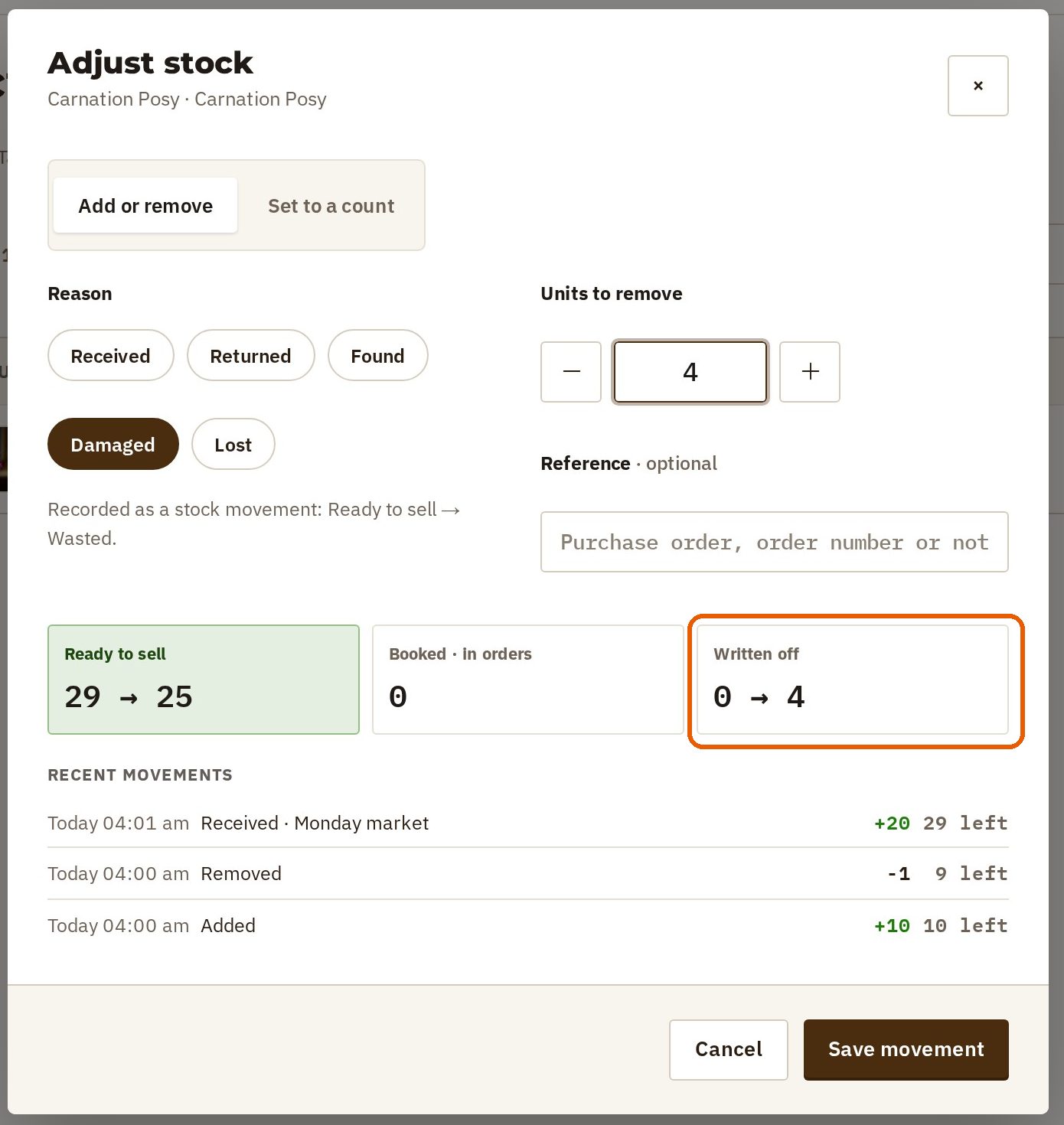
The next morning, four have wilted.
- Press Adjust again.
- Choose Damaged, because these are gone, not sold.
- Type 4, and press Save movement.
The four come off what you can sell. They are kept under Written off, so you can see what was lost.
The shelf disagrees
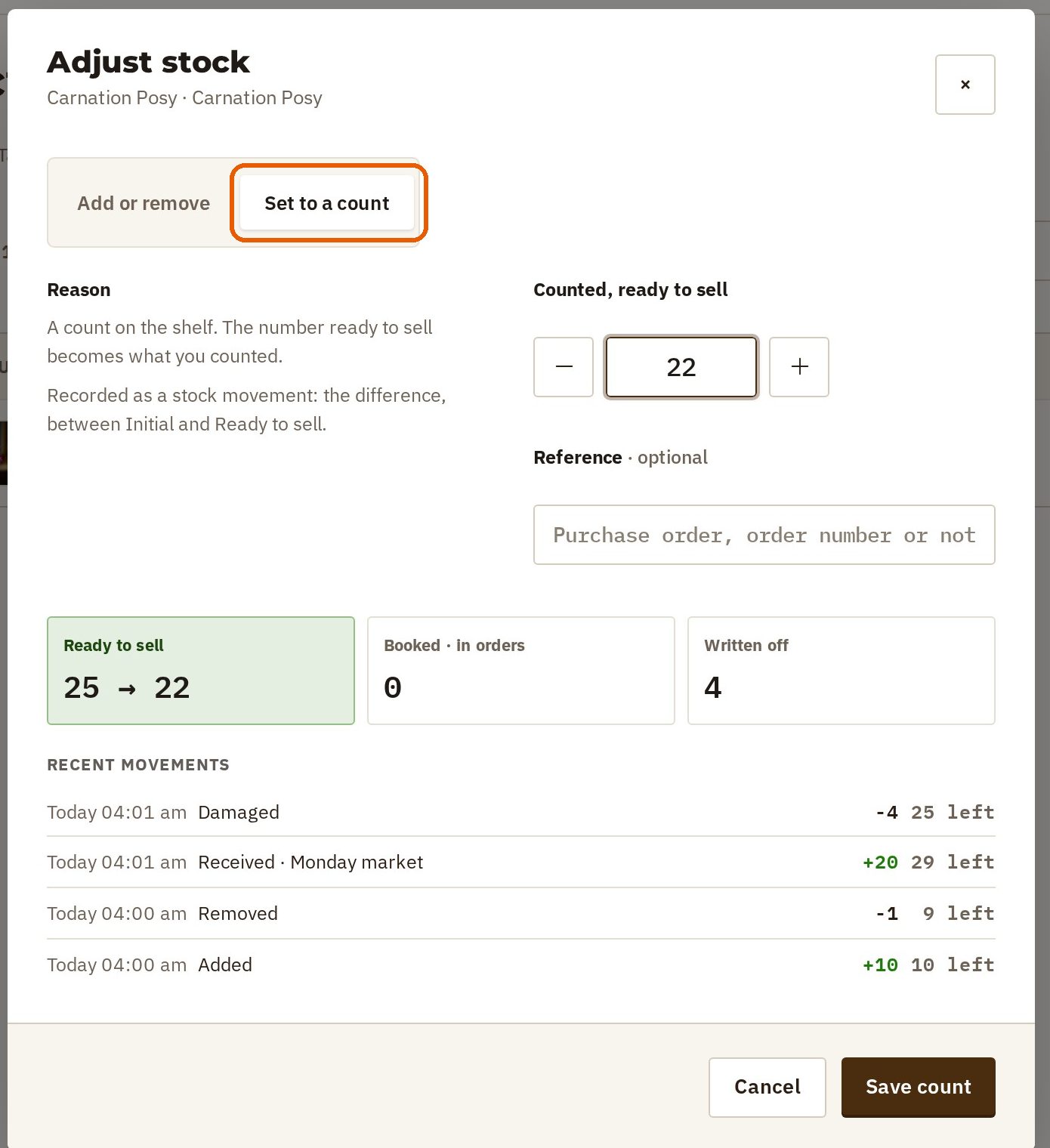
Sometimes you count the shelf, and the number is just wrong.
- Press Adjust, then Set to a count.
- Type what you counted. It becomes the new number ready to sell.
- Press Save count.
Every change is written down under Recent movements, so you can always see how you got to this number.
See what is running out
You don't have to check each row. Two tabs at the top of the Products page do it for you.
- Low stock lists what is running short. At first, low means ten or fewer, which can be nearly everything.
- To choose a number that suits your business, press Change in the bar above the list, type the number, and press Save. Petal Street sets it to five.
- Out of stock lists what has run out.
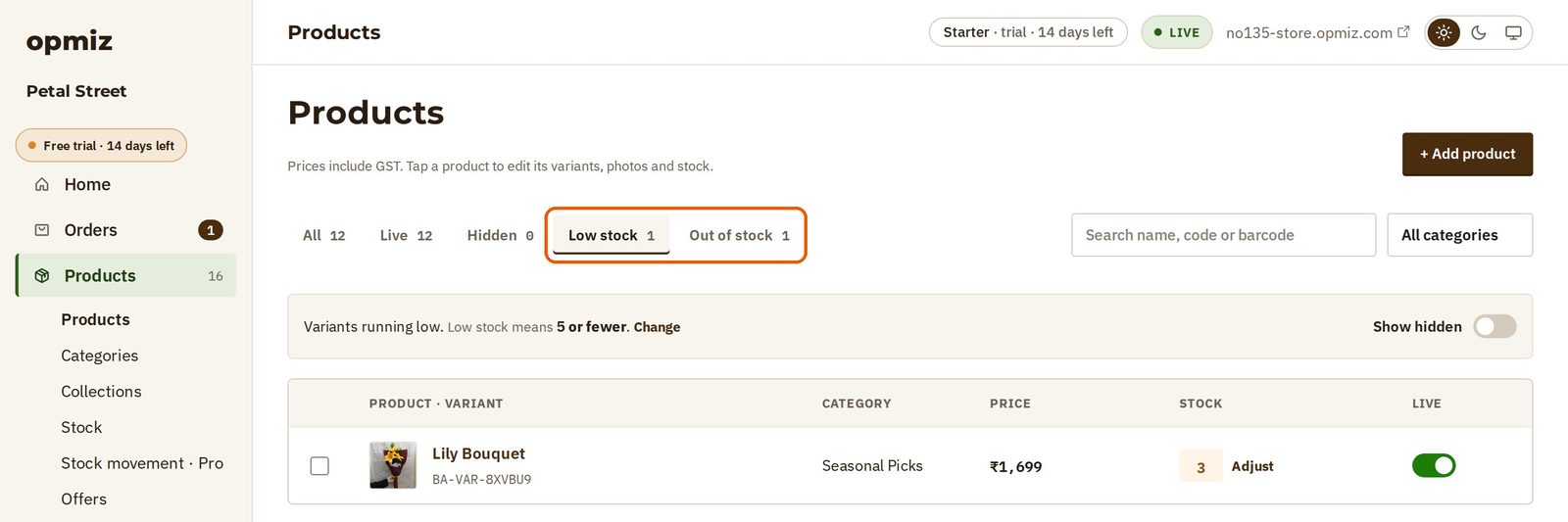
With the level at five, only the lily bouquet shows, with three left. That is the one to reorder.
What a shopper sees
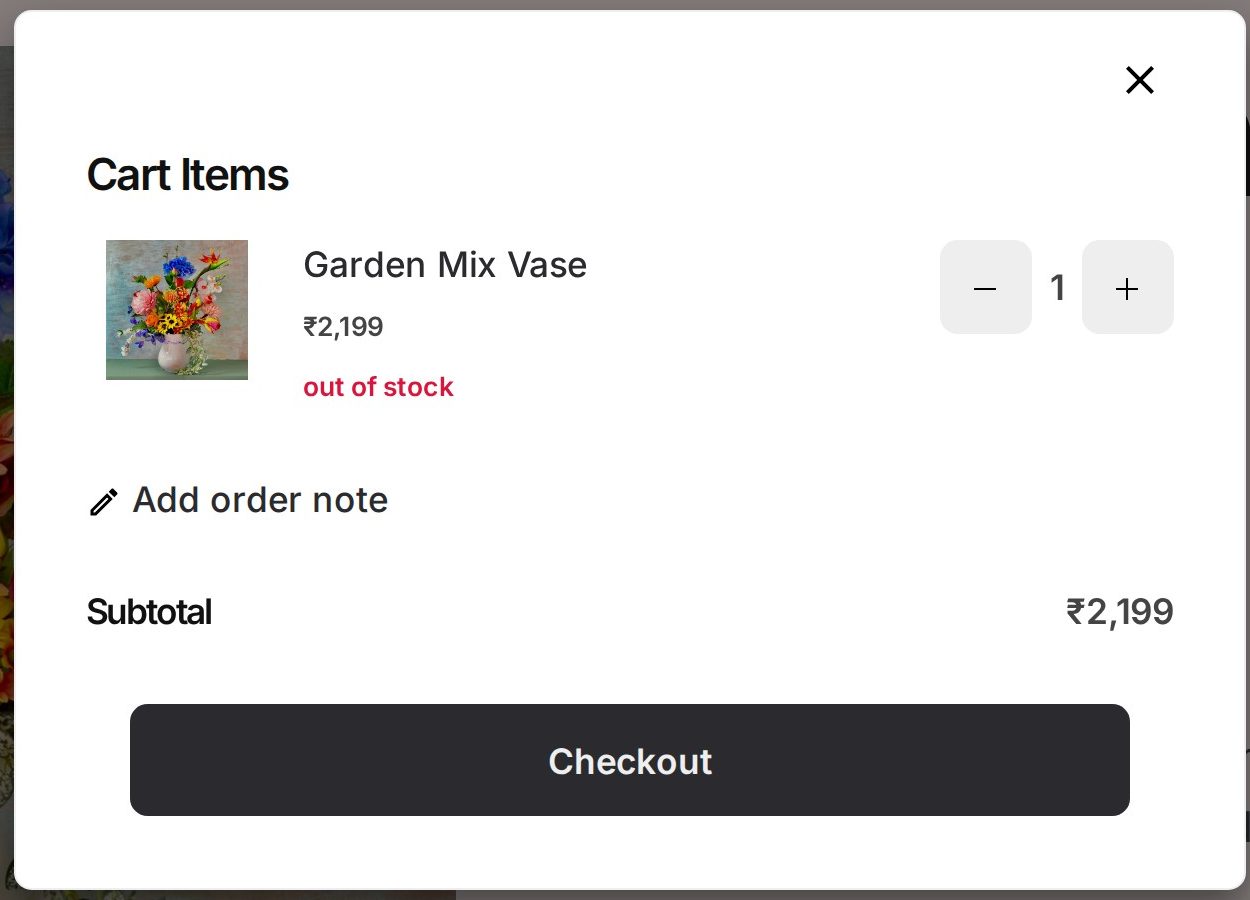
When a shopper adds a product that has run out, the cart tells them straight away that it is out of stock.
Which plan
Everything on this page works on the Starter plan. The separate Stock and Stock movement pages in the Products menu need Pro.
Check the Low stock and Out of stock tabs every morning, and you will know what to order before you run out.
Was this tutorial helpful?
‹ Previous
Products with sizes and coloursIN THIS TUTORIAL
AI websites with native commerce. Pages, blog, store, payments and GST invoices in one place, built from a short description.
Start free for 14 days →© 2026 Opmiz · WriterBabu Online Services Private Limited. All rights reserved.
Prices in INR, before 18% GST · Made in Patna, India