YOU WILL LEARN
✓
One code anyone can use at checkout
✓
Check what shoppers get before you save
✓
Pause it when the festival is over
A festival is a good reason to give your customers something back. A discount code is one code your customers type at checkout to get money off. At the end you have a code running on your store, and you can pause it when the festival is over.
In the screenshots, Petal Street, a flower studio in Pune, makes a 10% code for Diwali.
Make the offer
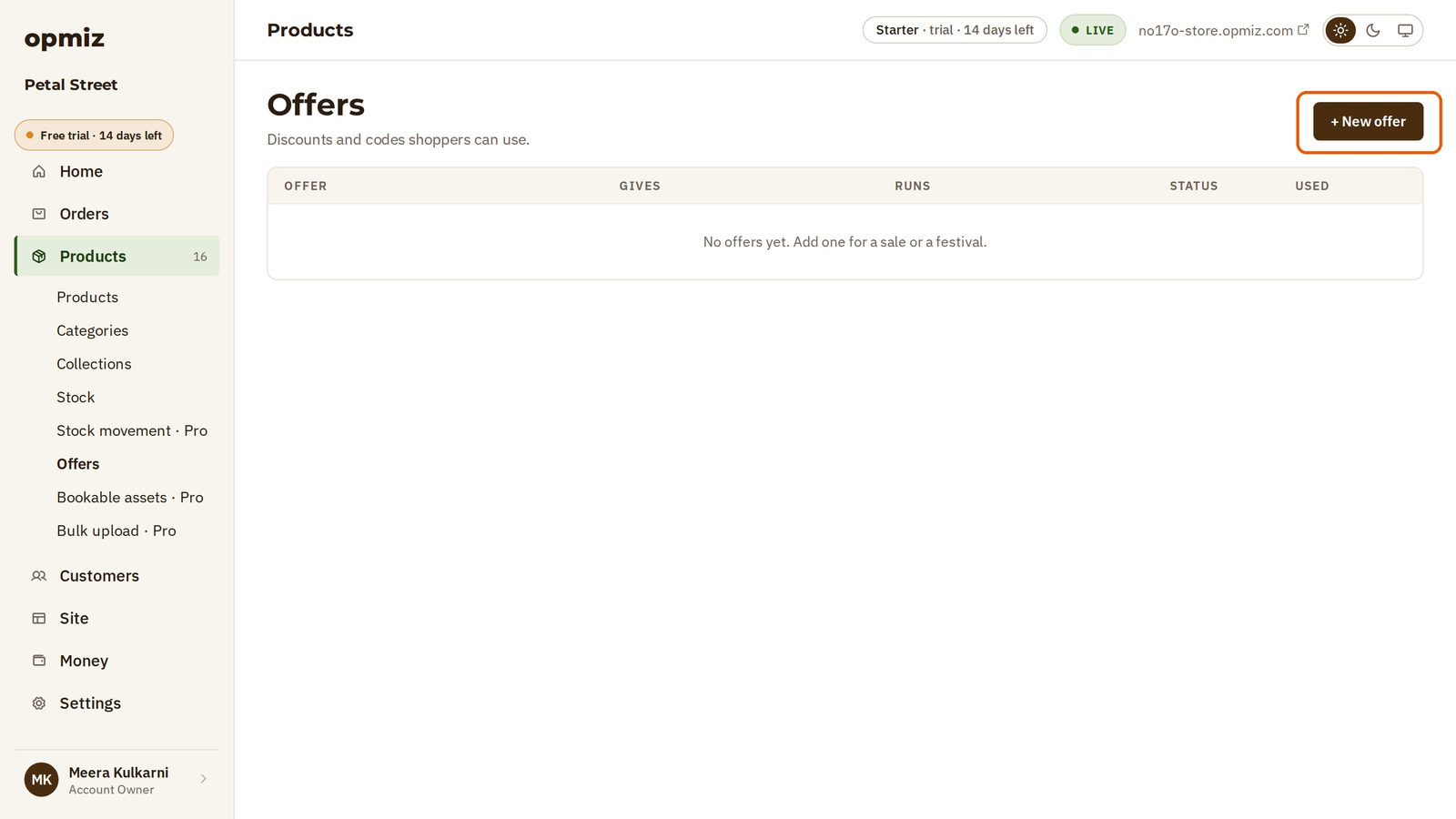
Discounts live under Offers, in the Products part of the menu on the left. If you have none yet, the page says so.
- Open Offers.
- Press + New offer at the top right.
- Name: a name for you, such as "Diwali offer". It shows in your list of offers.
- Tagline: a short line that shoppers read when the code is applied, such as "10% off this Diwali".
- Description: a line or two about the offer.
What the customer gets
- Type: how the offer reaches people. Choose Common Coupon Code: one code that anyone can use.
- Discount: choose Percentage Off for a percentage off the price.
- Discount value: the size of the discount. Petal Street types 10.
- Scope: Cart means the discount comes off the whole order.
- Code: the code your customers will type, such as DIWALI10.
- Applies to: On all products.
The form also has Minimum order, Most it takes off and Paused (with Yes and No choices). Petal Street leaves them as they are.
The What shoppers get box on the right says the offer in plain words, with an example. Read it before you save, to check the offer is what you meant.
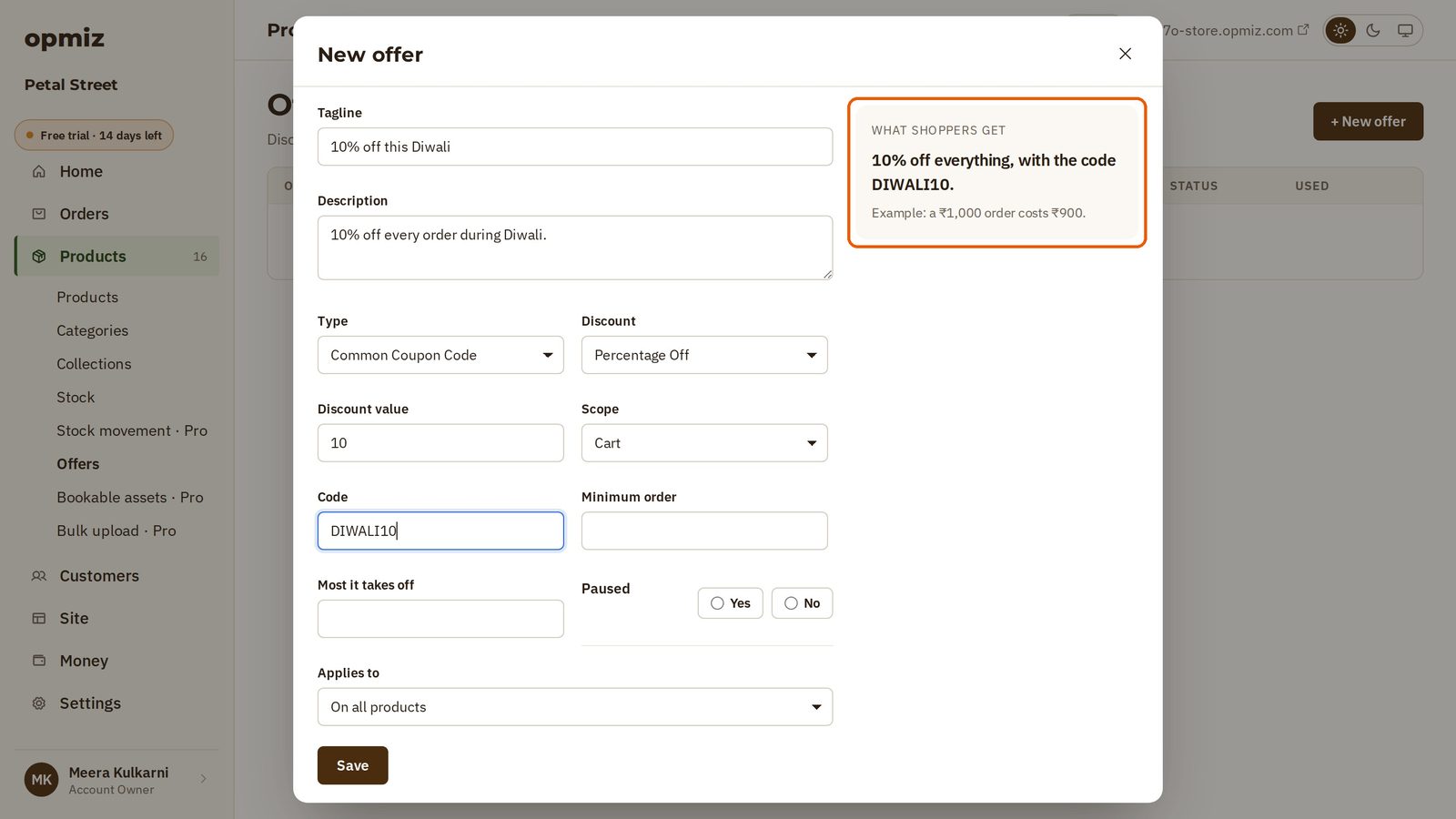
Press Save. The offer is live, and it runs until you pause it. Now share the code with your customers, for example in a post.
The shopper uses it
In the video, Aarav has seen Meera's post and wants a lily bouquet. He adds it to his cart and goes to checkout.
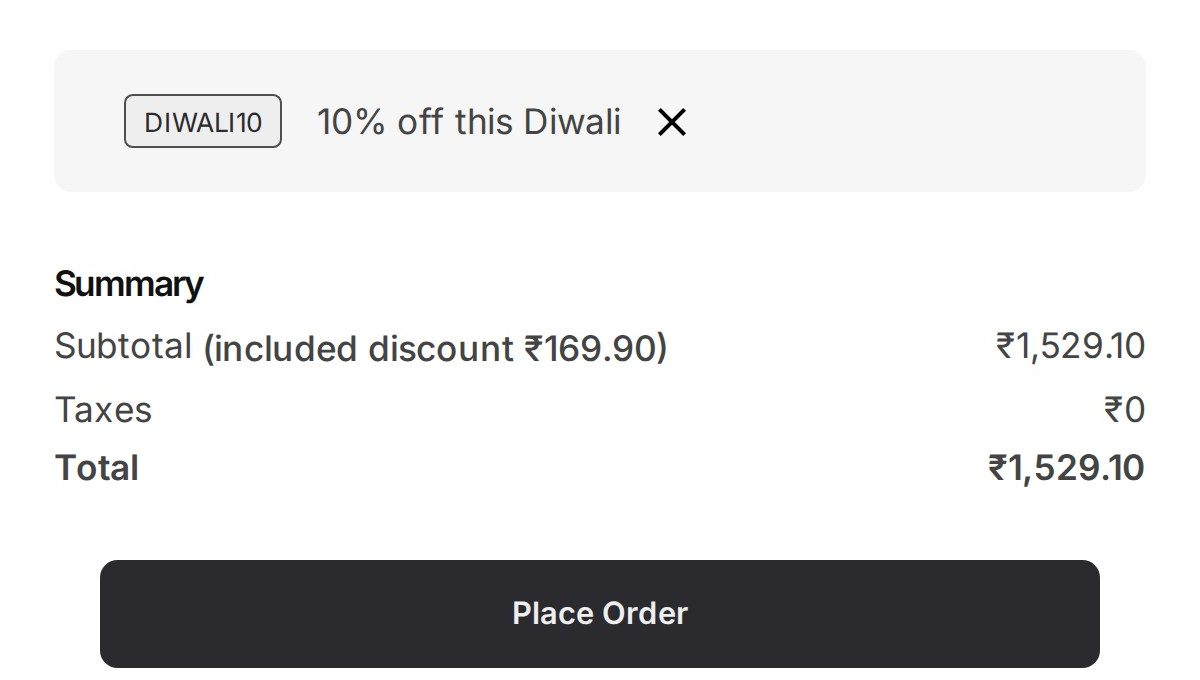
- At checkout there is a box for a code. He types DIWALI10.
- He presses Apply.
The discount comes off straight away. The summary shows how much he saved, before he pays anything. Then he presses Place Order.
Stop it when the festival is over
Back on Offers, the code stays live for every shopper until you stop it.
- Open the offer from the list.
- Turn Paused on. In this form it shows as a switch.
- Press Save.
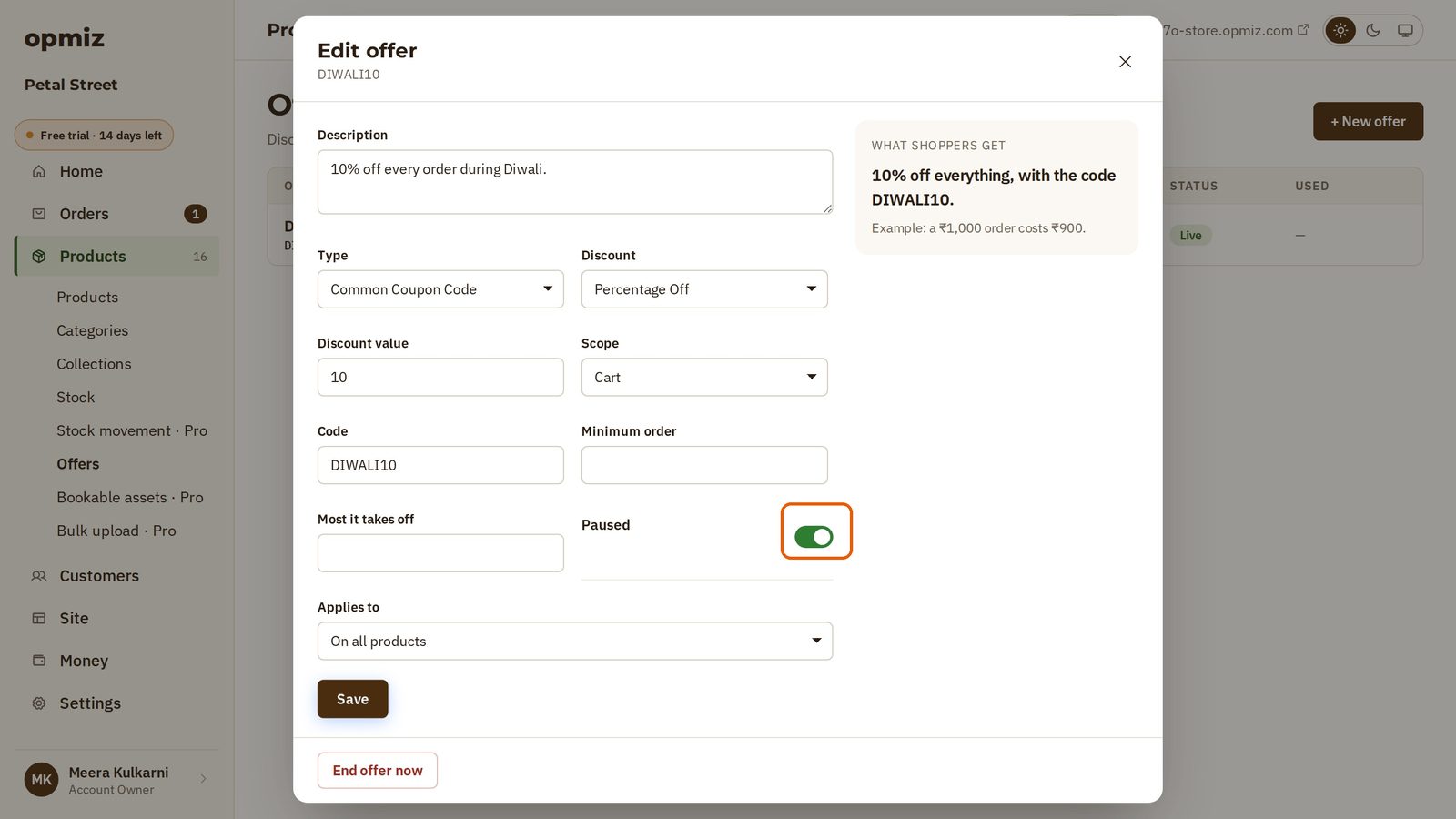
The code stops working. The offer stays on your Offers page with the status Paused, ready for next year.

Was this tutorial helpful?
‹ Previous
Group products into collectionsAI websites with native commerce. Pages, blog, store, payments and GST invoices in one place, built from a short description.
Start free for 14 days →© 2026 Opmiz · WriterBabu Online Services Private Limited. All rights reserved.
Prices in INR, before 18% GST · Made in Patna, India