YOU WILL LEARN
✓
Click outside the page, then Ctrl+Z for small slips
✓
Save a checkpoint before a bigger change
✓
Revert to this point in History to go back
Everyone changes something they wish they hadn't. The website builder gives you two ways to step back: undo for small slips, and checkpoints for bigger changes. With both, you can try things without worrying.
In the screenshots, Petal Street, a flower studio in Pune, works on its home page.
Undo your last change
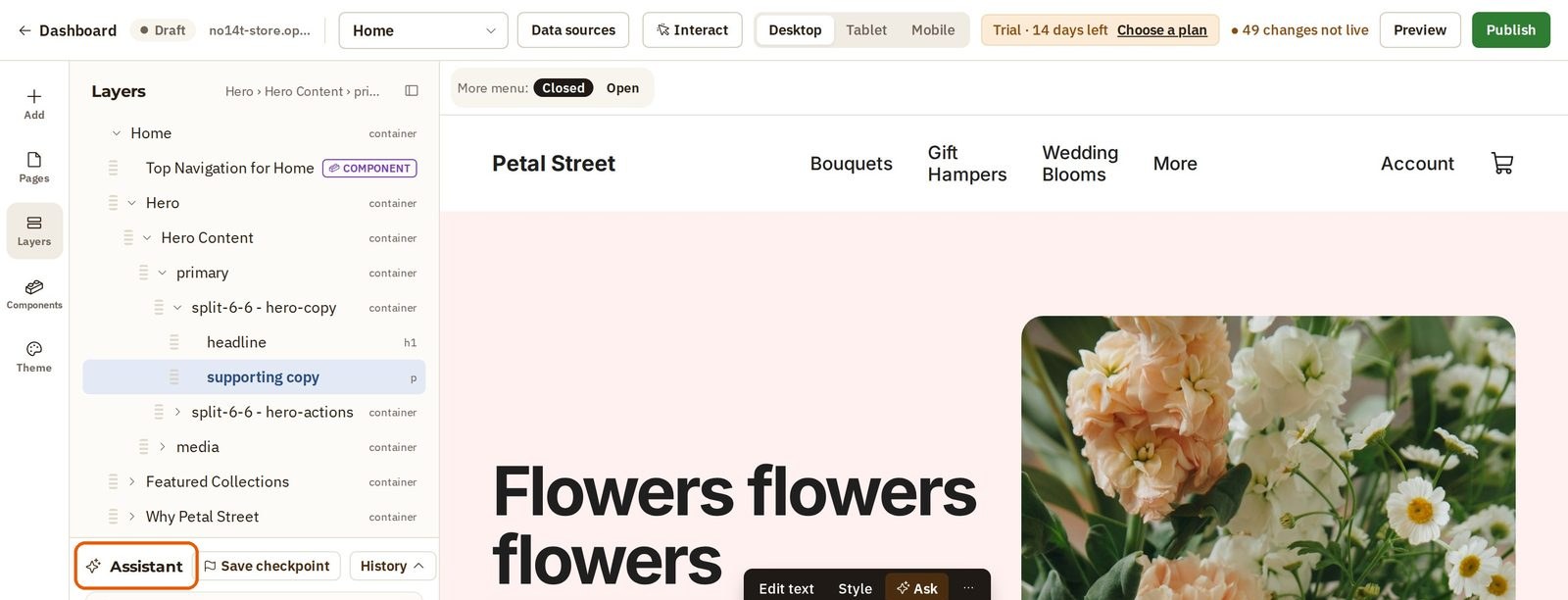
Say you type over your headline by mistake, and then hide the paragraph under it as well.
- First click outside the page, anywhere on the panel on the left. In the video, it is the word Assistant.
- Then press Ctrl and Z. On a Mac, press Command and Z.
The hidden paragraph is back. Each press goes one step further back, so press Ctrl and Z again and your headline returns.
Save a checkpoint
Undo is for small slips. Before a bigger change, save a checkpoint. It is a snapshot of your whole site that you can come back to.
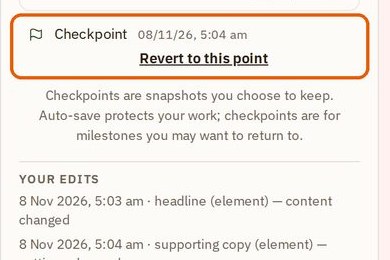
- Press Save checkpoint on the left panel.
- Press History to see it. Your checkpoint is listed with the time you saved it.
Try something bigger
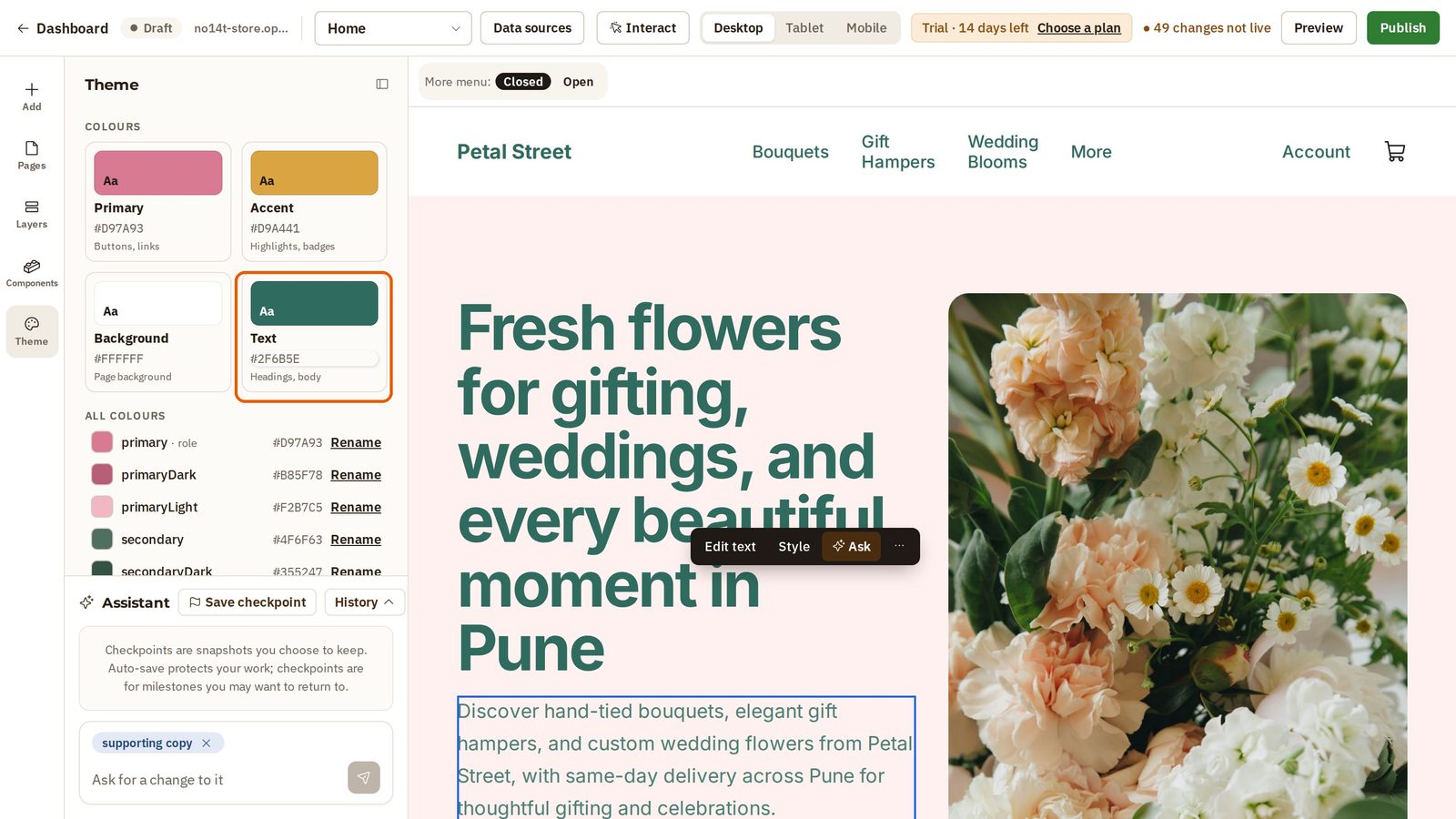
Now you can experiment. Petal Street changes the colour of all the text on its site.
- Press Theme on the left.
- Under Colours, change the Text colour.
Every heading and paragraph is green now.
Go back to your checkpoint
Not what you wanted? Go back to your checkpoint.
- First, refresh the page in your browser. Your draft is saved, and a checkpoint needs a fresh page before it offers the way back.
- Press History and find your checkpoint.
- Press Revert to this point under your checkpoint.
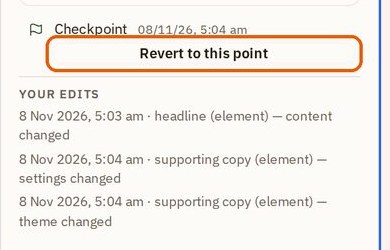
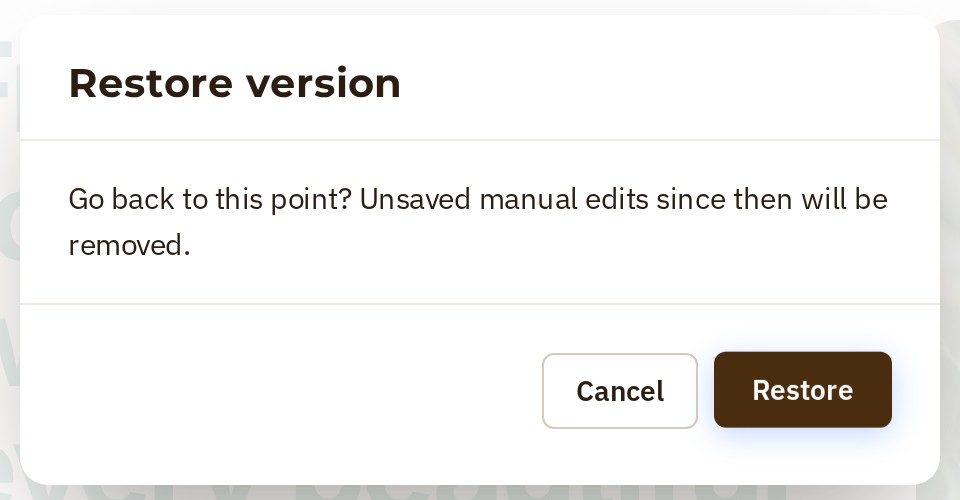
- Opmiz asks first, because everything you have done since then will be removed. Press Restore.
Your text is dark again, just as it was when you saved your checkpoint.
Was this tutorial helpful?
IN THIS TUTORIAL
AI websites with native commerce. Pages, blog, store, payments and GST invoices in one place, built from a short description.
Start free for 14 days →© 2026 Opmiz · WriterBabu Online Services Private Limited. All rights reserved.
Prices in INR, before 18% GST · Made in Patna, India